


STEP 5: Connect lead collection app
Last Updated: Dec 9, 2025
Email marketing remains one of the most powerful revenue drivers for any online business. No one sends individual emails manually anymore. Modern businesses rely on automation that sends the right message at the right time, without time-consuming manual work. Bodygraph supports this workflow through a range of app integrations that allow you to collect leads, capture data beyond a simple email address and automate entire customer journeys.
Below is a complete overview of how Bodygraph’s integrations work, what data is captured, the differences between apps, how to correctly set up your connection and the most common pitfalls to avoid.
Why Email Collection Matters
Once you enable the email field inside your chart integration design, you begin collecting leads automatically. These submissions appear in Statistics, where you can view the client’s name and email.
Key points:
Statistics exist for performance tracking – charts generated, PDF downloads, free report downloads and paid report activity.
Data inside Statistics is stored for 90 days only.
You can export the name and email manually, but deeper data such as date of birth, chart URL, type or profile is not stored and cannot be exported.
If you are currently sending emails manually, you may export data periodically. However, manual exporting is inefficient, unreliable and not scalable. This is where app integrations become essential.
Two Integration Categories
1. Data Storage Apps
Bodygraph integrates with Airtable and Notion.
These platforms work as whiteboards or structured databases where users can:
Track clients and their chart details.
Create workflows or reminders.
Store additional notes or business processes.
These platforms are rarely used for newsletter automation. They serve more as organized dashboards for internal data management.
2. Newsletter Apps
These are the most commonly used integrations because they automate email marketing. Bodygraph supports several major platforms, such as:
- Kit
MailerLite
Mailchimp
ActiveCampaign
Brevo
Systeme
and much more.
These apps differ in what their APIs allow Bodygraph to push through. Some can collect full custom fields and tags, others only partial data.
What Data Can Be Collected Automatically
The exact data depends on the newsletter app’s API. Bodygraph always attempts to send the full available dataset, but the final result depends on the app. All apps will collect name and email of the client by default.
additionally some of the apps will collect Custom fields
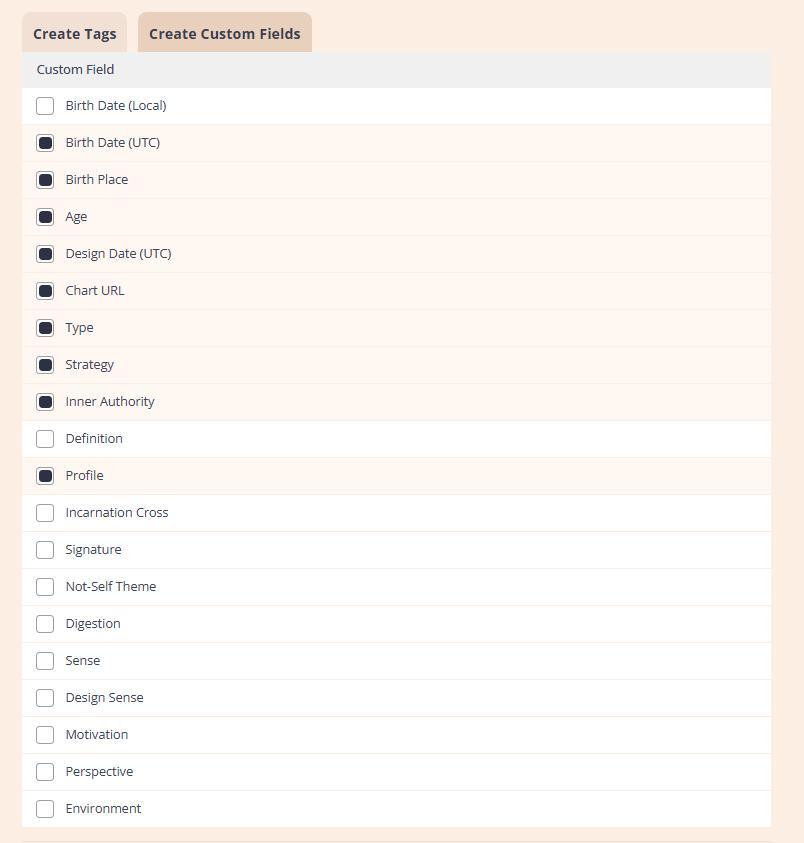
- and some of the apps also will allow to collect tags
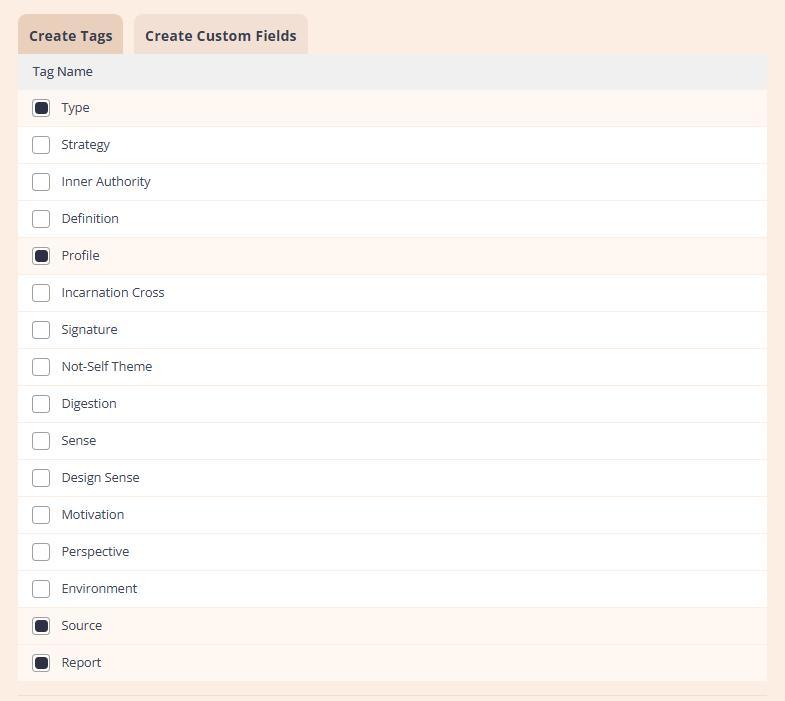
- and some apps will collect both.
How Personalized Data Enhances Email Marketing
Once custom fields and tags appear inside your newsletter app, you can:
Insert the client’s chart URL directly into the welcome email.
Mention their type or profile inside automated sequences which makes emails sound very personal.
Trigger sequences based on activity such as downloads or purchases (if app supports report tagging).
Create dynamic journeys. For example:
Freebie downloaded → sequence to encourage purchase of full report.
Report purchased → sequence inviting the client to book a session.
This level of automation converts leads into paying customers with minimal manual involvement.
Choosing the Right Newsletter App
If you are just starting:
Most apps allow free accounts.
Many allow 100–300 manual emails per month without charge.
All major apps offer CSV exports, meaning you can migrate later if needed.
Examples of free-tier options:
Kit
Mailchimp
MailerLite
Brevo
Systeme
Be aware that some apps limit tags or custom fields depending on subscription tier. Example – Systeme free plan allows only one tag collection. therefore it is important to choose the platform that will serve your business needs the best.
Important Setup Requirements in Bodygraph
1. Follow the Help Center Guides
Inside the Help Center, you will find:
Visual step-by-step articles.
A dedicated section for newsletter apps.
Video tutorials for each integration.
2. Email Field Must Be Enabled
Without the email field, no data is sent. The connection will not function even if the integration appears connected.
3. Use the Correct Design
Ensure the email field is enabled in the design assigned to the embed code you placed on your website.
4. “Remember visitor and hide email field for 14 days”
This prevents duplicate overwriting when clients run charts repeatedly for family or friends. Not all newsletter apps support data overriding, so testing is essential.
Common Mistakes to Avoid
1. Incorrect or incomplete credentials
Missing API keys, secret keys or required URLs will break the connection.
2. Email field disabled
Integration will not work without the email field present in the assigned design.
3. Forgetting to enable the integration in the embed code
The red or green indicator only shows if the app is enabled inside the embed code – not whether the connection is fully completed.
4. Confusing multiple integrations
If you separate astrology, human design, transits or other categories, name each app connection clearly to avoid mix-ups.
5. Using API keys with expiration or restrictive settings
Many apps allow:
Expiration dates
IP restrictions
Location restrictions
Disable restrictions or create non-expiring API keys and required credentials to prevent connection failures.
6. Sending test data before completing the setup
Test data will fail unless:
All fields are completed
Lists are selected
Custom fields or tags are selected
7. Relying on the app without understanding its API limits
Some apps do not support tags. Others cannot override existing data. Always test with multiple chart submissions using the same email and different email fields to test app performance.
Frequently Asked Questions
Can I request an integration that is not on the Bodygraph list yet?
You can contact support@bodygraph.com, but integrations require in-depth development. Approval depends on:
Whether the third-party app has a public API.
Whether the API allows the required data.
Whether the API is free of regional or residential restrictions.
If your app supports webhooks or Zapier, you can use Zapier or Make.com as a bridge to pass through the data.
Why can’t my app collect tags or custom fields?
Because the app’s API does not support it. Bodygraph sends all possible data, but the receiving app decides what it accepts.
Why did the integration stop working?
Third-party platforms update their APIs frequently. Bodygraph cannot control external changes, restrictions or outages.
It is the responsibility of the user to:
Follow update notifications from their chosen app.
Review any API or security changes.
Can I collect copies of downloaded or purchased PDF or audio reports?
No. Bodygraph only sends:
Data from the submission form.
Tags indicating report download or purchase.
Actual report content is never transmitted.
Who is responsible for data collected through integrations?
Bodygraph subscribers are responsible for:
How data is collected.
What is done with it after it reaches the third-party app.
Compliance with privacy laws.
Also check video tutorial below:
Still have questions? Is above guide outdated? Please message us on Live Chat or send an email to support@bodygraph.com.

All the Tools You Need to Build, Grow, and Scale Your Human Design and Astrology Business

