


STEP 3: Customize Chart Language
Last Updated: Dec 9, 2025
Language customization is one of the most powerful features within Bodygraph.com. It allows you to refine chart outputs, integrations, and reading reports so they fully match your brand voice and your audience. This guide walks through everything you can adjust, how to create custom languages, how imports work, and the most common mistakes to avoid.
Languages Available by Default
When you start your subscription, your account includes a list of pre-built languages. These are available for:
• Chart integrations
• Reading reports
• Backend Generate Charts tool
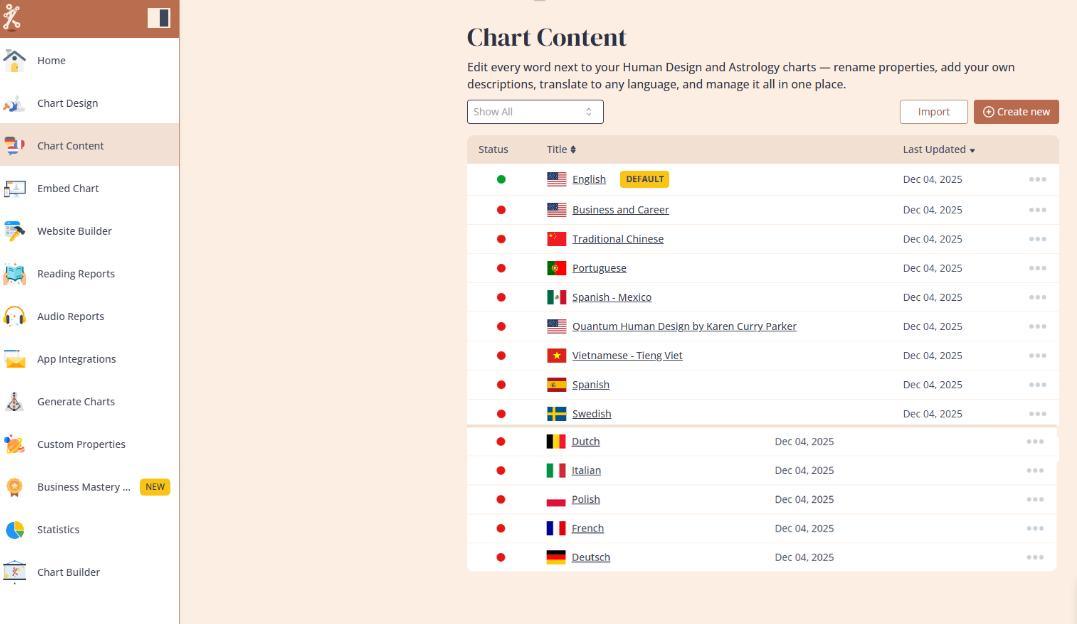
You can use them immediately or customize them to fit your business.
Where Language Settings Live
All language editing happens inside Chart Content Tool.
Each language includes:
• Labels for every property
• Descriptions for chart elements
• Birth data submission form labels
• Button wordings
• Copyright texts
• All small interface labels and full property descriptions
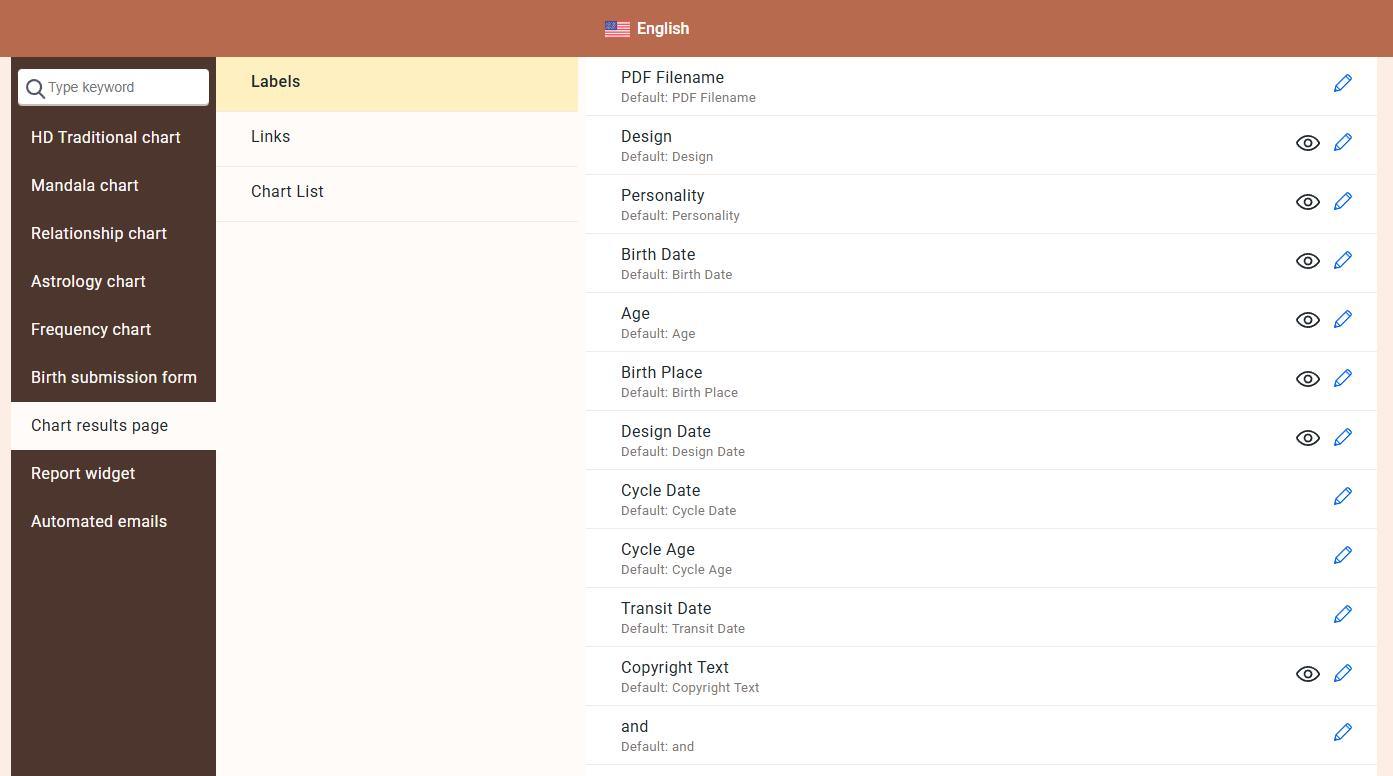
Everything you see at the chart result page or within dynamic report content originates here.
Editing and Customizing Languages
Editing Inside the Interface
Click any language inside Chart Content Tool and edit the fields manually using the pencil icon. All changes apply only to your account – no other Bodygraph user can see or access them.
Editing via Excel Export
The fastest method is exporting the language file.
When you export, you receive an XLSX file containing:
• Original values on the left
• Editable fields on the right
• Tabs for astrology content, relationships, embed labels, button labels, copyright text, and more
You can update all values in the existing cells, then import the edited file back. Importing creates a new language rather than overriding an existing one.
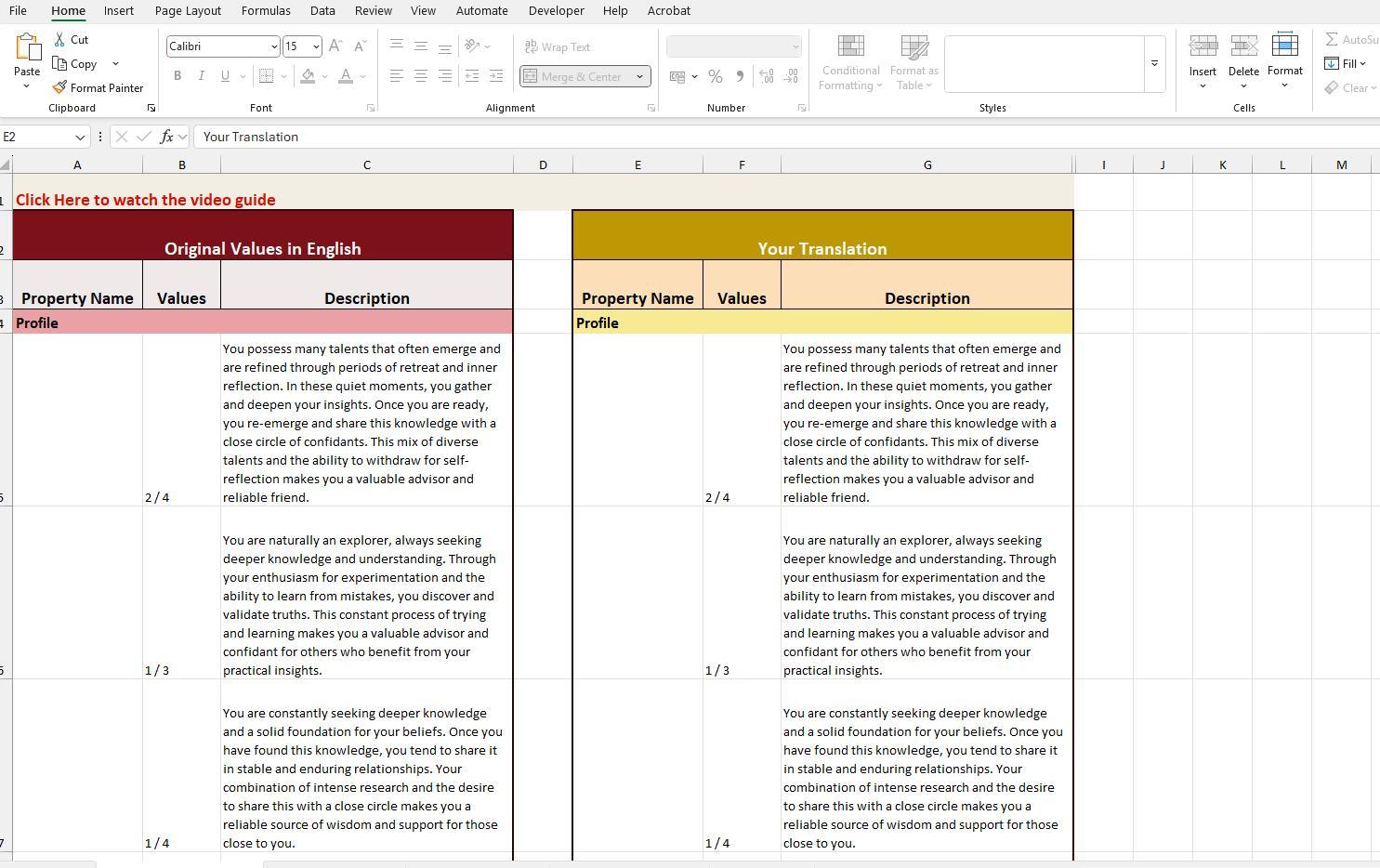
Important rules for Excel editing
• Do not add rows, columns, tabs, tables or extra summary pages.
• Only edit existing cells.
• Always save in XLSX format.
• Avoid online spreadsheet tools that automatically add summary tabs – this will break the file.
• Do not import CSV, DOCX or any other file type. Only files exported from Bodygraph can be imported back.
Hiding and Ordering Properties
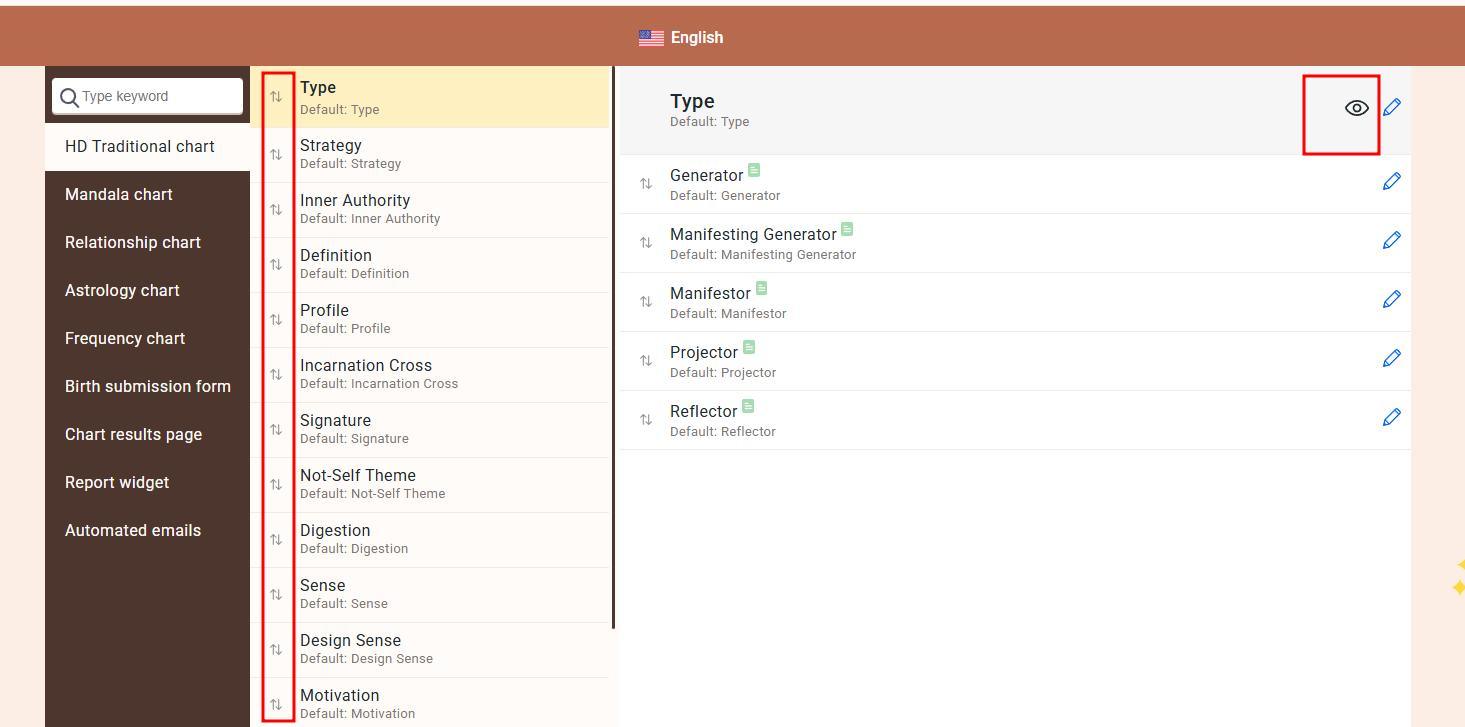
Inside the language editor you can:
• Hide any property from the chart result page using the eye icon
• Drag and drop properties to change their order
Using Languages in Reports
Not all language changes apply to reports by default. They apply only if the report has that language assigned.
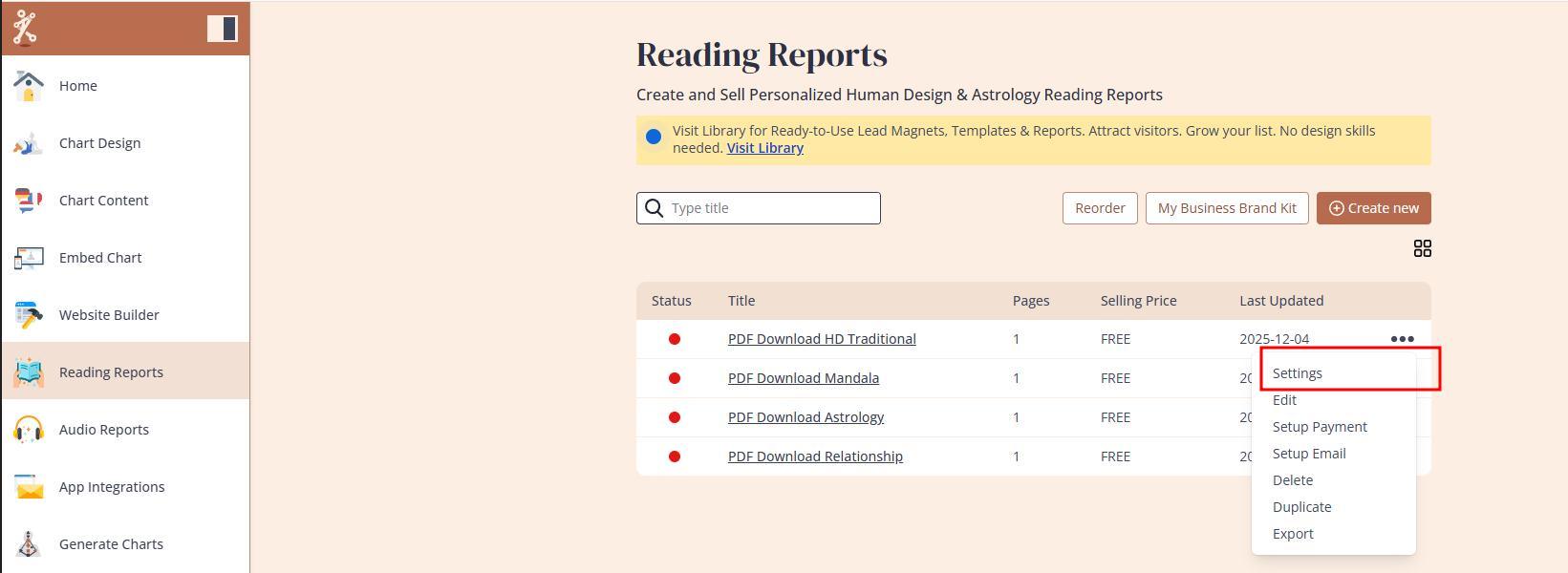
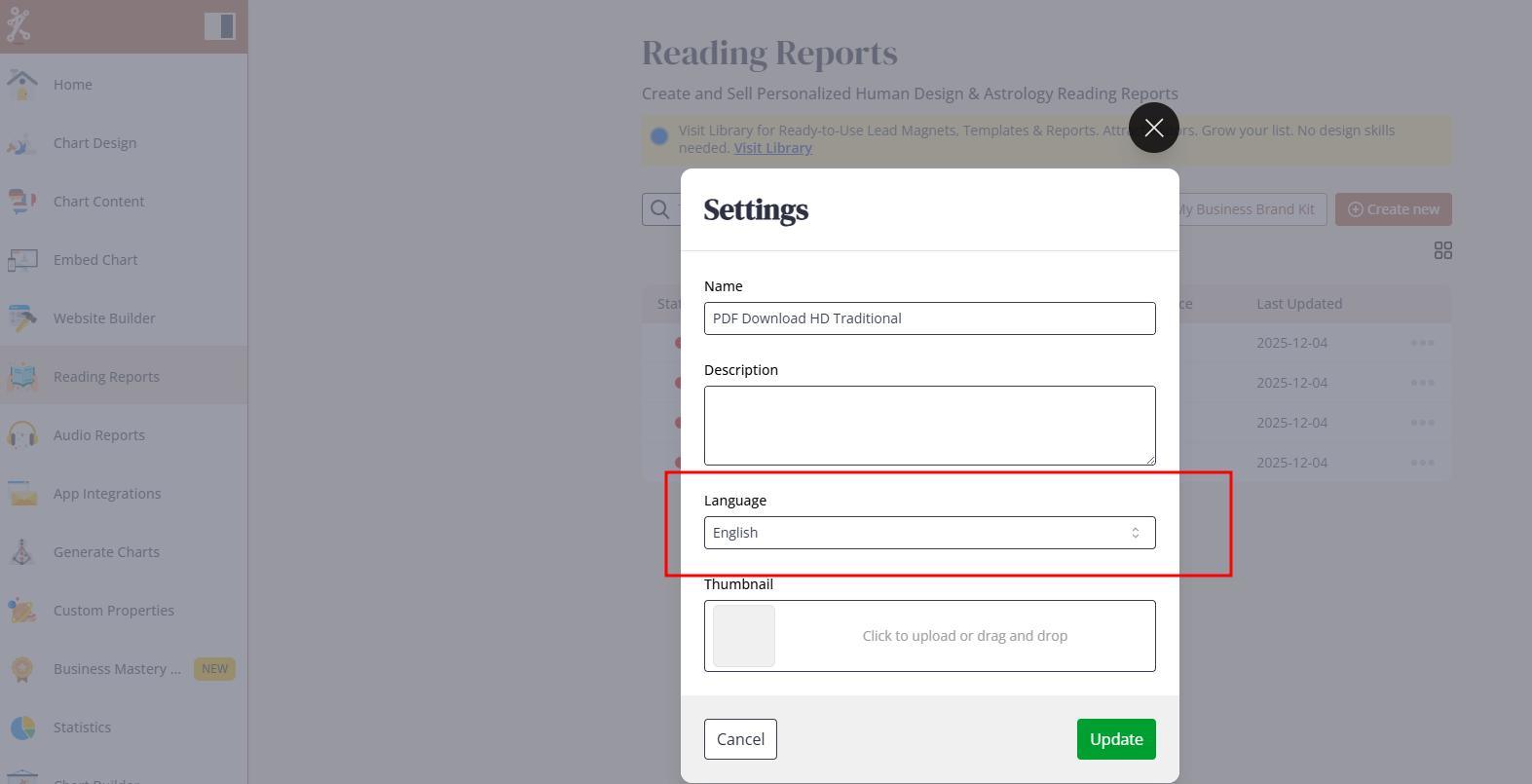
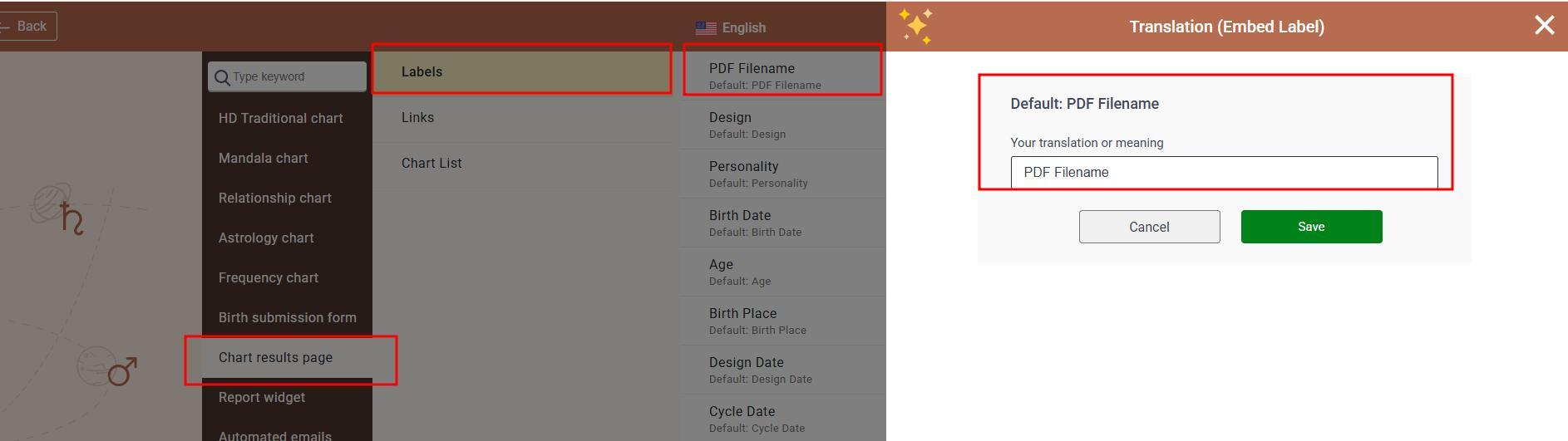
Two areas of the report pick up language settings:
1. File Name of the PDF
• If you enter a fixed name – for example, “XXX” – all generated reports using this language will export with the same filename.
• If the field is left blank, the system automatically uses the client’s name.
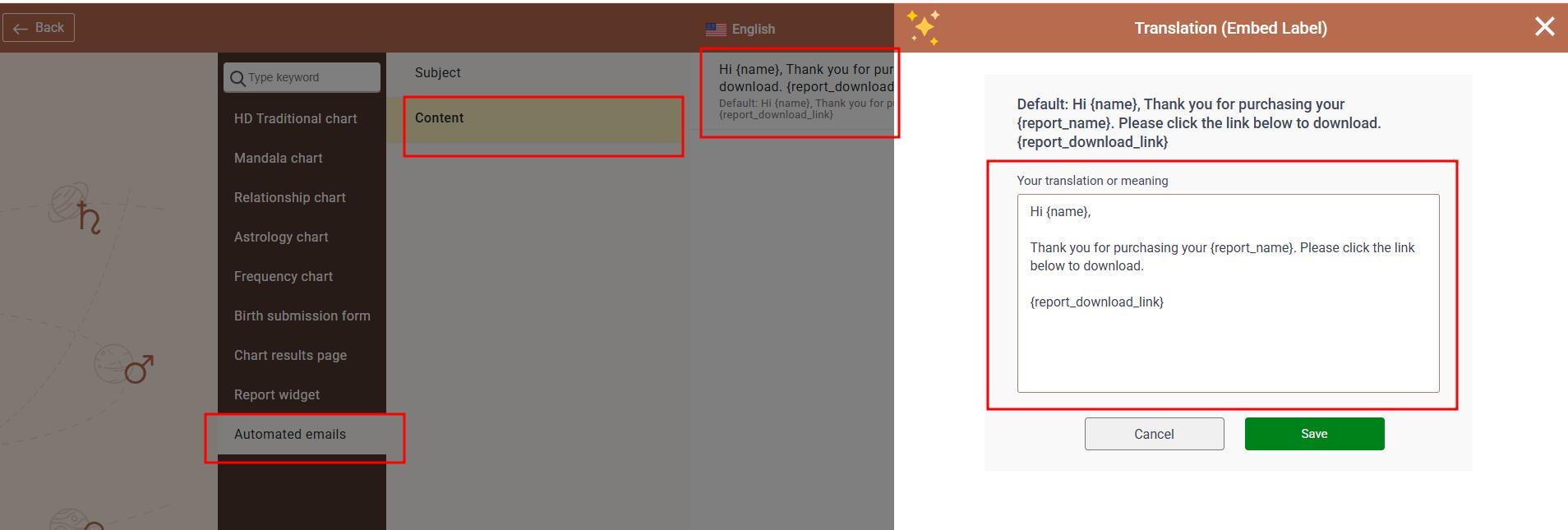
2. Automated Email Delivery (for paid reports with email enabled)
You can customize:
• Subject line
• Email body text
Shortcodes Inside Reports
Shortcodes pull content from whichever language is assigned to the report.
Example:
If you use the shortcode for Type or Type Description, the system fetches that label and description from the assigned language.
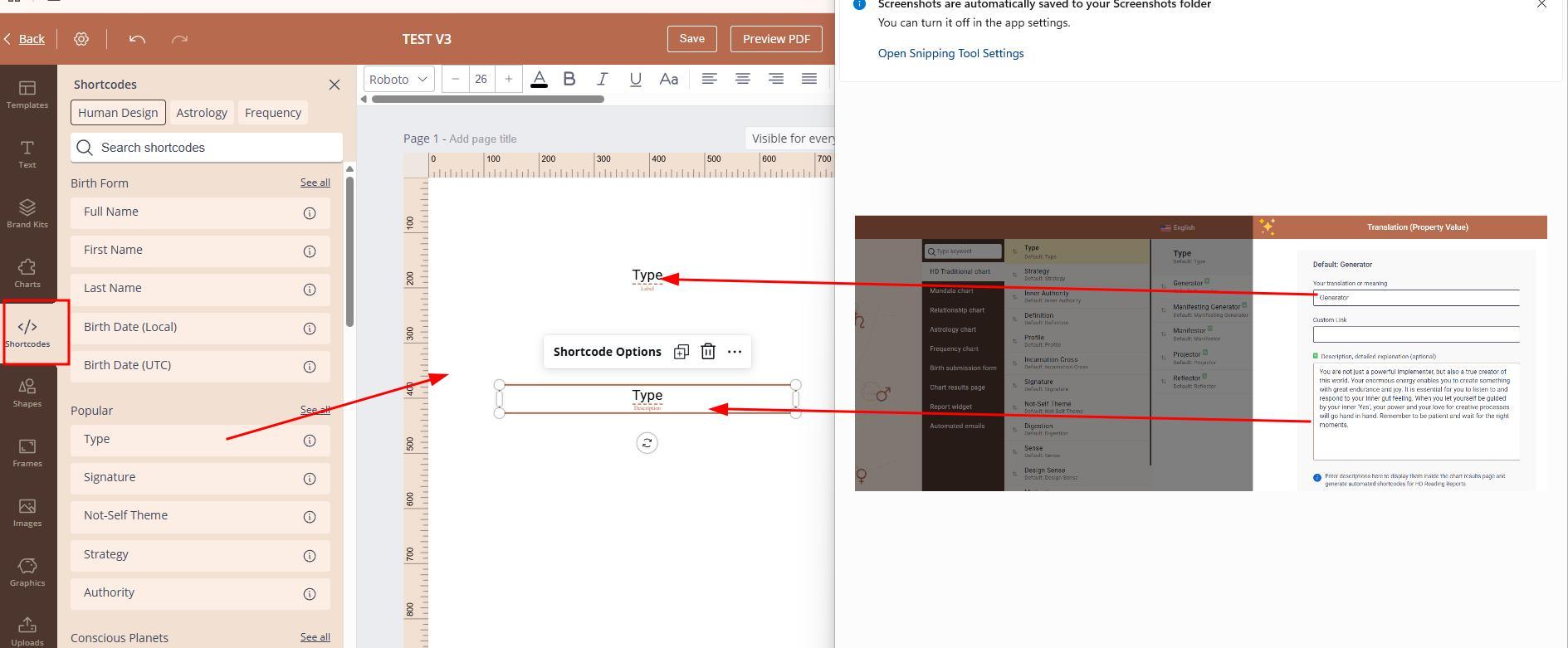
If the wrong language is assigned:
• Values may be empty
• Values may appear incorrect
• Dynamic content may not load at all
Using shortcodes works well for quick downloadables and simple lead magnets.
It is not recommended for long or in-depth reports because:
• Long dynamic text cannot create page breaks, so content gets cropped
• Text formatting becomes difficult
For in-depth reports, static content with visibility rules is preferred.
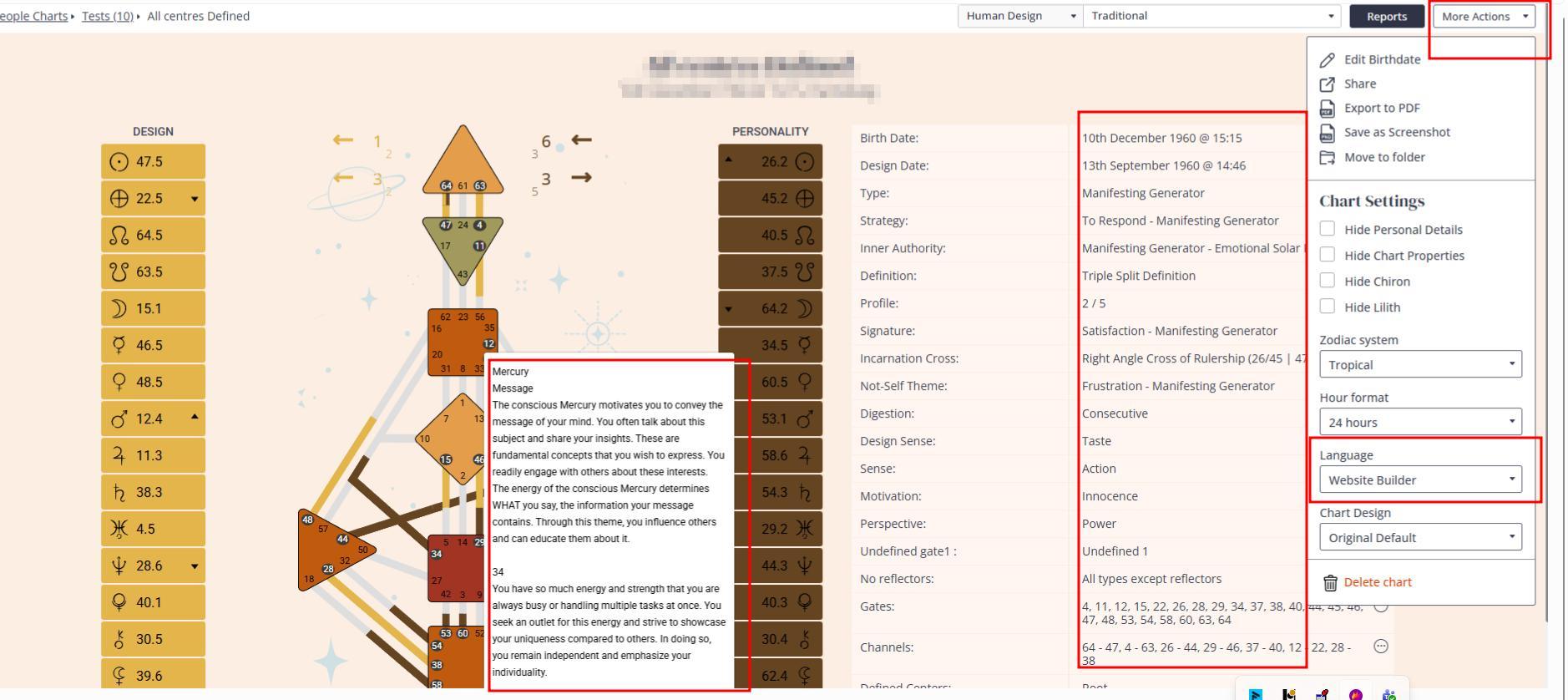
Using Languages in the Backend Chart Generator
In the Generate Charts backend tool, you can assign any of your custom languages to a client’s profile. This affects:
• Chart result text
• Tooltips
• Descriptions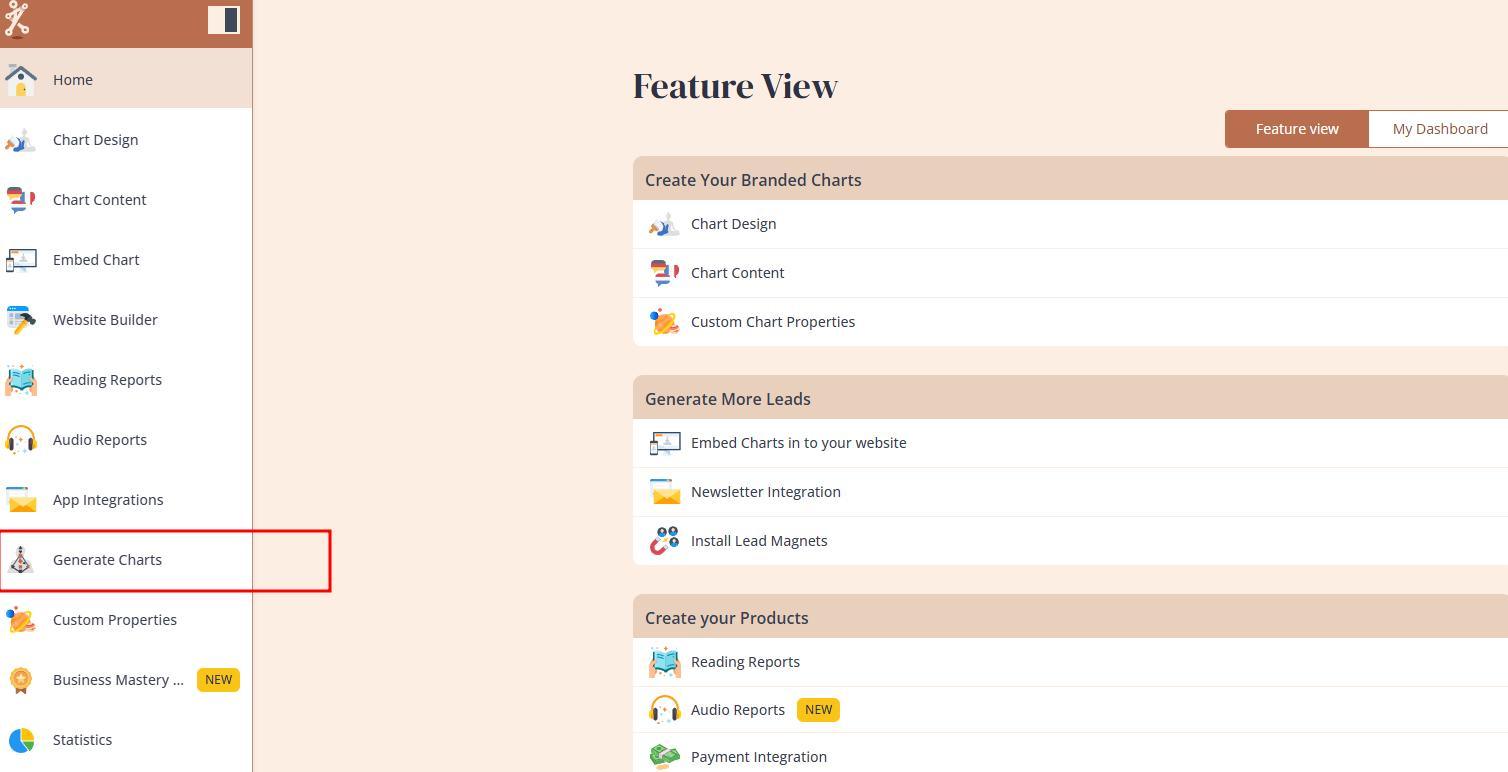
Most Common Mistakes
1. Editing the Wrong Language
Many users change a language that is not assigned to the embed code or report.
Hover over the language status indicator to see which embed codes currently use it.
2. Using Different Languages for Reports and Embed Codes
If your integration uses Language A but your report uses Language B, then:
• PDF filenames and email templates must be edited in Language B
• Shortcodes inside reports will only pull from Language B
• Editing Language A will not affect reports
3. Breaking the Excel File
• Adding rows, tabs, or columns
• Saving in any format other than XLSX
• Using tools that auto-generate summary pages
All lead to import errors.
4. Importing Non-Bodygraph Files
Only the XLSX file exported from Bodygraph can be imported back.
5. Using Unsupported Characters in Language Titles
Titles support common symbols such as dots and question marks.
However, special characters and some non-standard symbols may:
• Cause import errors
• Break shortcodes inside reports
• Prevent updated values from appearing in integrations
Language titles are only for your internal reference, so keep them simple.
6. Deleting a Live Language
If you accidentally delete a language that is currently assigned to embed codes or reports:
• Reports may break
• Embeds will fall back to the default English language
• Shortcodes may return incorrect values
Always keep a safe exported backup of your languages.
Frequently Asked Questions
Do my language changes apply to other accounts?
No. Everything you create or modify is visible only in your account.
Can I create a completely custom language from scratch?
Yes.
Export any language template, replace the values with your own content or translations, then import it as a new language.
Do I need to translate all content to build a report?
• If using static text – no.
• If using shortcodes – yes, because shortcodes pull from Chart Content tool.
Why does assigning a language to a template not translate the template automatically?
Most templates in the library are built with static text, not shortcodes.
Static text must be translated manually, page by page.
Why can’t I edit labels inside the design tool?
Because all labels, button text, and agreement text come from the language assigned to the embed code.
Edit them inside the Chart Content Tool instead.
How can I change the property order in the chart result page?
Inside Chart Content Tool – drag and drop the properties to reorder them.
Creating Completely Customized Language for Your Niche
You can tailor every label and description to match your brand language or niche. Many creators rename properties to reflect their coaching frameworks or spiritual terminology.
This allows you to:
• Build a unique interpretation style
• Speak directly to your audience’s needs
• Create a differentiated human design experience
For beginners, it is recommended to start with one of the default languages and adjust it gradually.
Also check video tutorial below:
Still have questions? Is above guide outdated? Please message us on Live Chat or send an email to support@bodygraph.com.

All the Tools You Need to Build, Grow, and Scale Your Human Design and Astrology Business

