


PayPal connection
Last Updated: Mar 16, 2026
To connect PayPal app please follow the steps listed below:
Login to your Bodygraph.com account.
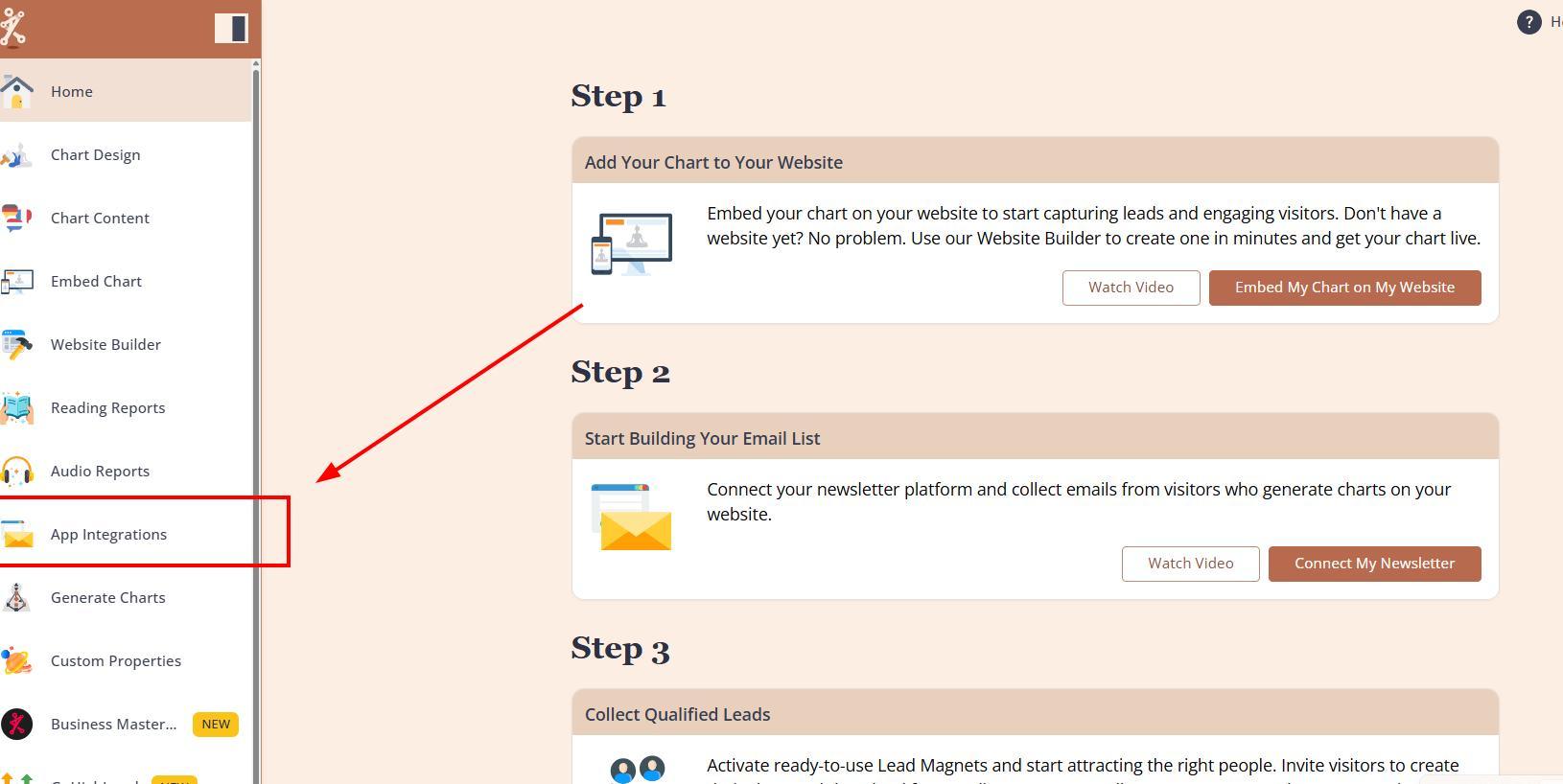
Then, click on App Integrations at the left menu bar.
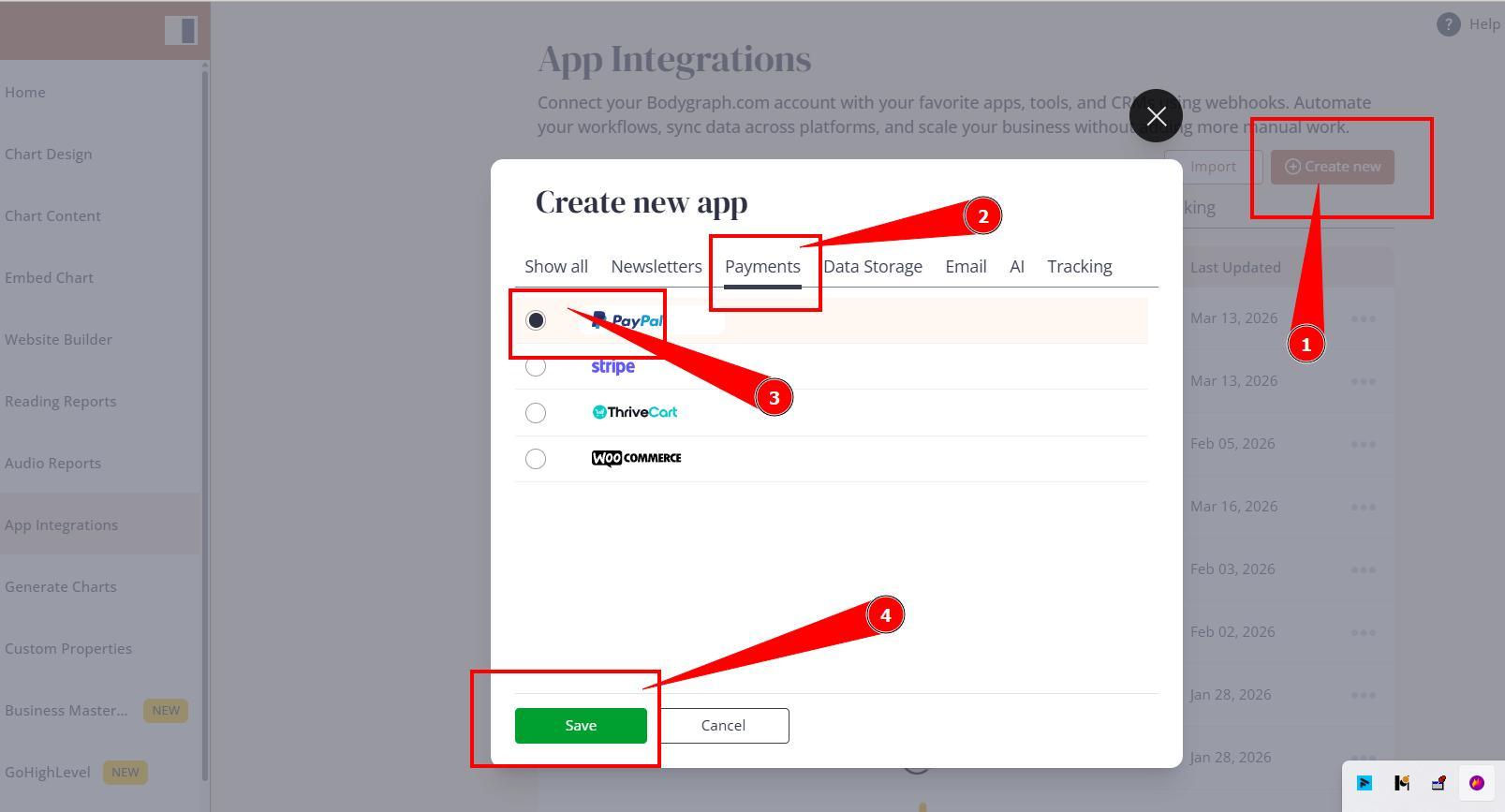
Click Create new button, select Payment tab, toggle on PayPal option and click ‘Save’.
Enter the name that will help you identify the payment method and leave this tab open.
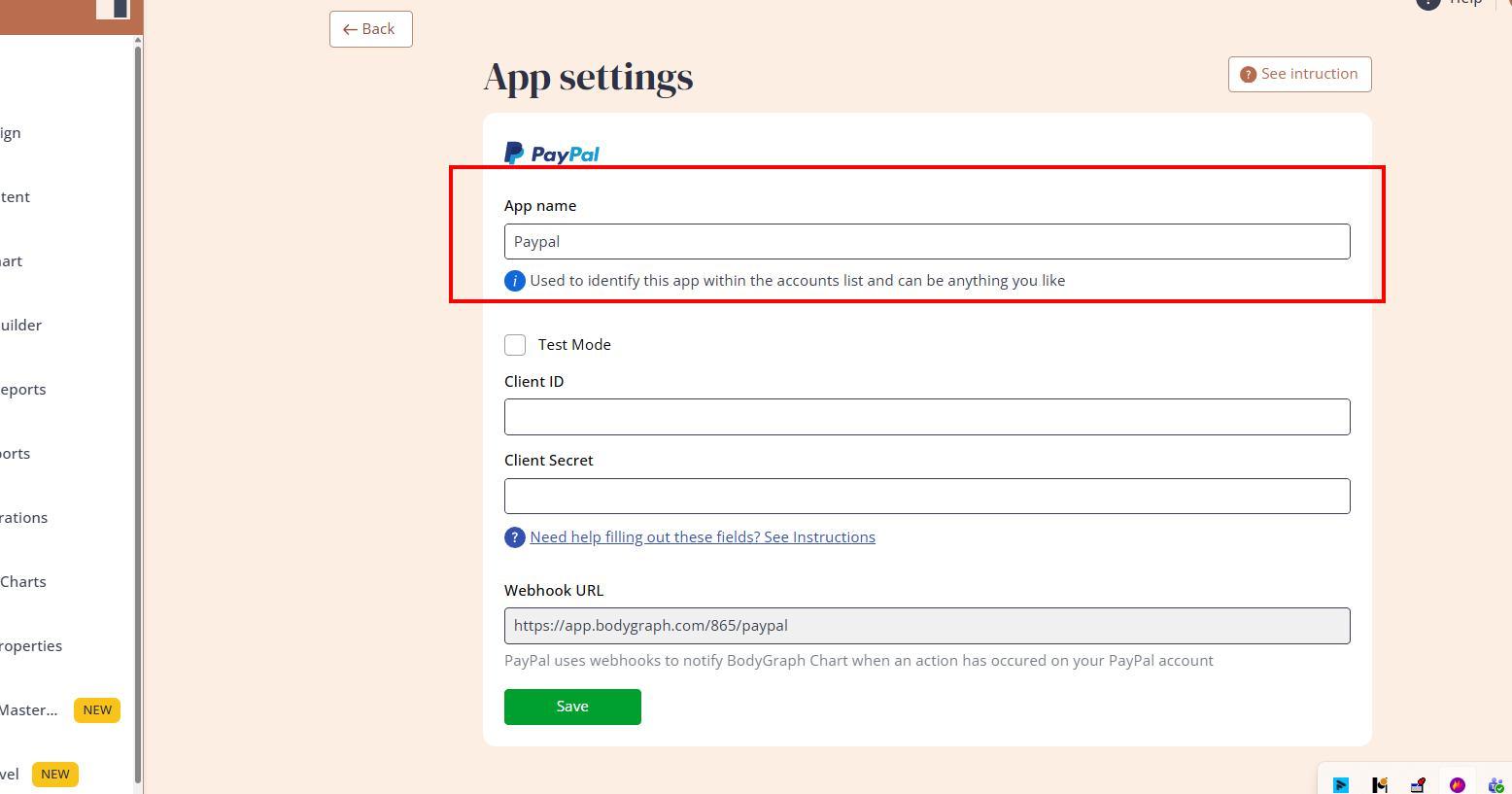
If you want to run the purchase test ten you can enable the test mode by ticking ‘Test Mode’ checkbox. However this will require your PayPal account also to be in Sandbox mode.
Open new tab at your browser and login to your PayPal account.
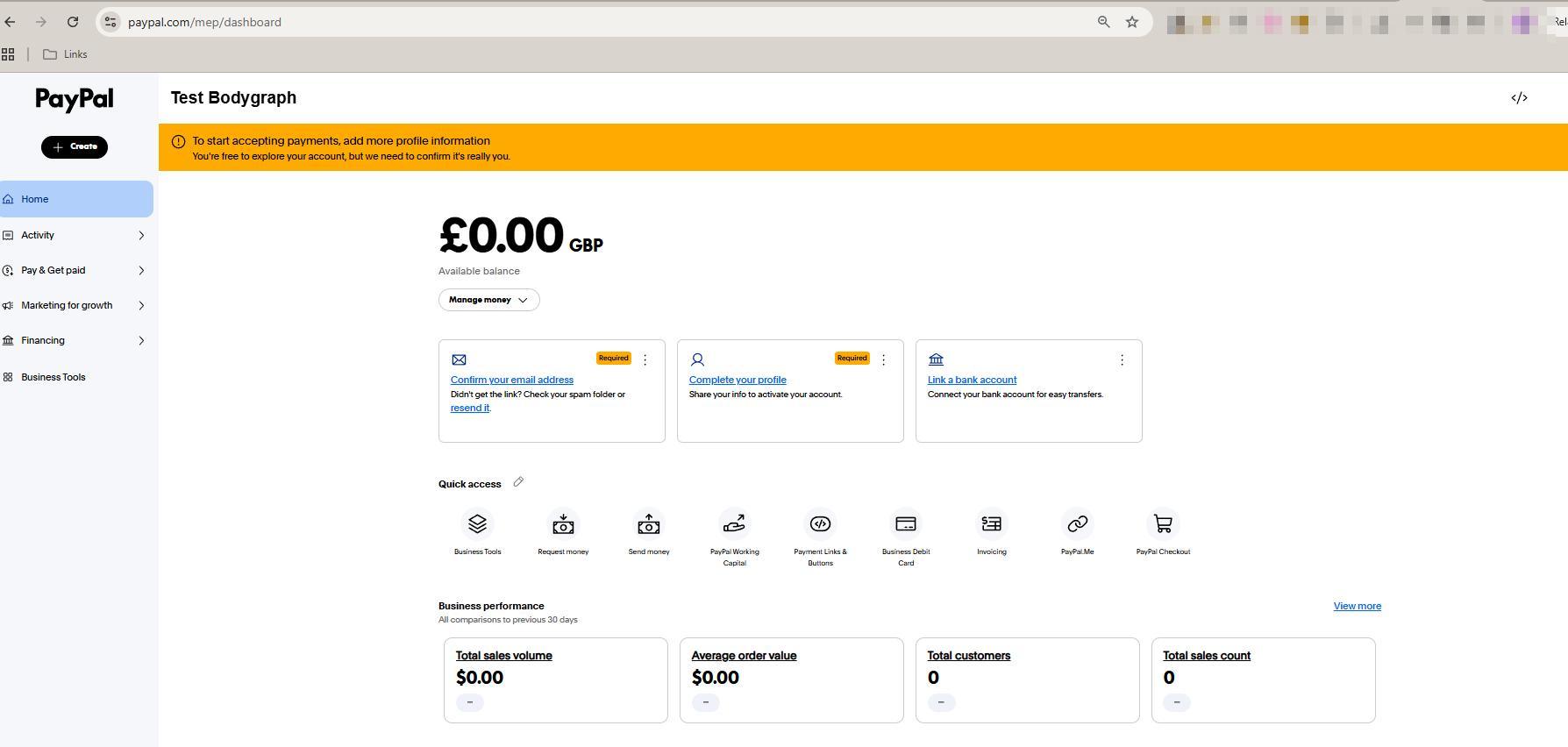
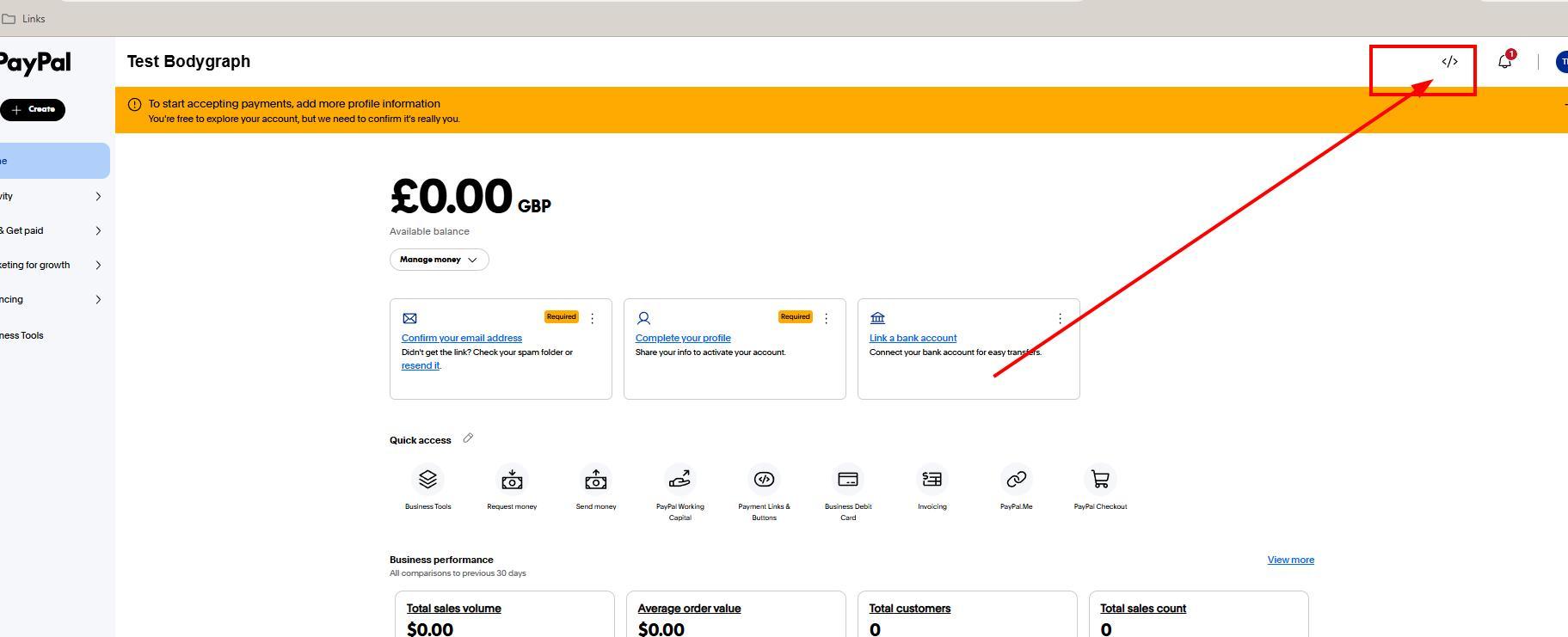
Select Developers dashboard at the top.
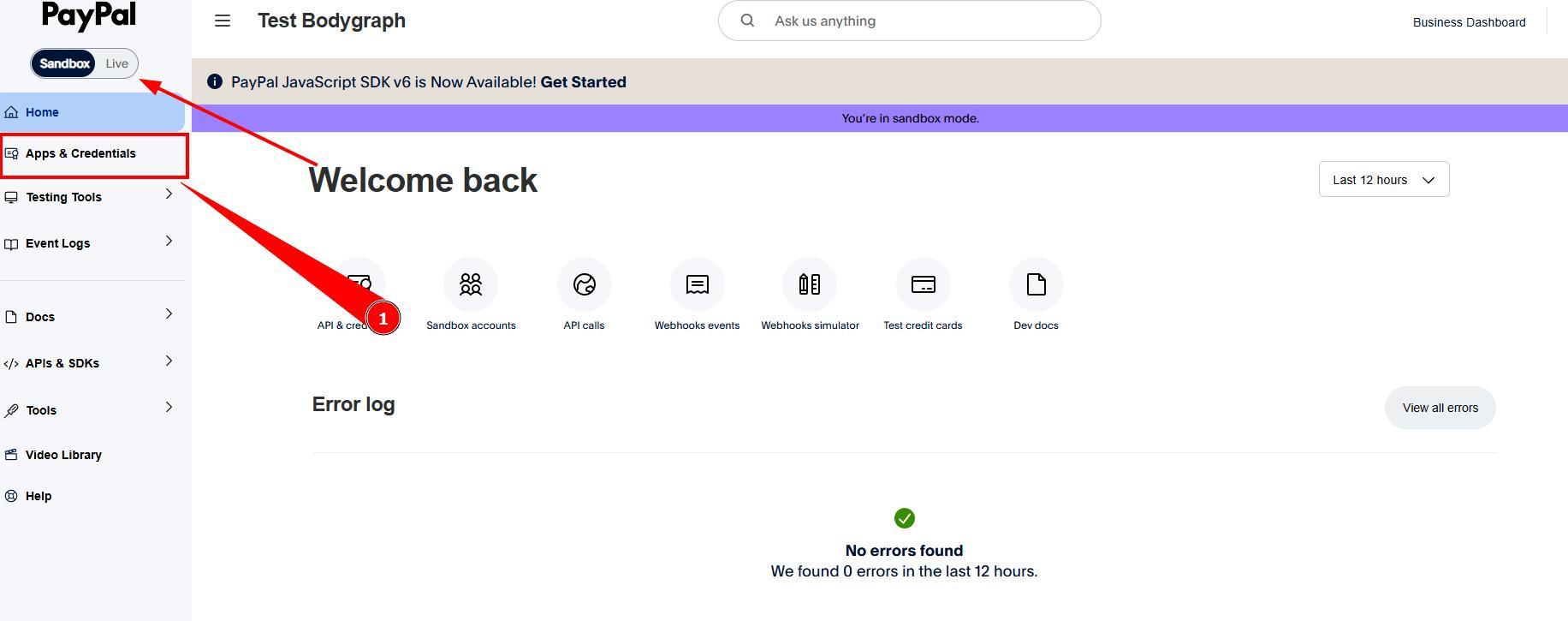
This is where you can switch between Sandbox (test) and Live modes. If you have other active sales and Paypal is in use, then we do not recommend swithcing test mode on. Click on Apps &Credentials.
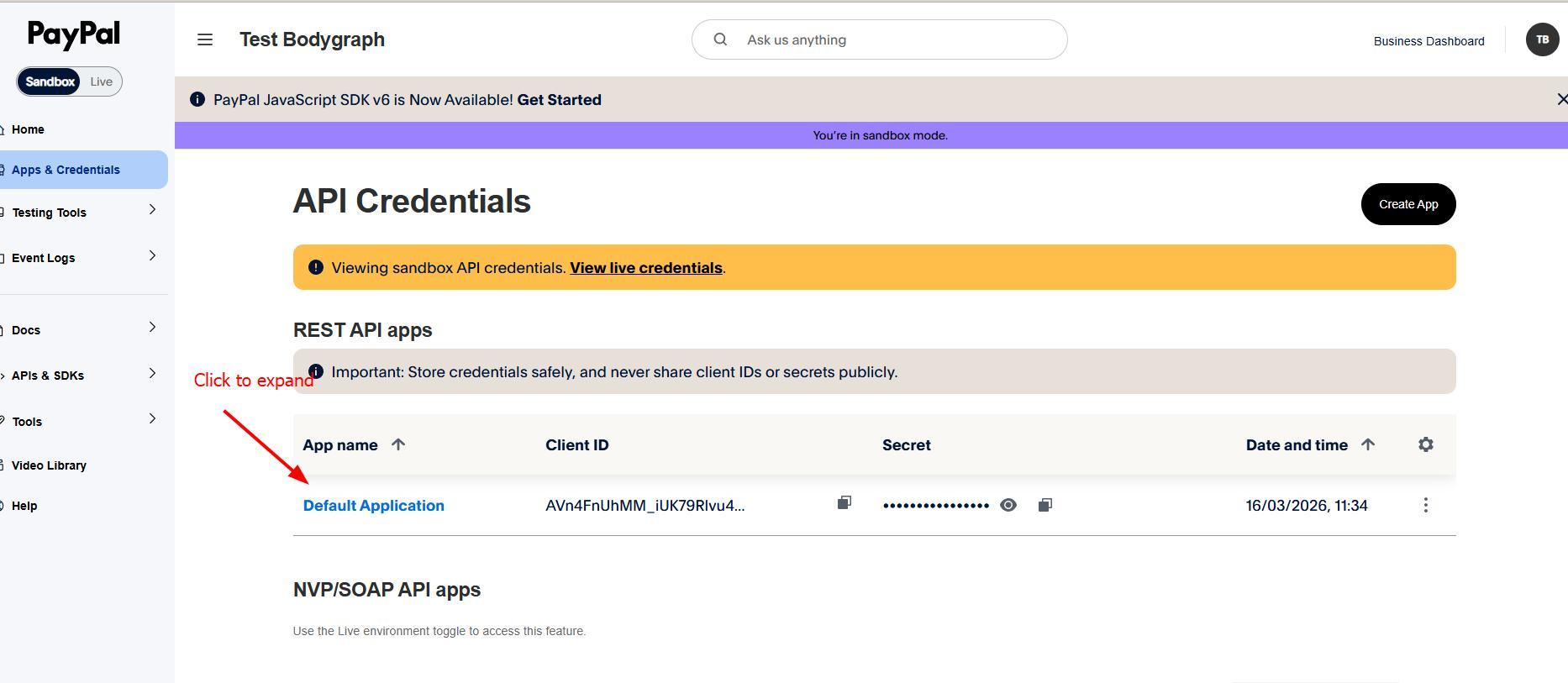
Please note this is not full credentials and DO NOT copy from here. Click to expand it fully.
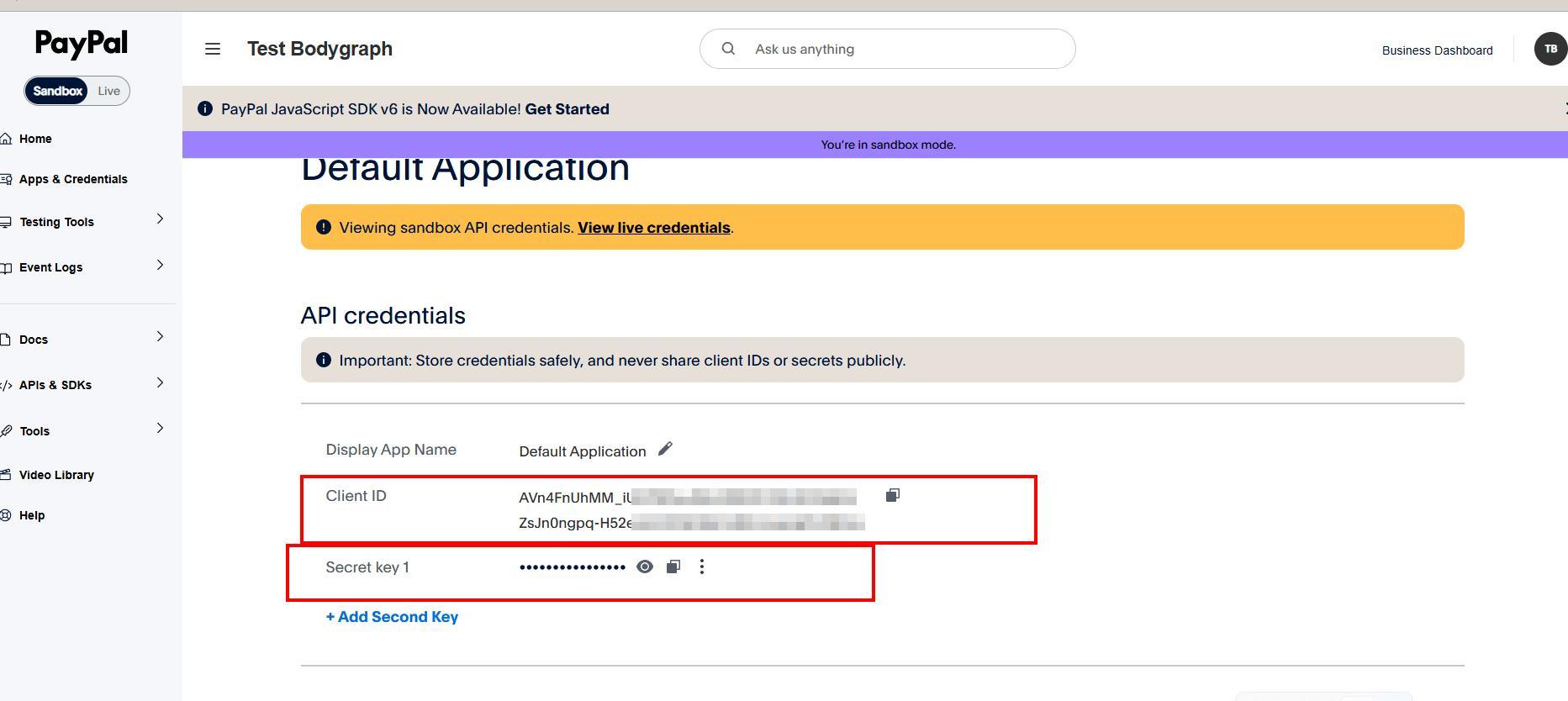
Click copy button and copy credentials.
Paste credentials to previous tab where you left Bodygraph app setup open.
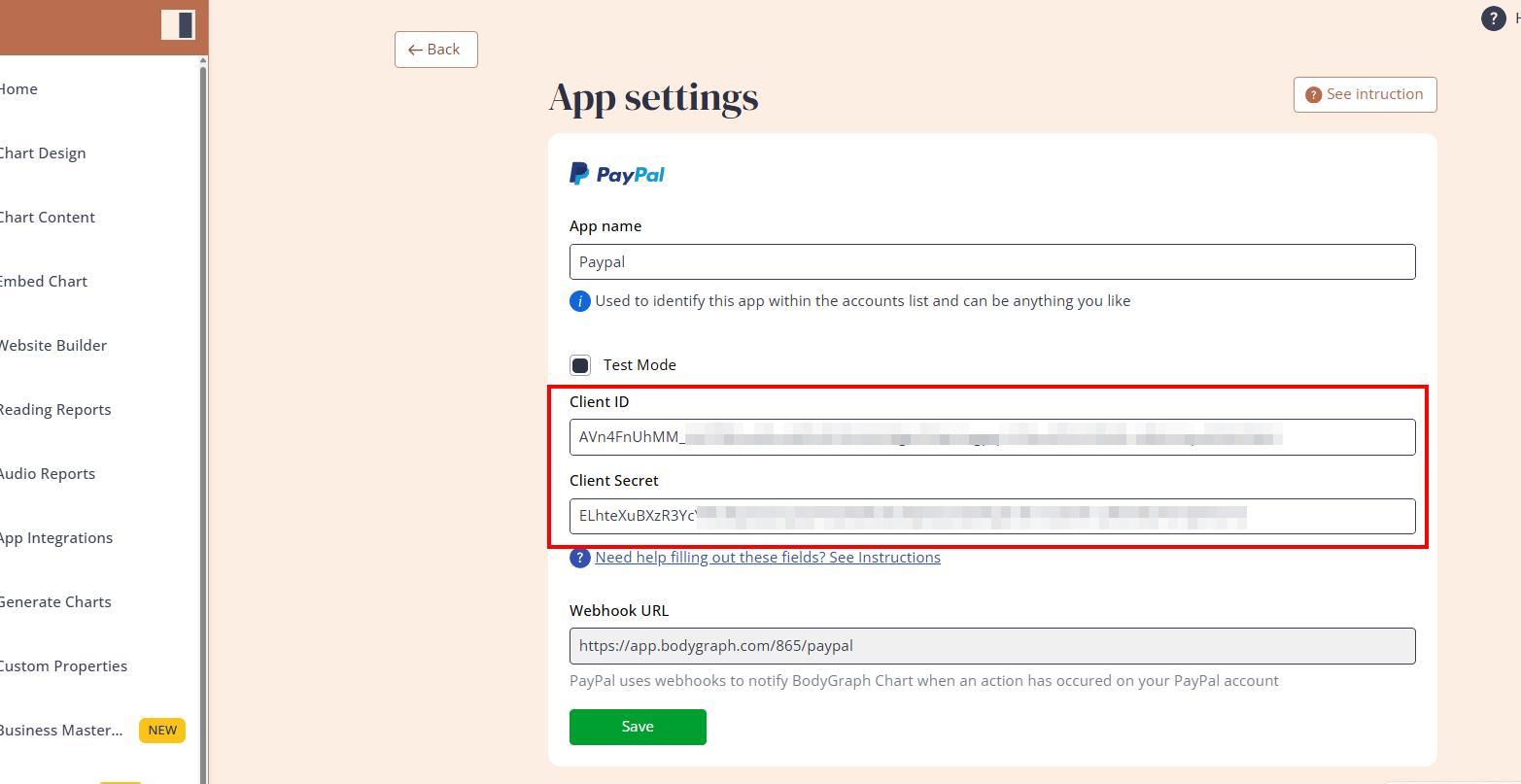
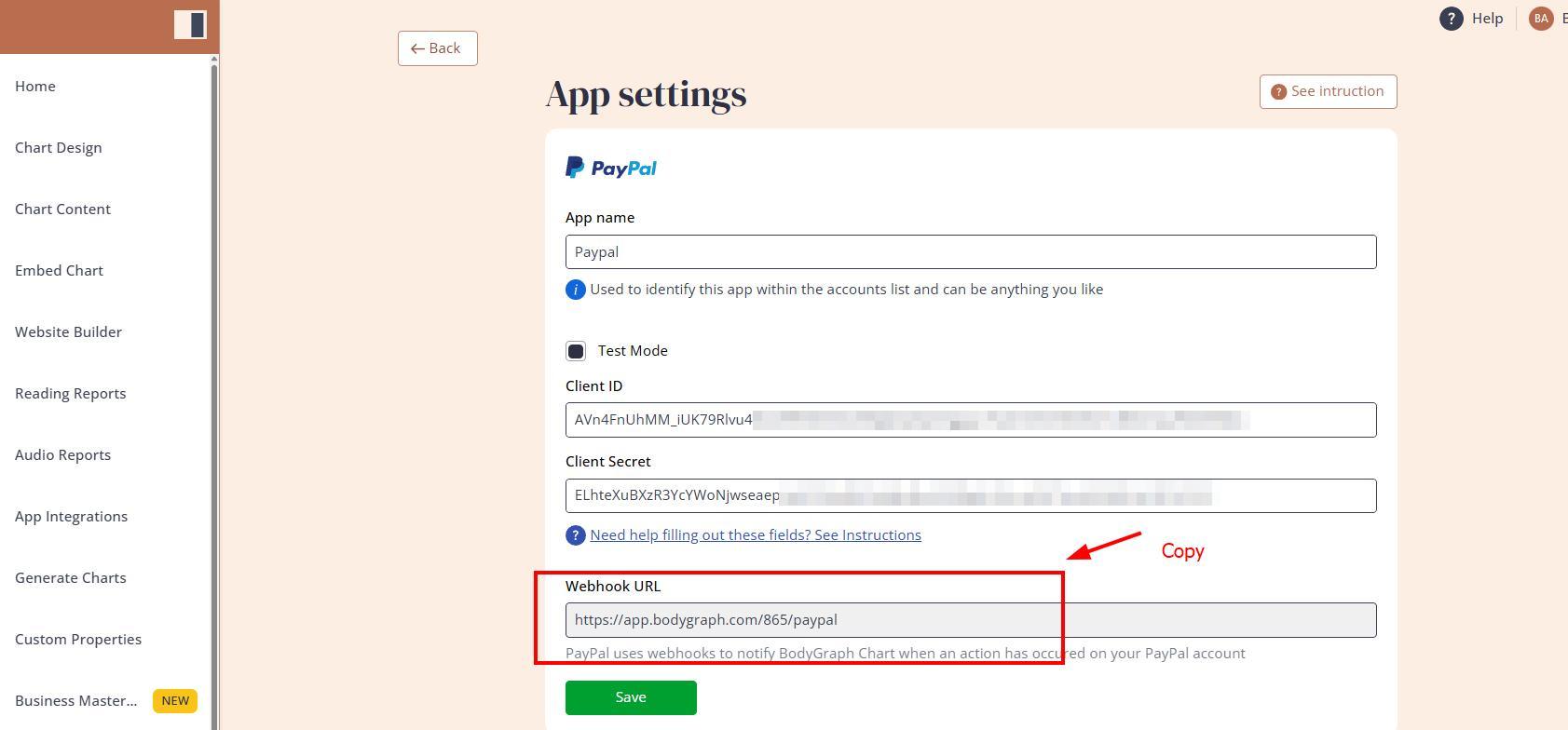
Copy Webhook URL and go back to PayPal account tab.
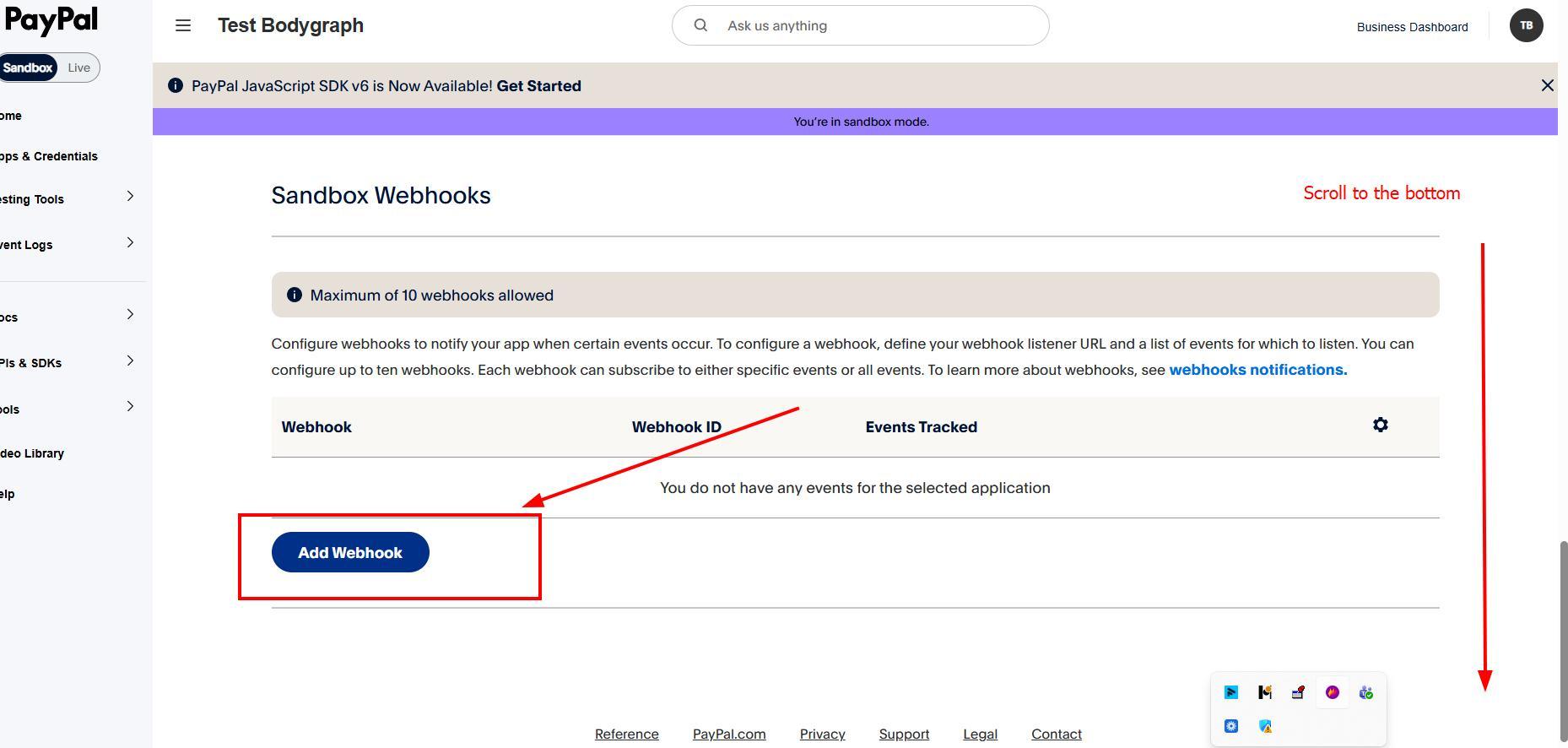
Go back to Paypal where you copied credentials, scroll down and click on Add Webhook. Make sure you do this under the correct Client ID if you have multiple created.
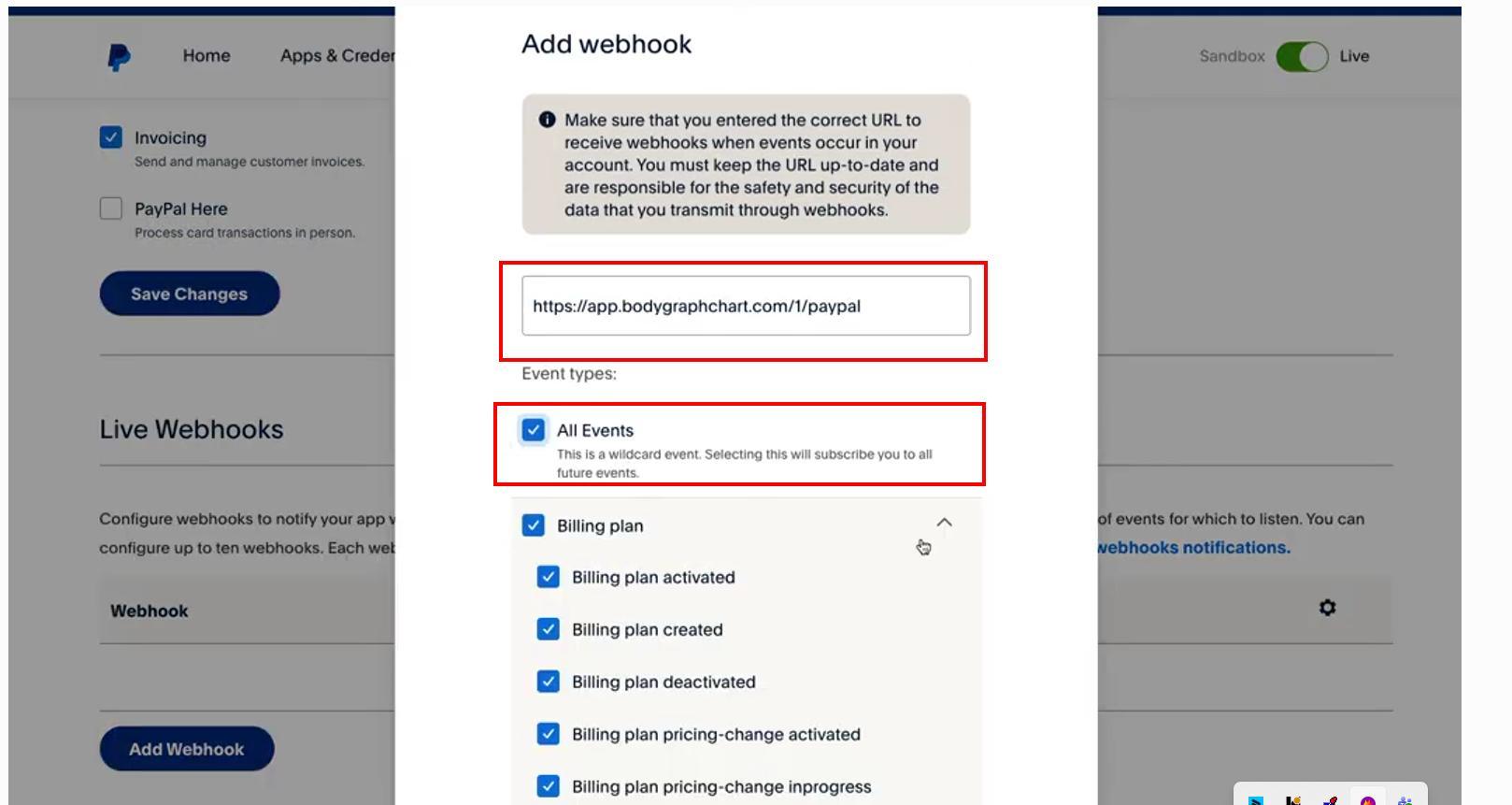
Paste copied URL and click All events checkbox.
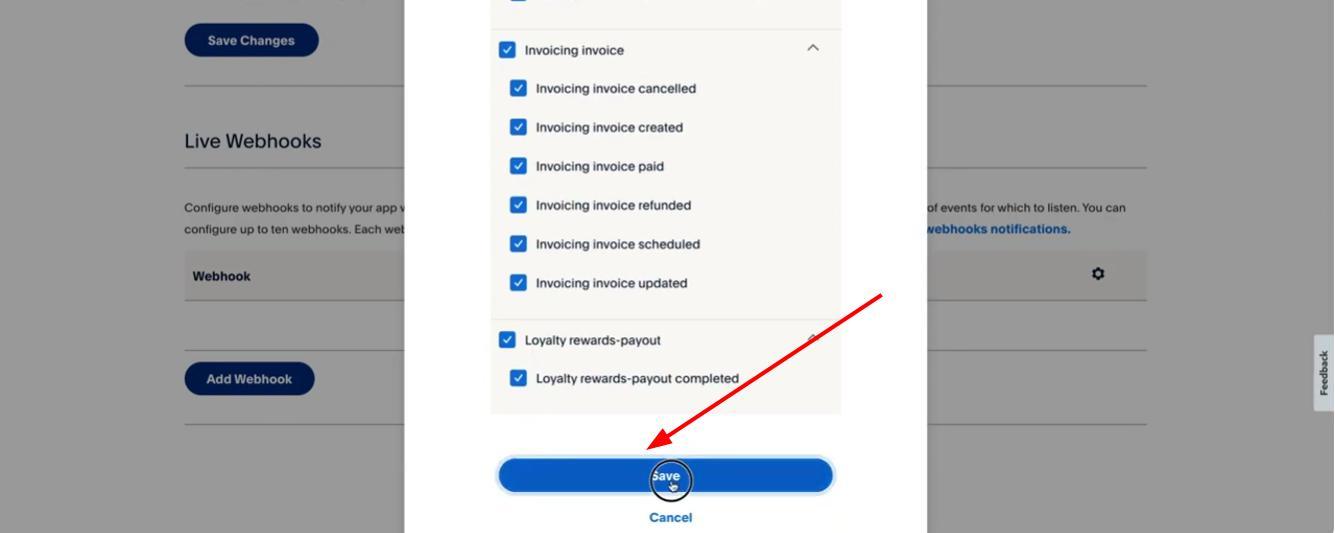
Scroll down and click Save. thereafter you should see green message ‘Webhook added successfully.
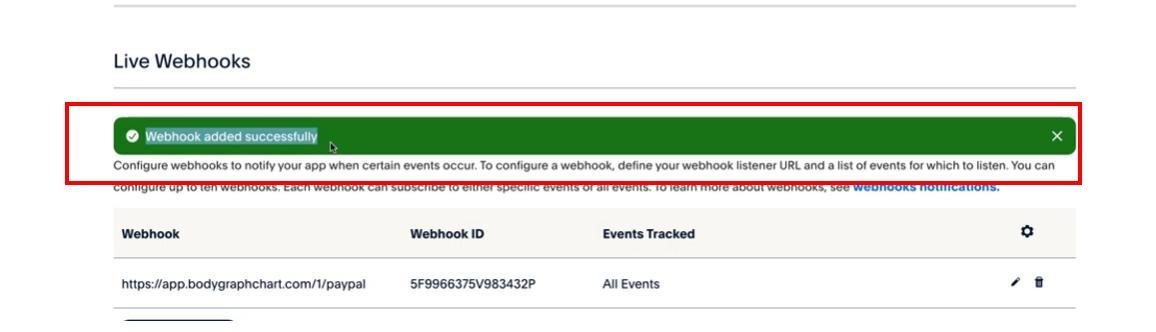
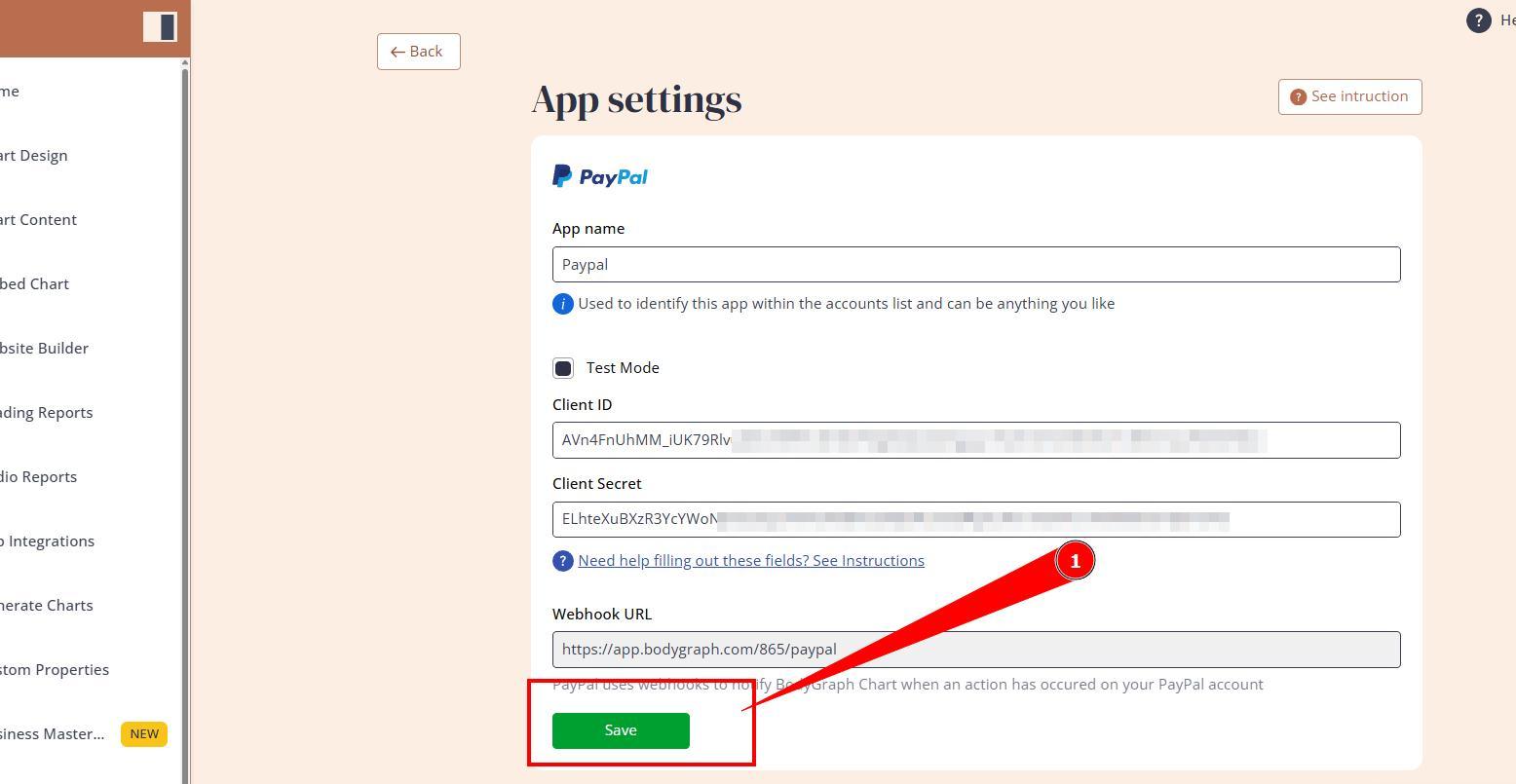
If that is successful, then Go back to the Bodygrap Chart tab and click Save button.
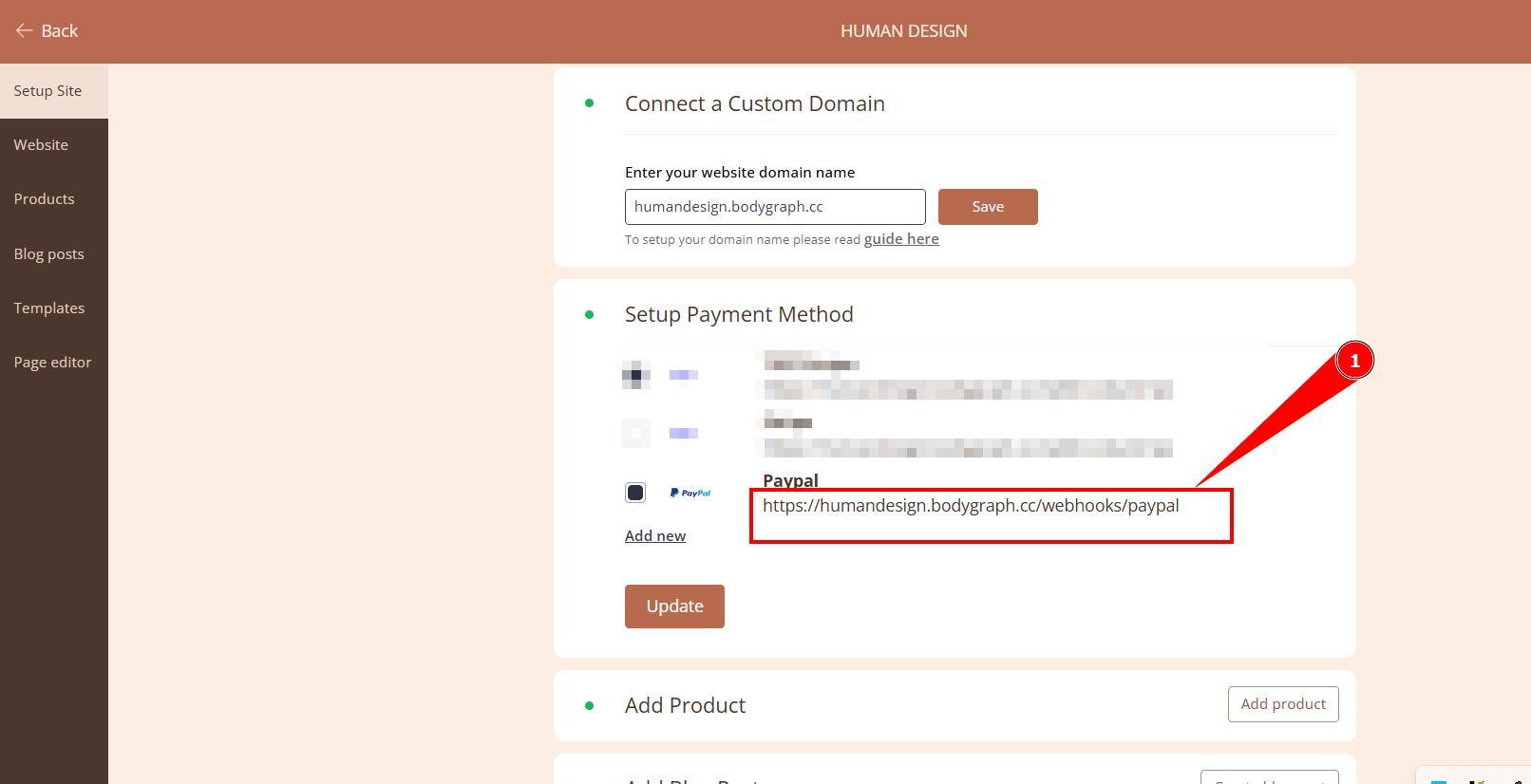
Important note: If you are using Bodygraph’s Website Builder (or it’s shop only) you will require to complete steps 13-15 and add one more webhook from Website builder settings.
IMPORTANT: if you switch from test mode to live or other way around it might be required to add webhooks again to live mode.
Now you can set reports payment method and test live purchase yourself before offering sales for your clients.
You can also check video tutorial below (new tutorial will be posted soon):
Still have questions, is above guide outdated? Please message us on Live Chat or send an email to support@bodygraph.com.

All the Tools You Need to Build, Grow, and Scale Your Human Design and Astrology Business

