


Meta
Last Updated: Feb 5, 2026
You can now add your Meta Pixel (formerly known as the Facebook Pixel) to your Human Design and Astrology chart integrations. This allows you to track user activity, measure conversions, and optimize your marketing campaigns more effectively.
Before you begin, it’s important to confirm whether you have already set up Meta Business Manager. If you haven’t created one yet, you’ll need to do that first. You can follow the official Meta step-by-step guide to set up your Business Manager account here.
Once your Business Manager is ready, you can proceed with adding your Meta Pixel to your Bodygraph chart integrations.
To complete connection follow the steps below:
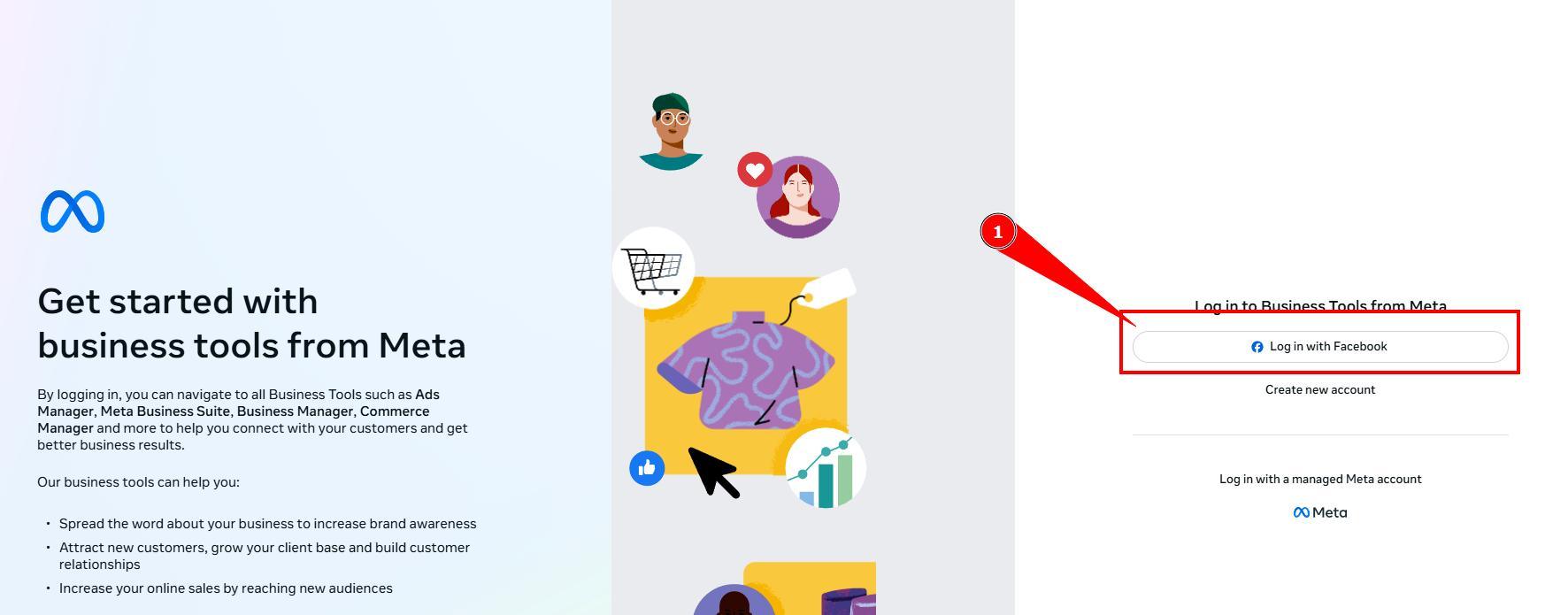
1. Login to your Business Manager at Meta here.
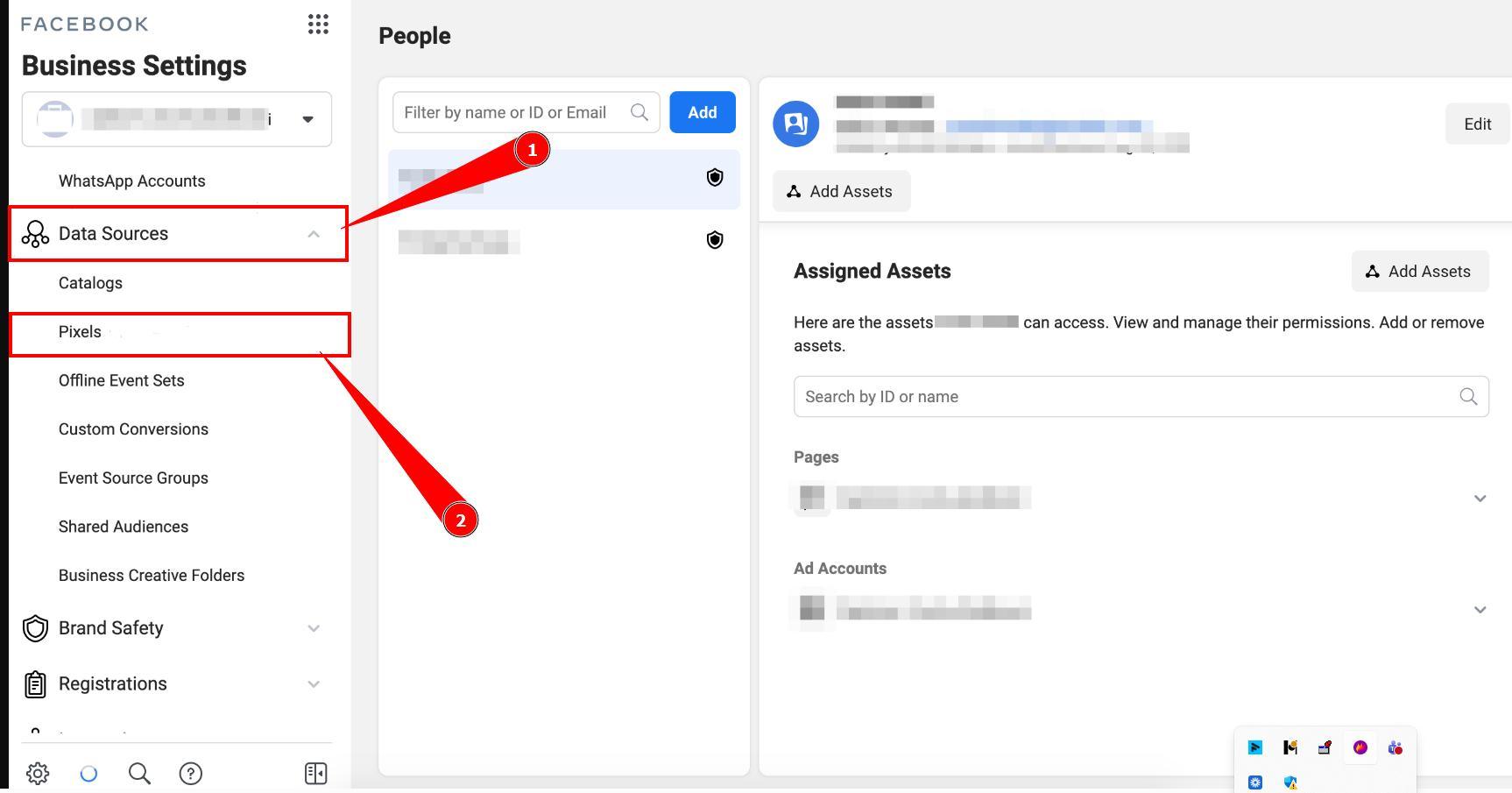
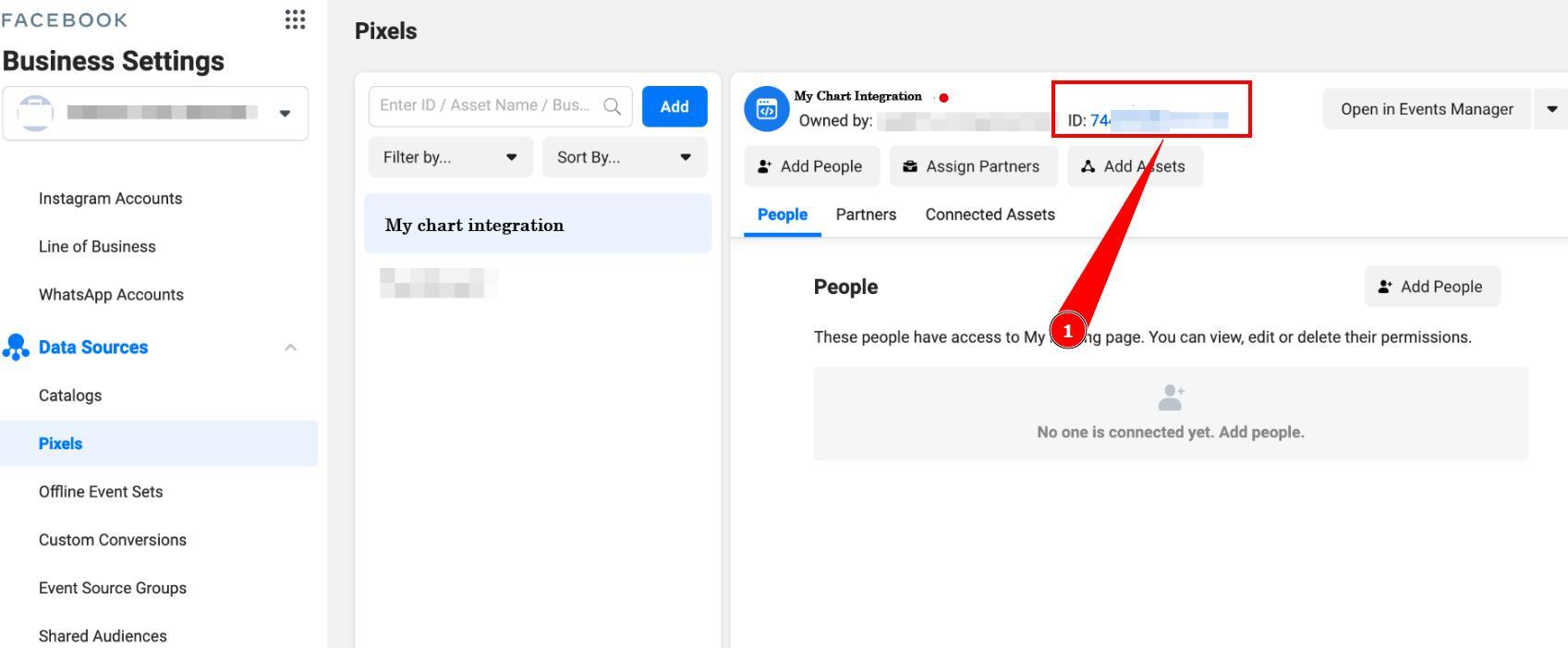
2. Once you’ve logged into your Business Manager account, click on the Data Sources dropdown on the left hand side menu and select Pixels.
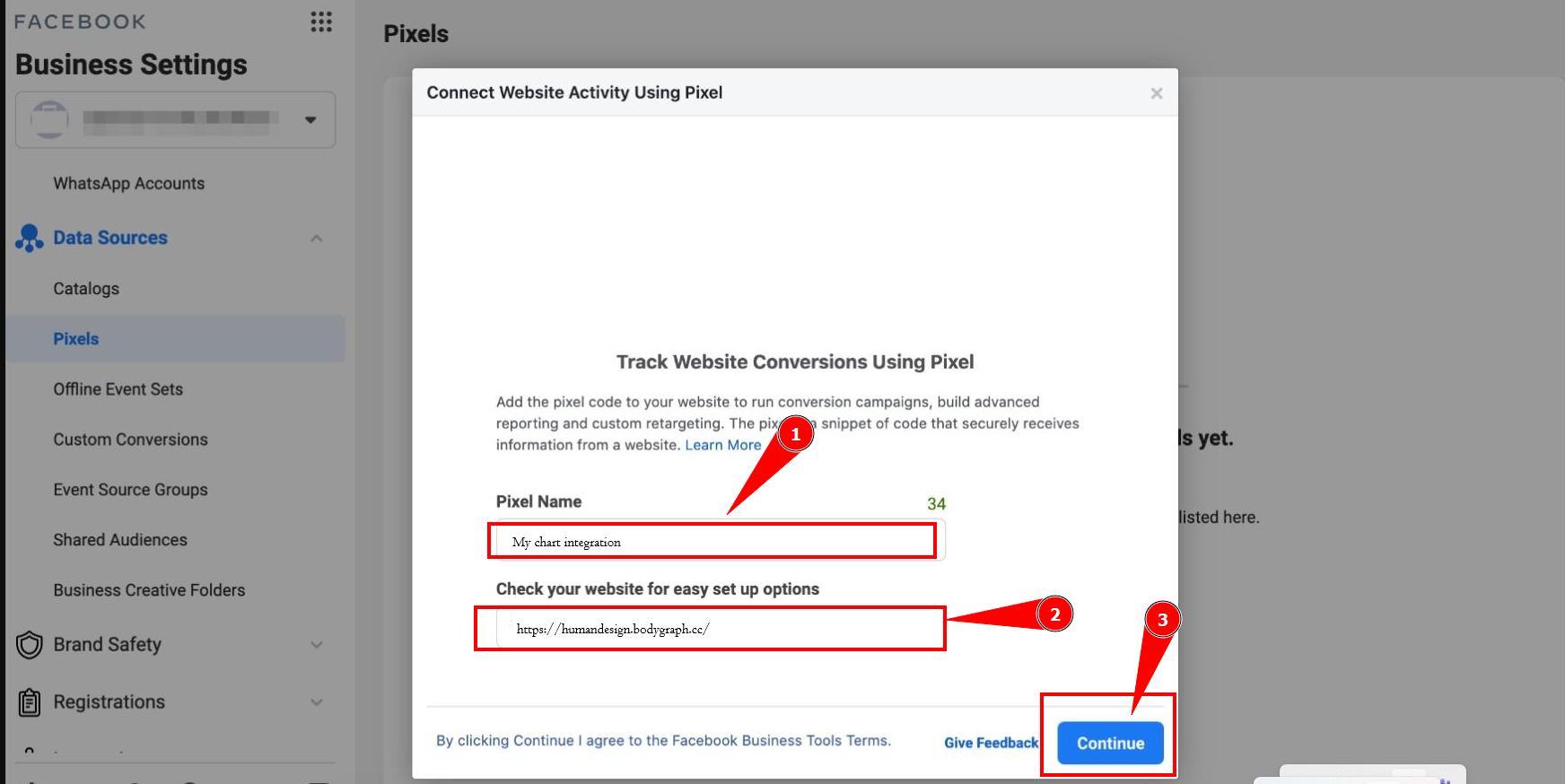
3. Press Add button. Popup will show up where you can start creating pixel. Enter required values and press Continue.
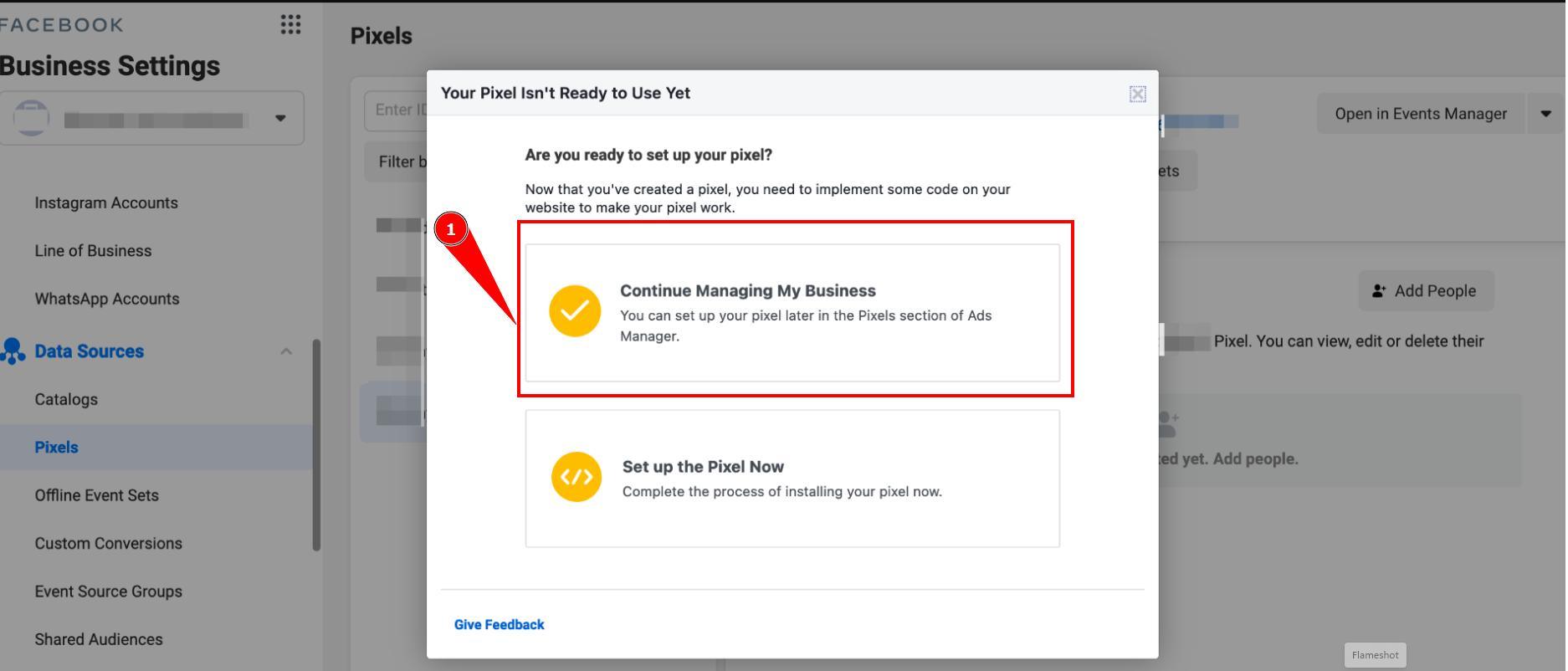
4. On the next screen select Continue Managing My Business.
5. You will be able to find Pixel ID at the top. Copy it.
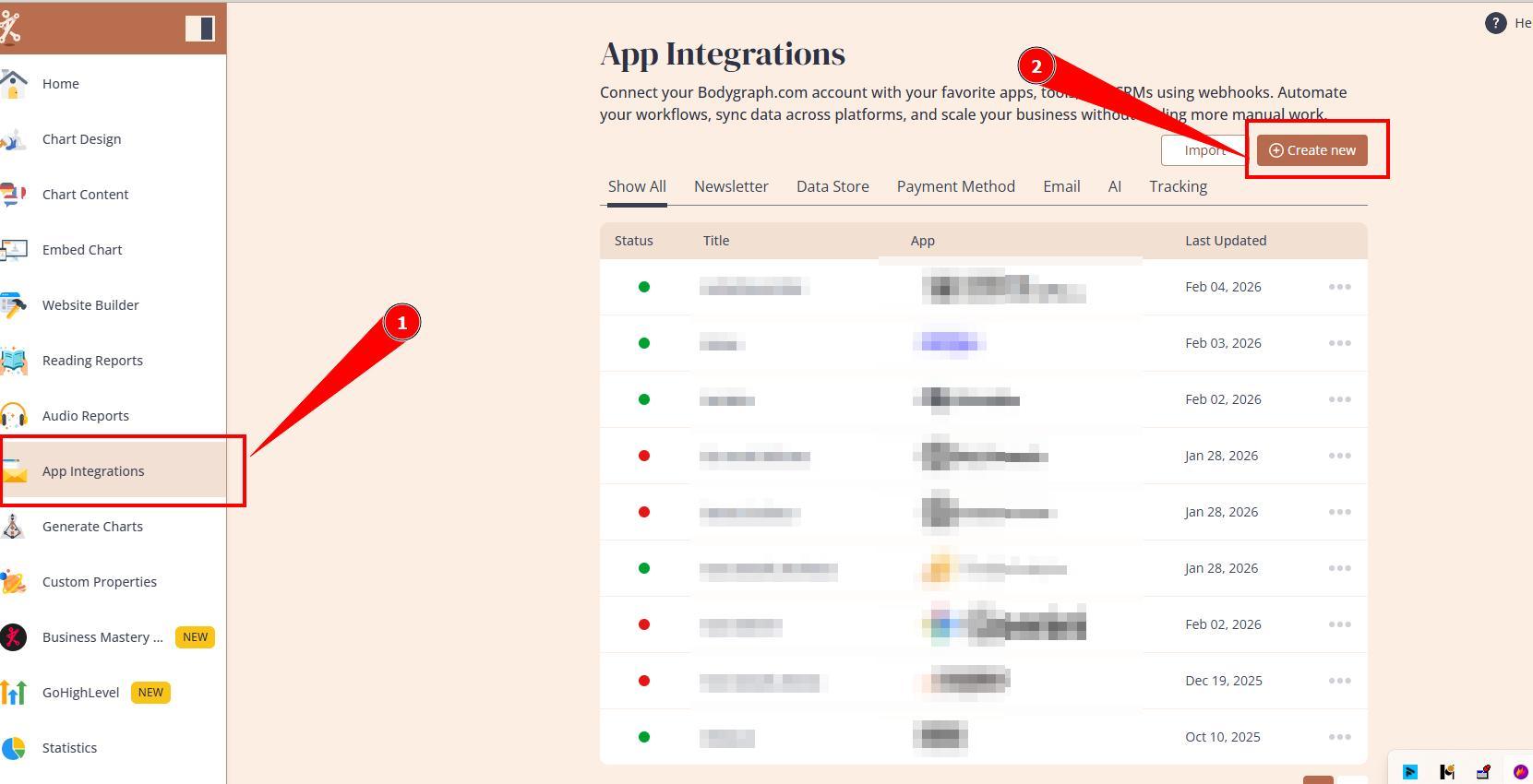
6. Open different tab and login to your Bodygraph dashboard. Navigate to App Integrations and click Create new.
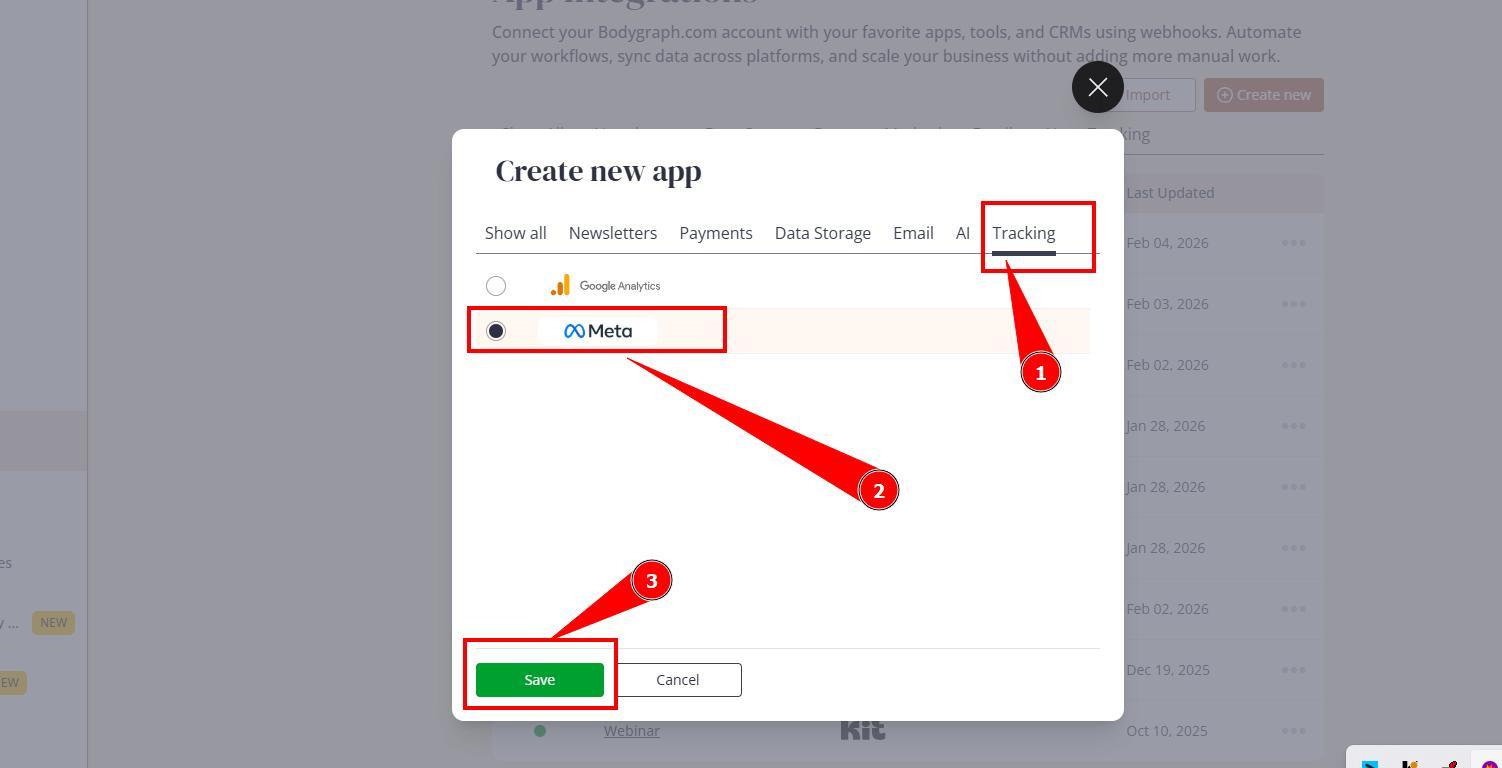
7. Select Tracking tab, toggle on Meta and click Save.
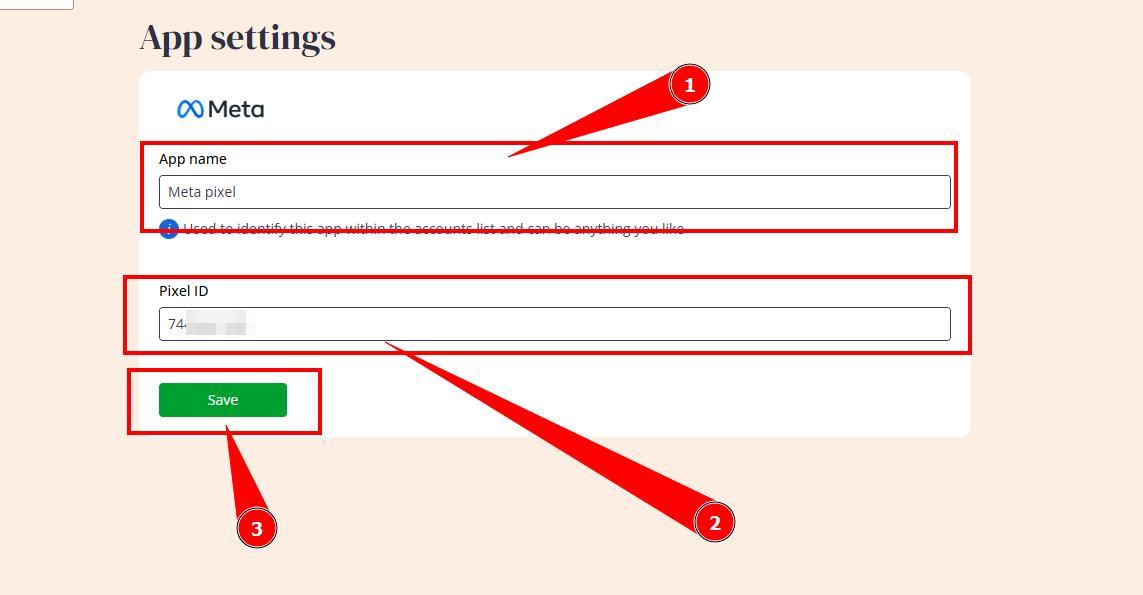
8. Give the app name (for your identification only), paste Pixel ID number that you copied at step 5 and click Save.
9. Now go to Embed charts and open embed code that you are using or will be using at your website.
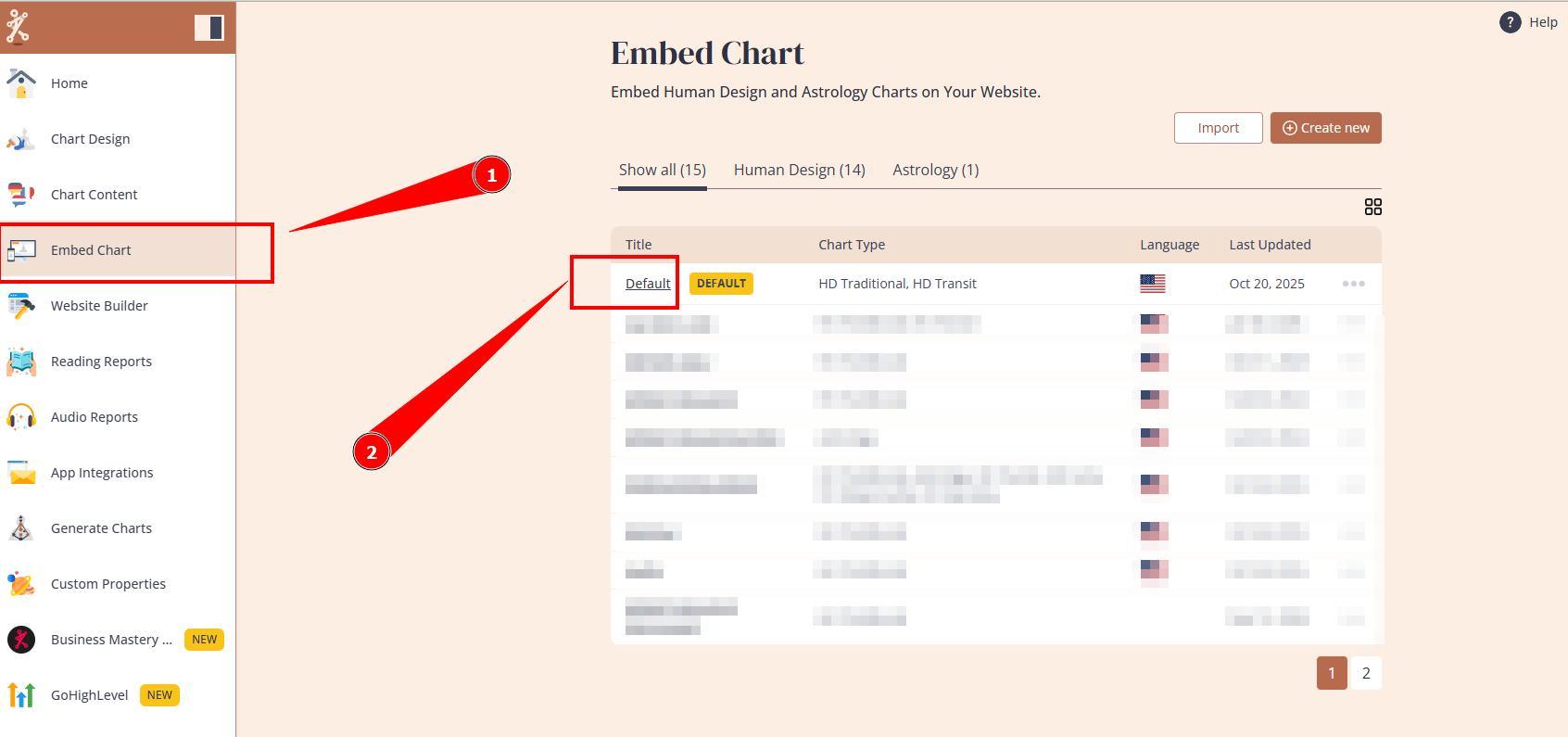
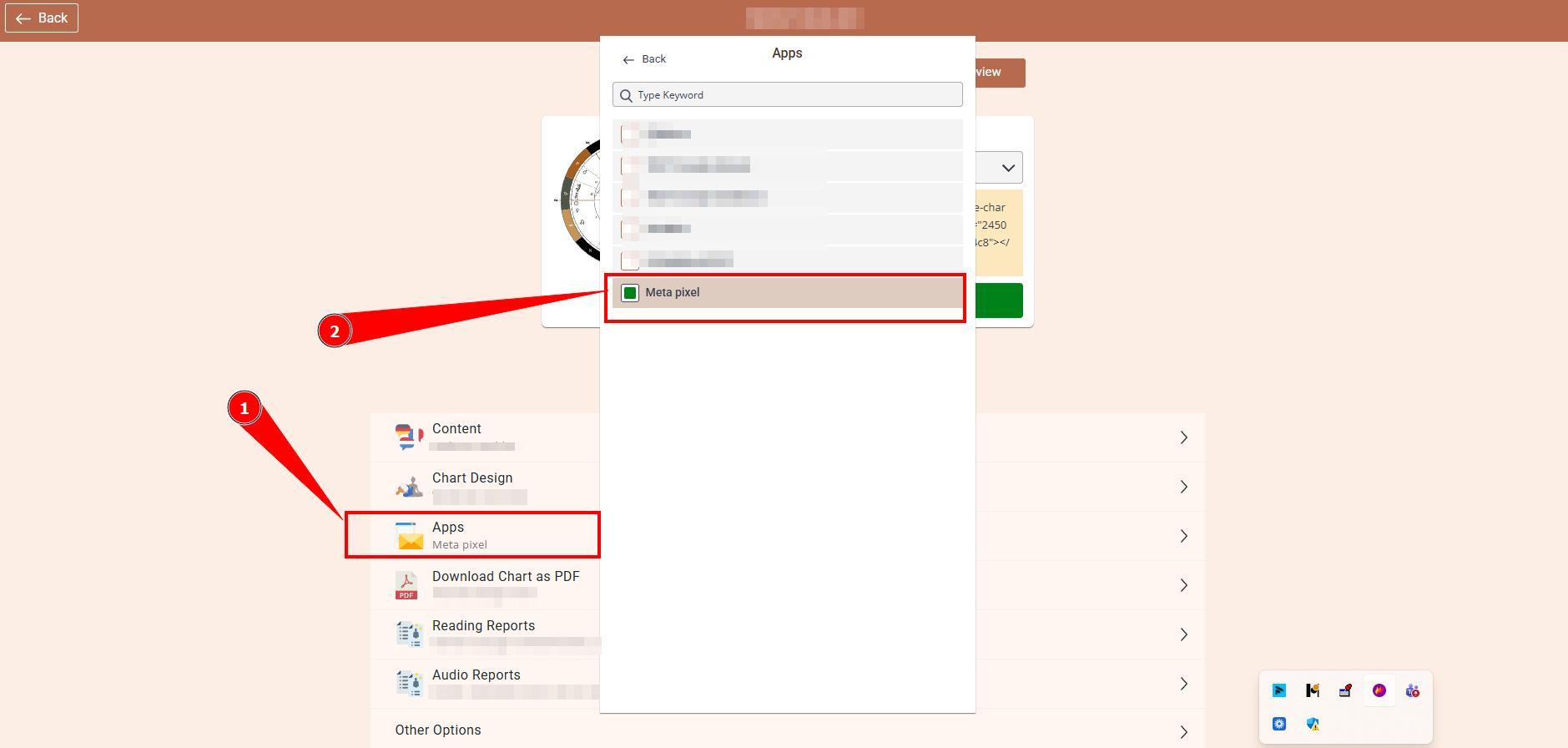
10. Select Apps settings and toggle on Meta app connation that you just completed.
If you are using Bodygraph Website Builder, then app needs to be enabled at website settings too. Navigate to Website builder tracking settings and toggle on Tracking app connection.
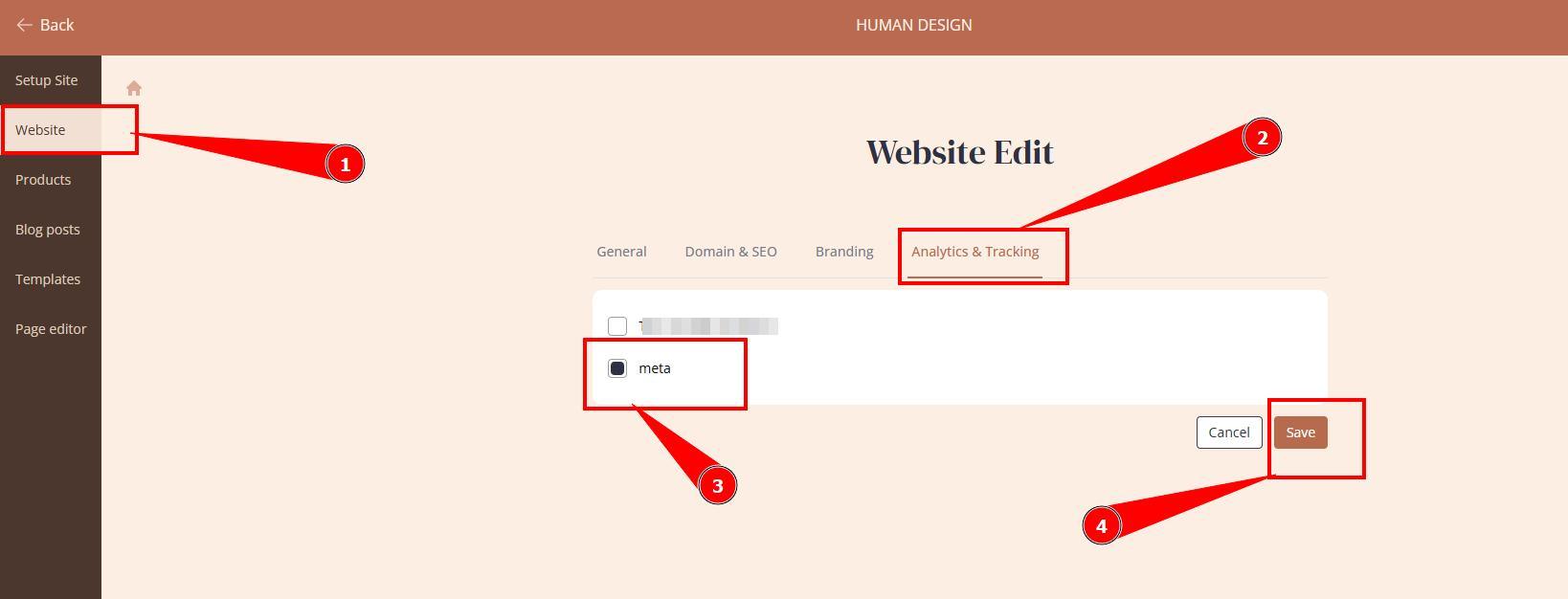
Please note: If you had previously used tracking ID at these settings, app connection will be automatically connected for you at App Integrations.
Still have questions, is above guide outdated? Please message us on Live Chat or send an email to support@bodygraph.com.

All the Tools You Need to Build, Grow, and Scale Your Human Design and Astrology Business

