


How to edit the reading report delivery email?
Last Updated: Mar 18, 2026
To edit the reading report delivery email please follow the steps listed below:
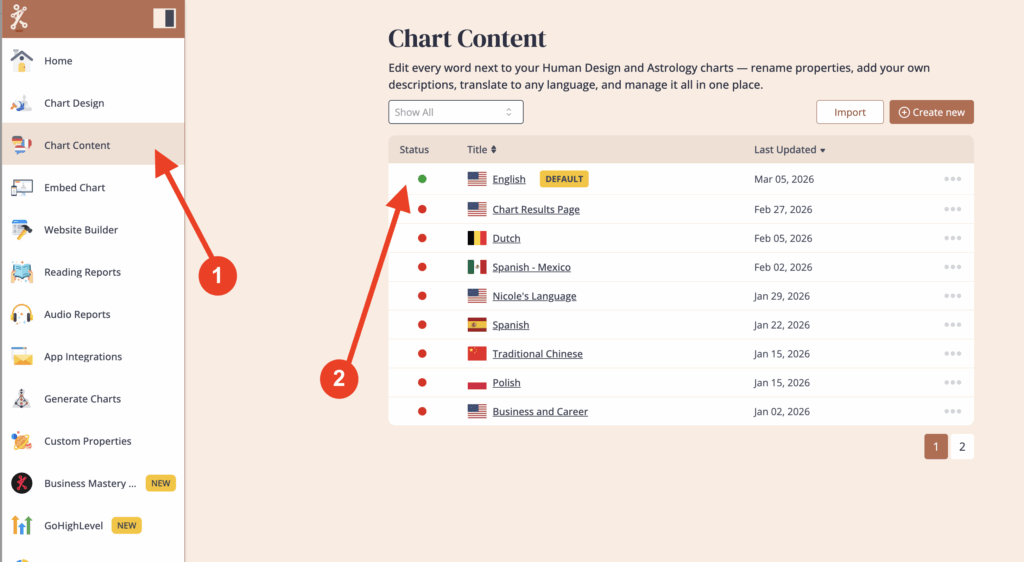
Click on ‘Chart Content’ and select the language that is assigned to the paid report that you have email delivery set up on.
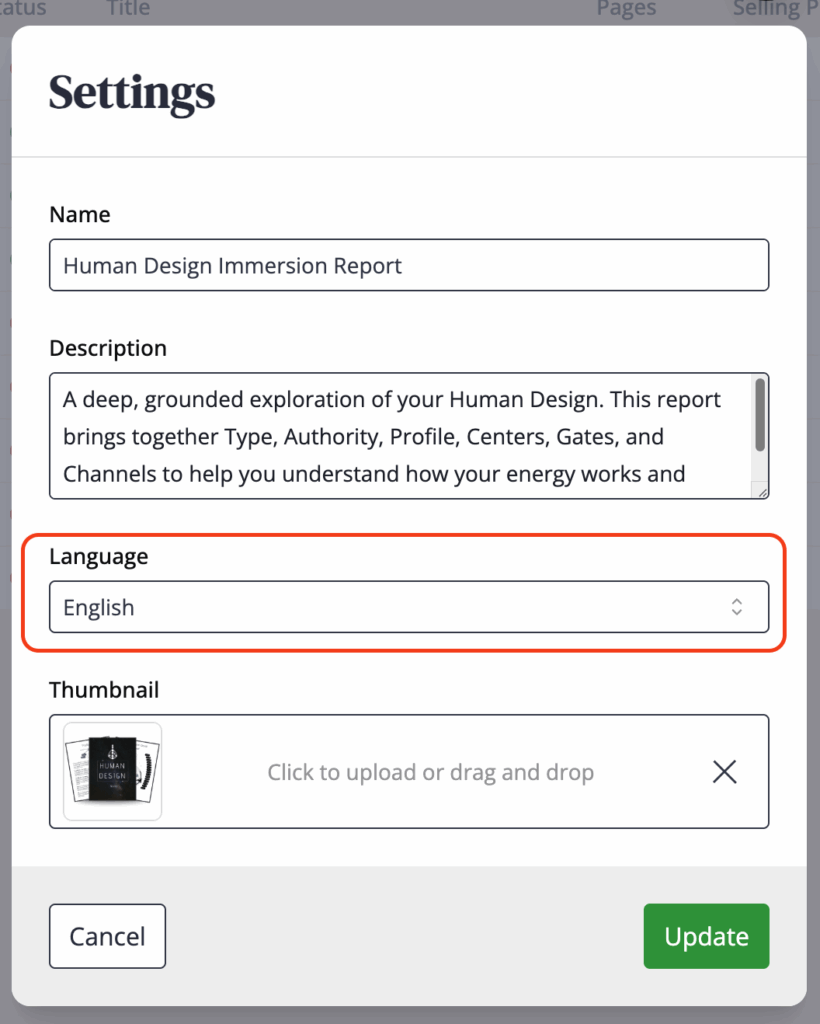
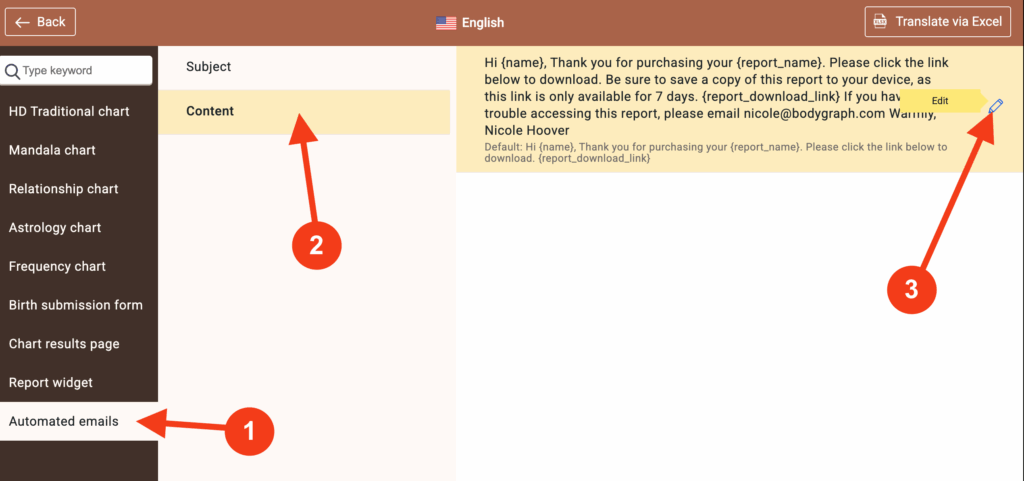
Click on ‘Automated emails’ from the left menu, then ‘Content’ then click on the pencil icon.
Edit your email content. Make sure it contains the same codes to pull up customer details and the link to the report. {name}, {report_name}, {report_download_link}.
Be sure to click ‘Save’ once finished.
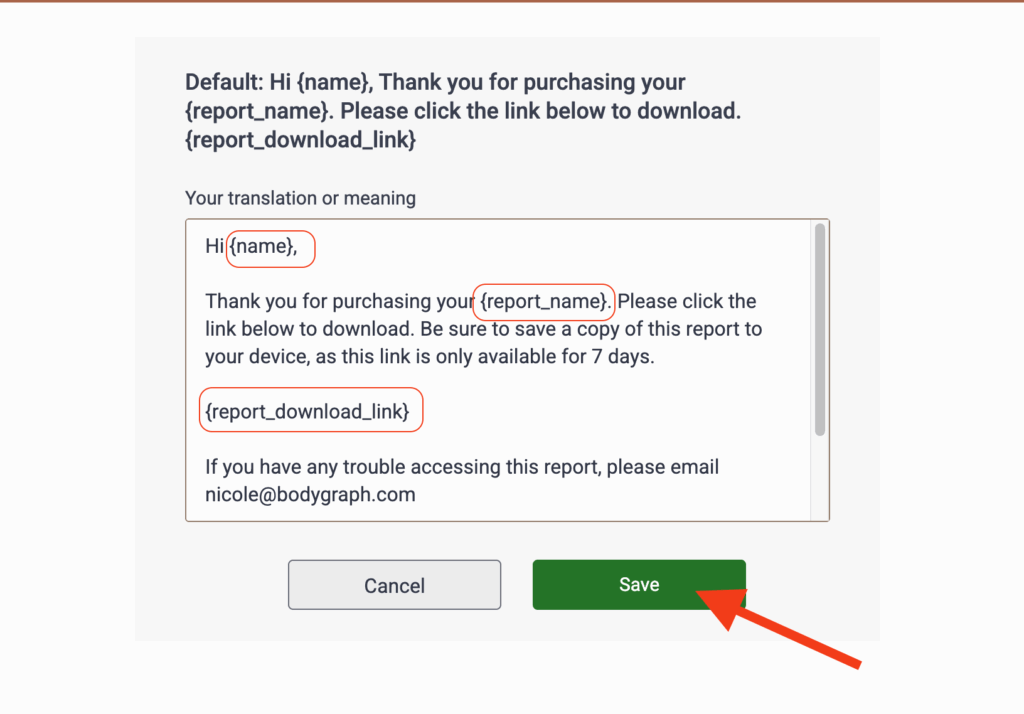
Important: do not remove, edit, translate shortcode {report_download_link} as it is important for including links to the purchased reports. Also, you might want to include information that link has an expiration window of 7 days.
Note: Test this at your website. Set your report price to $1.00 and complete the purchase process to confirm email delivery of the report. Once you complete the purchase, set your report price back to your normal fee.
Frequently asked questions:
– Can I upload images to the email templates?
No. Email templates do not support image uploads.
– Can I send report as PDF attachment instead of link?
No. All generated reports are stored at Bodygraph servers for 7 days and system issues the link to send for client.
– Can I extend the link retention period?
There is no option to extend default retention period. However, if client missed an opportunity to download report within 7 days you can:
a) trigger email re-delivery at Statistics
b) download report PDF from Statistics and send it, as attachment to email, manually.
Still have questions, is above guide outdated? Please message us on Live Chat or send an email to support@bodygraph.com.

All the Tools You Need to Build, Grow, and Scale Your Human Design and Astrology Business

