


Google Analytics
Last Updated: Jan 27, 2026
Tracking your integration and website performance is one of the most important aspects of running a successful online business. Understanding visitor behavior helps you make informed business decisions, optimize user journeys, and improve conversion rates.
Both Bodygraph embed codes and the Bodygraph website builder can be tracked using Google Analytics.
How to Connect Google Analytics
1. Navigate to Google Analytics and proceed by creating a G-Tag ID. Once it is created you will find ID under Admin->Data Streams->Measurement ID. Copy the ID and proceed to step 2.
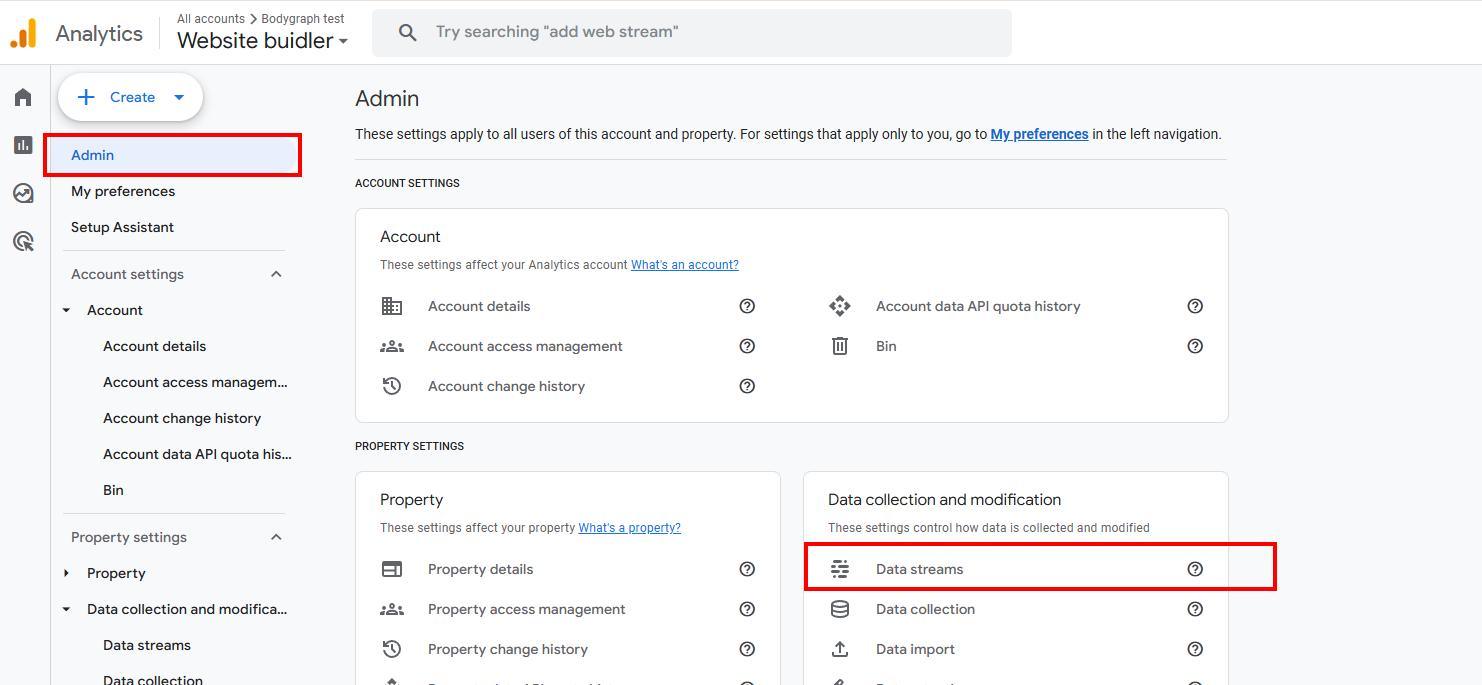
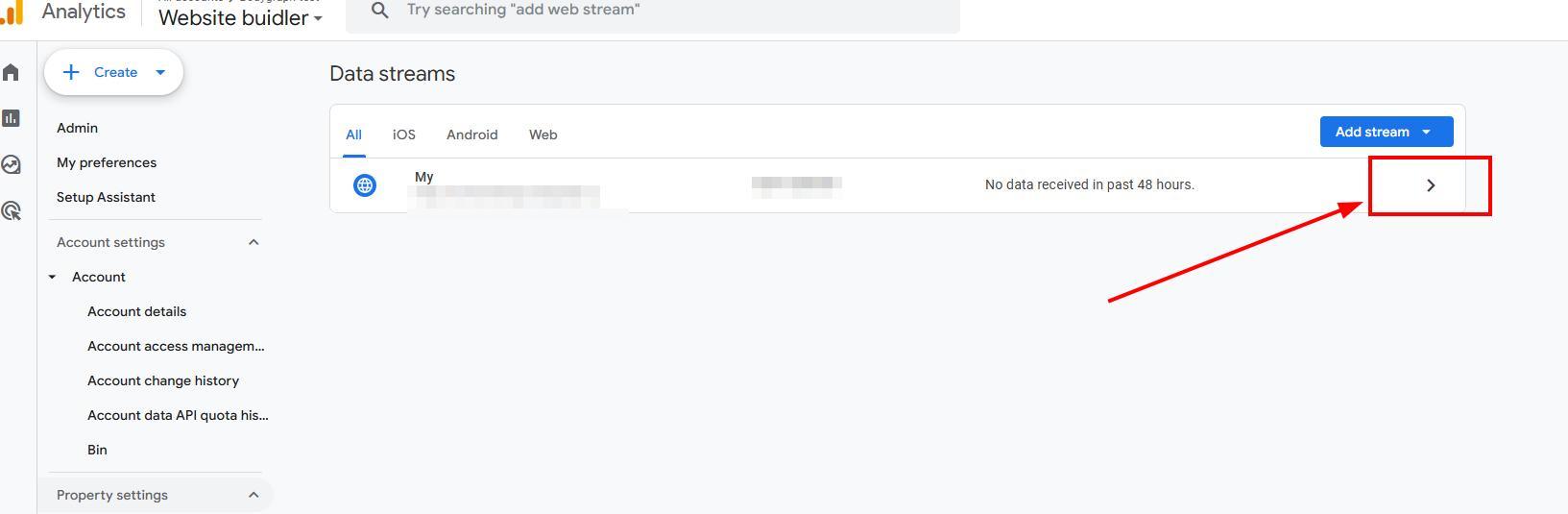
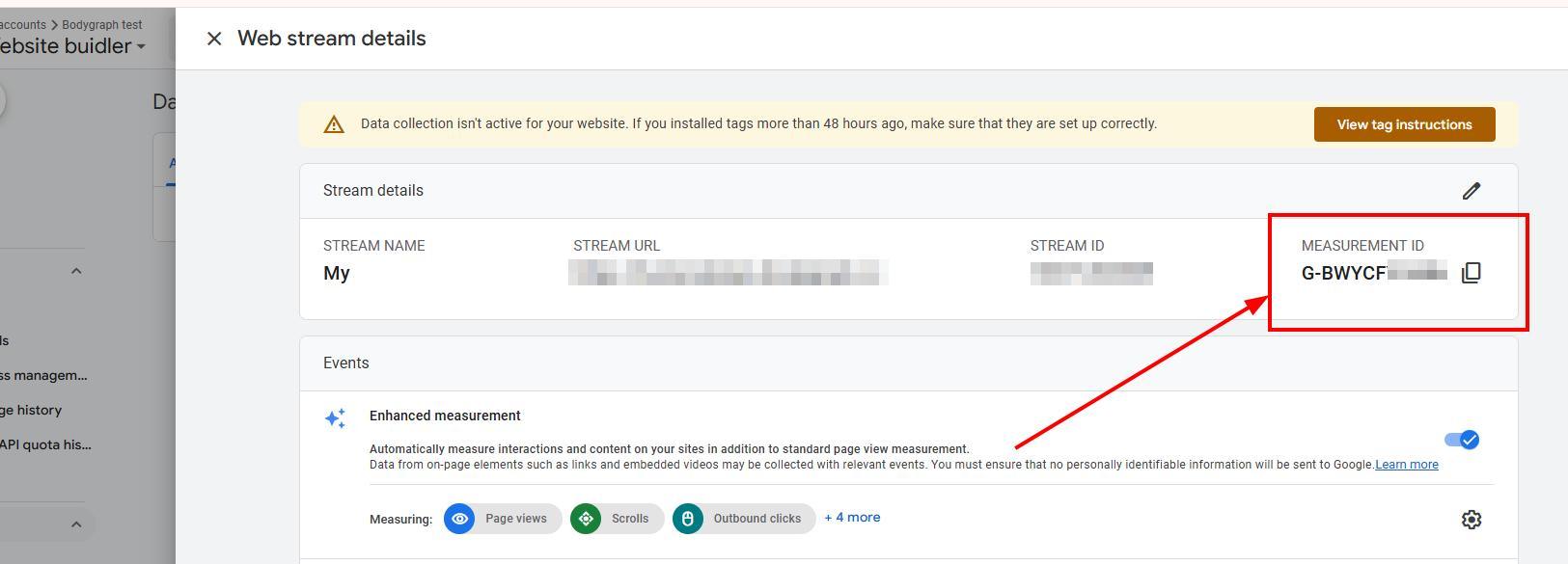
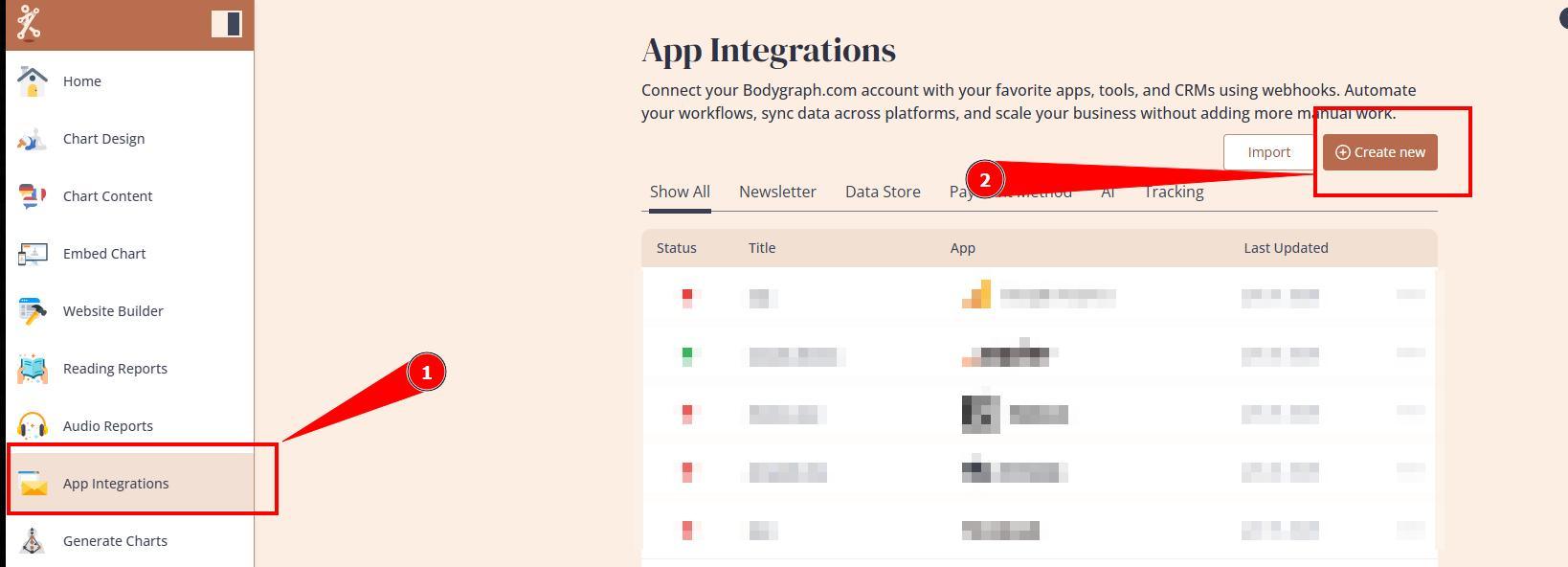
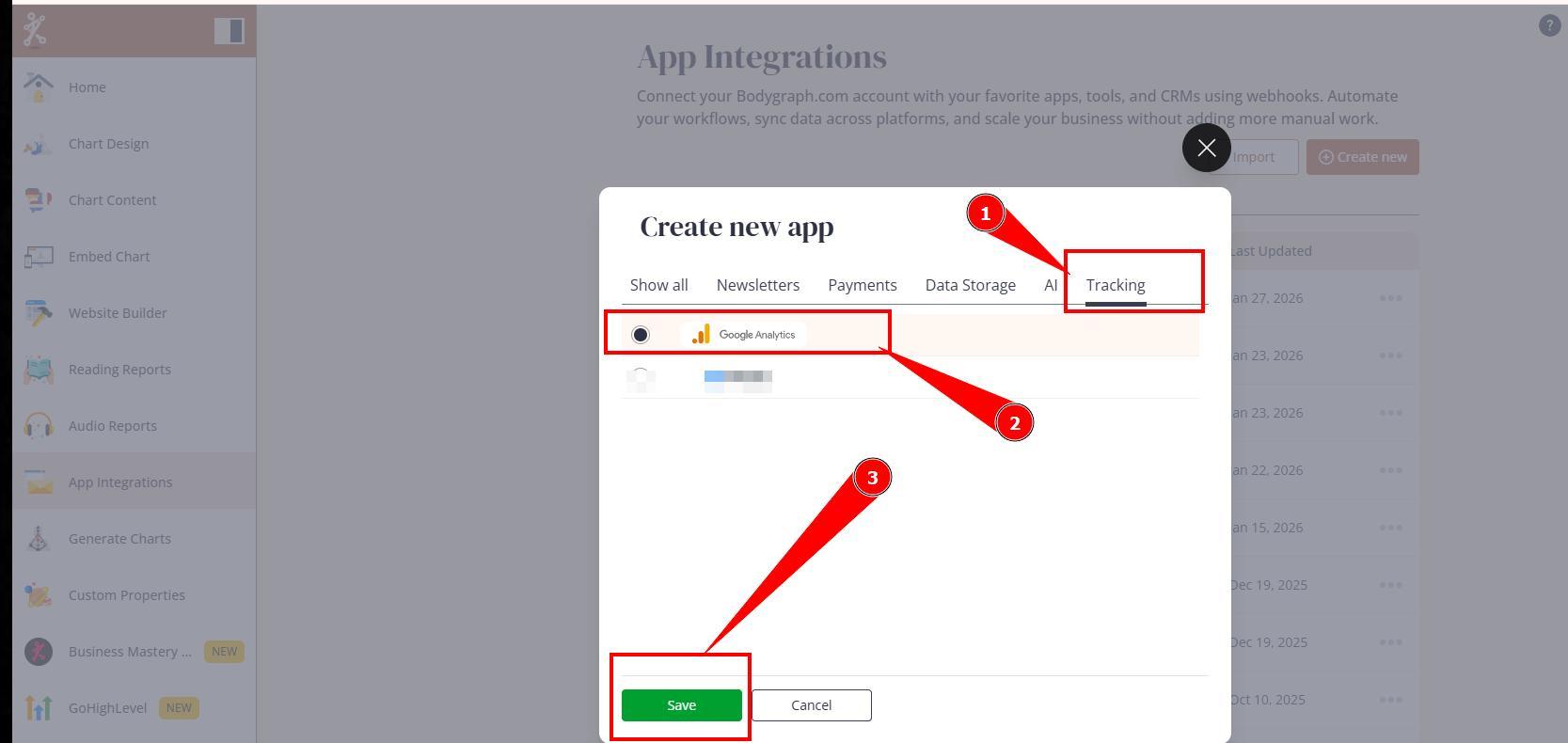
2.At Bodygraph navigate to App Integrations click Create new, select Tracking tab and Google Analytics.
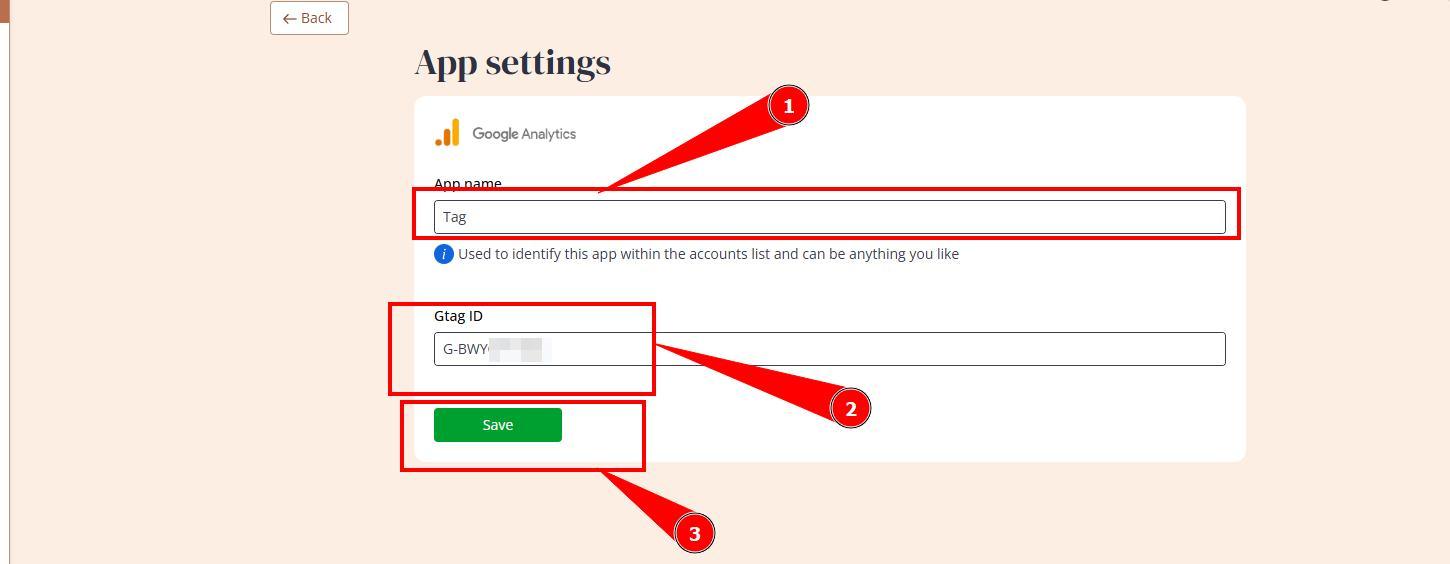
3.Give the connection a name (just for your reference), paste Gtag ID and click save.
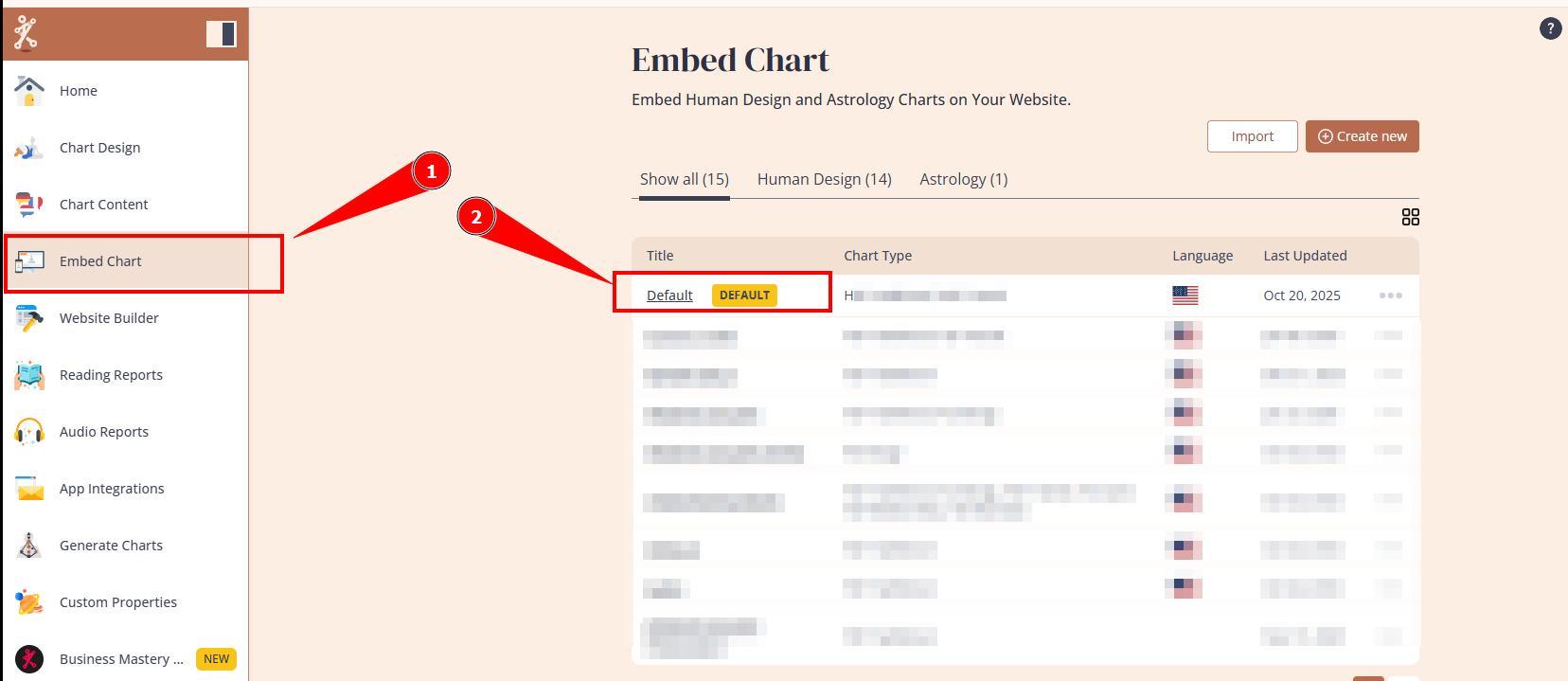
4. Time to enable it. The tracking app works for both: embed codes and Website Builder.
To enable it at embed code, navigate to Embed charts and toggle Tracking app connection.
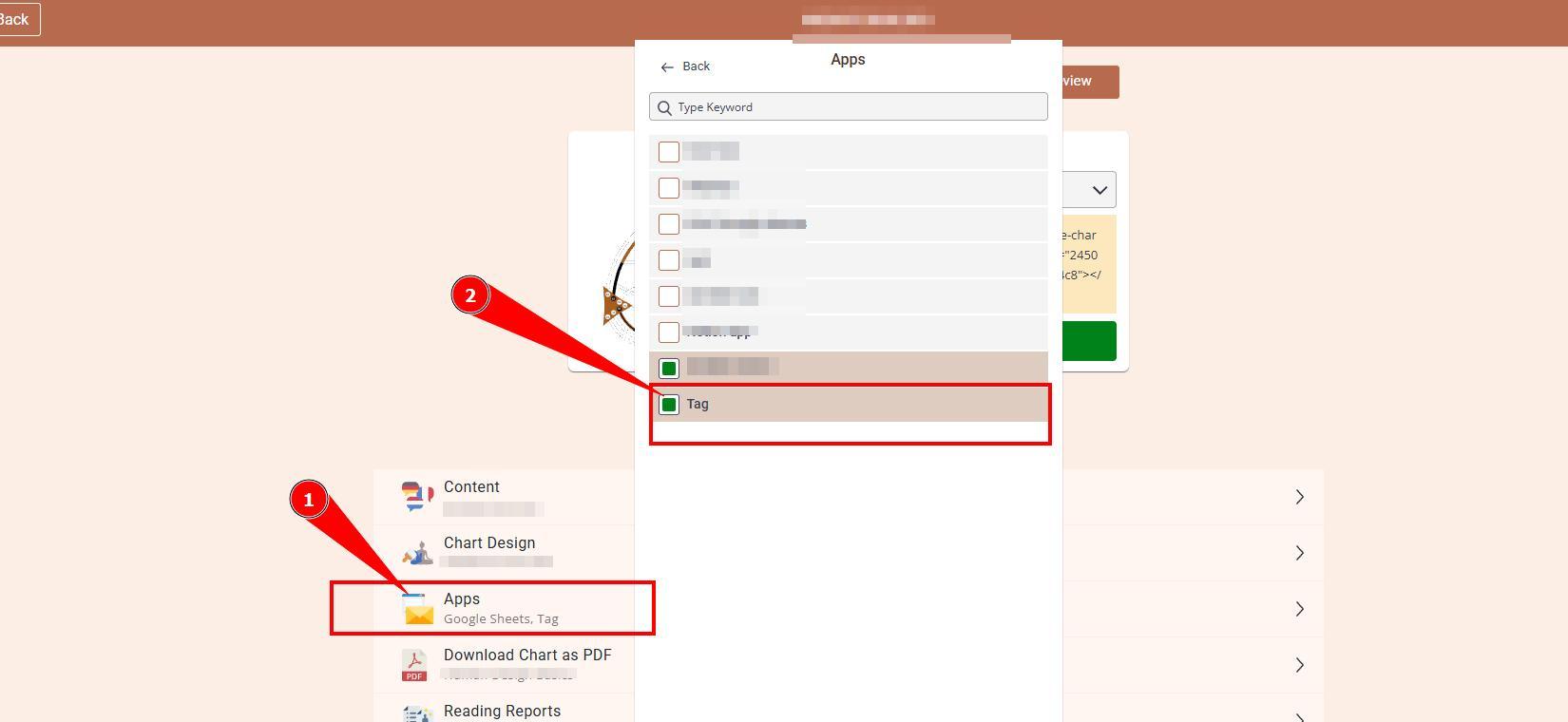
If you are using Bodygraph Website Builder, then app needs to be enabled at website settings too. Navigate to Website builder tracking settings and toggle on Tracking app connection.
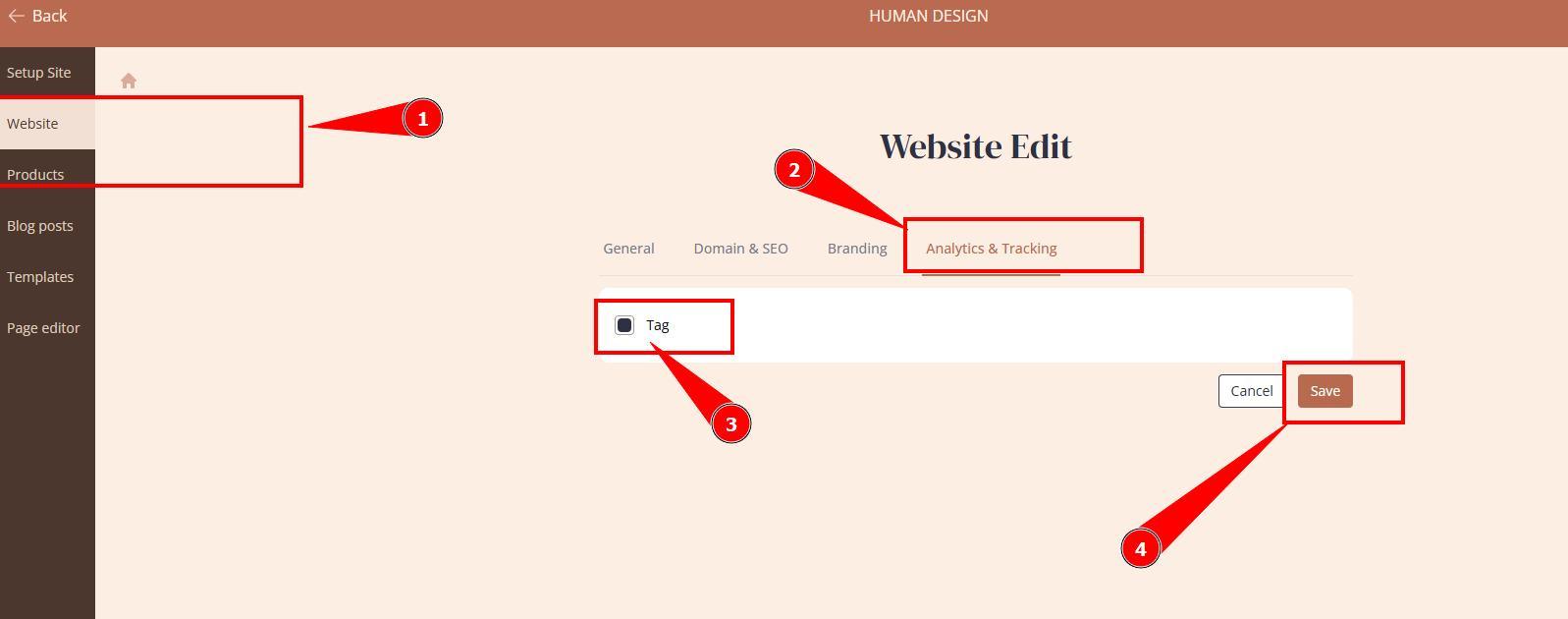
Please note: If you had previously used tracking ID at these settings, app connection will be automatically connected for you at App Integrations.
Still have questions, is above guide outdated? Please message us on Live Chat or send an email to support@bodygraph.com.

All the Tools You Need to Build, Grow, and Scale Your Human Design and Astrology Business

