


Gemini integration
Last Updated: Jan 22, 2026
To connect Gemini with your Bodygraph account and enable AI support within the Reading Reports tool, please follow the steps outlined below:
1. Open and login to your your Bodygraph.com account.
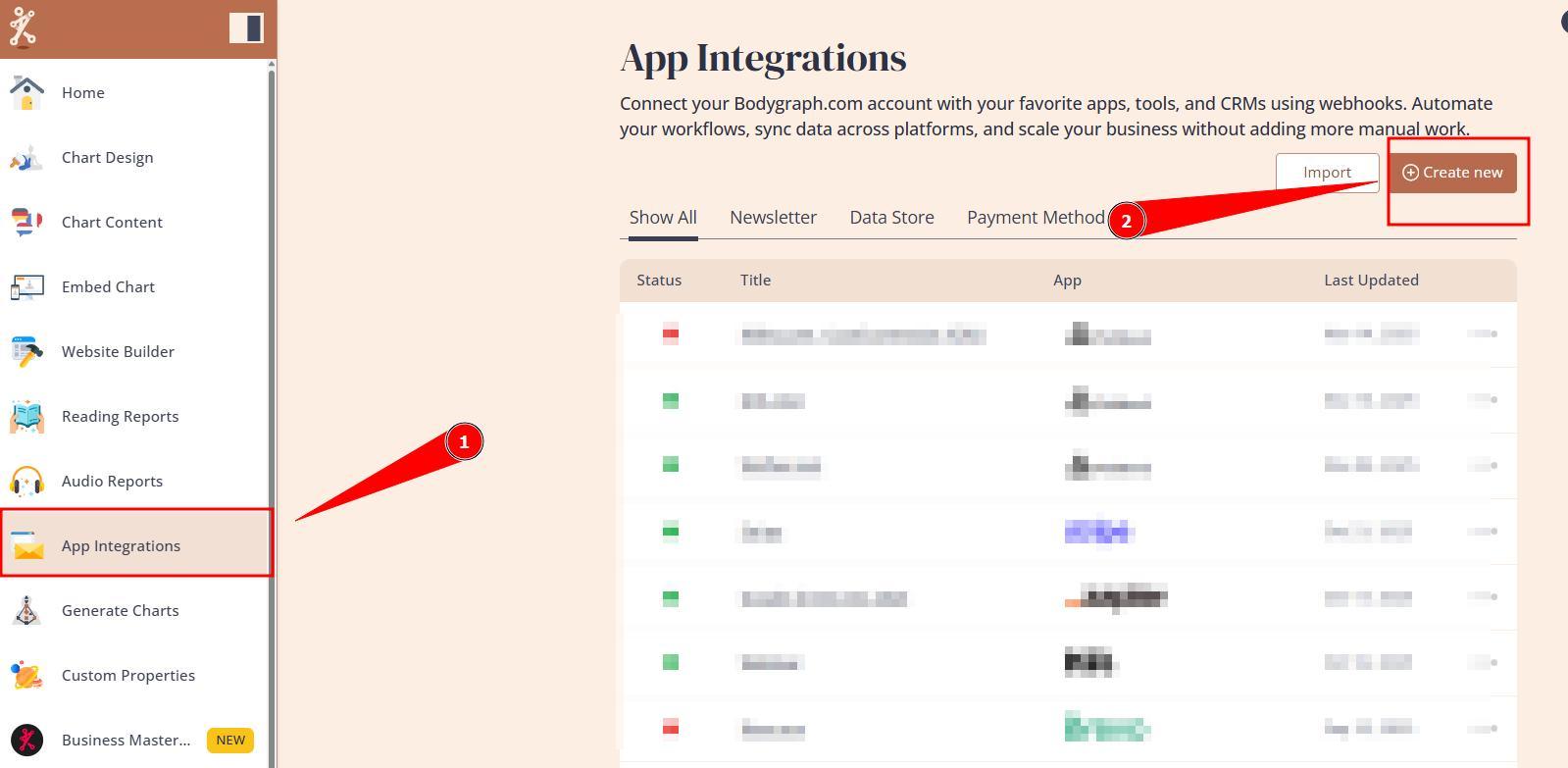
2. Navigate to App Integrations and click Create New button.
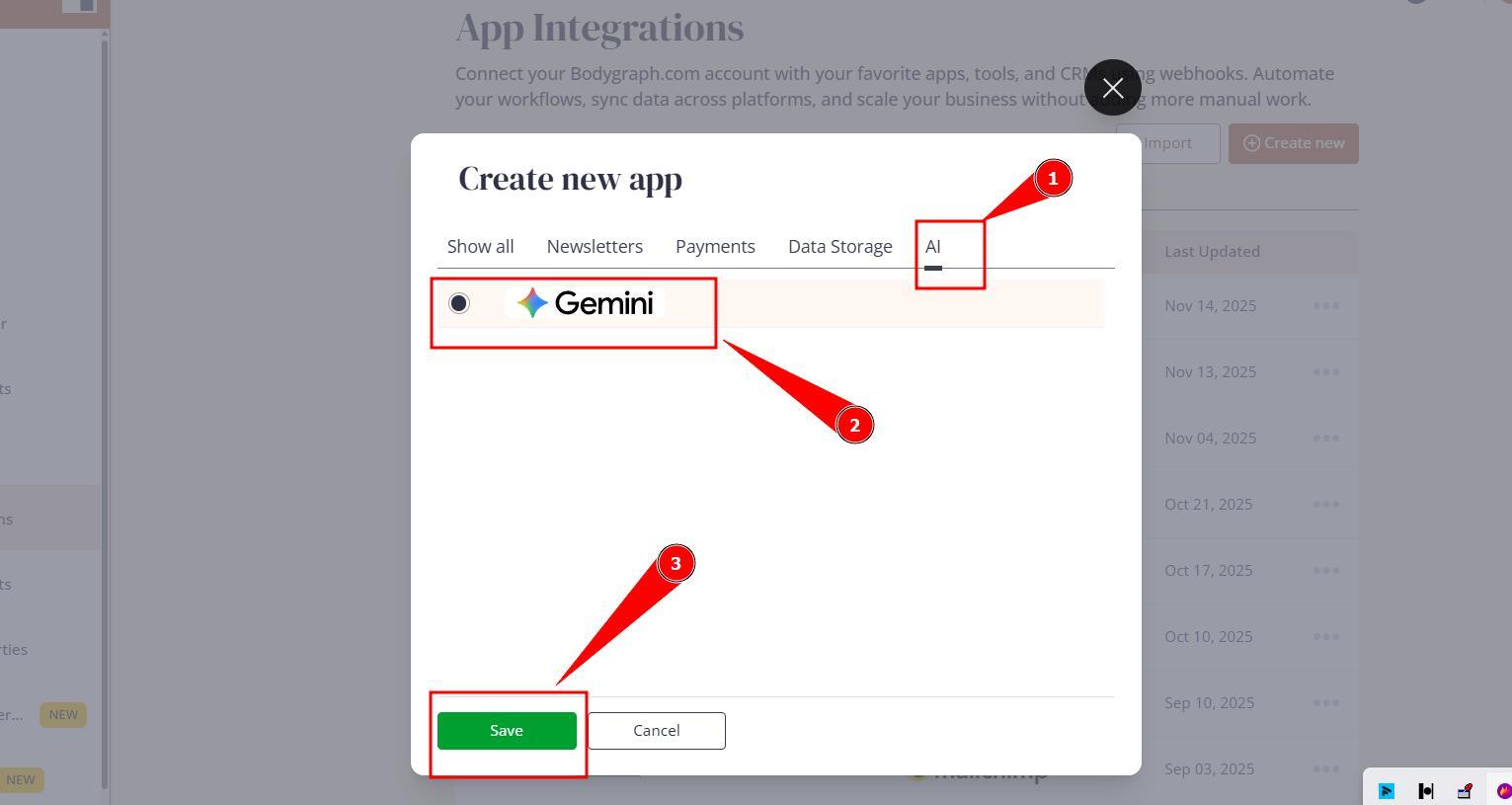
3. Select AI tab, click on Gemini and press on Save.
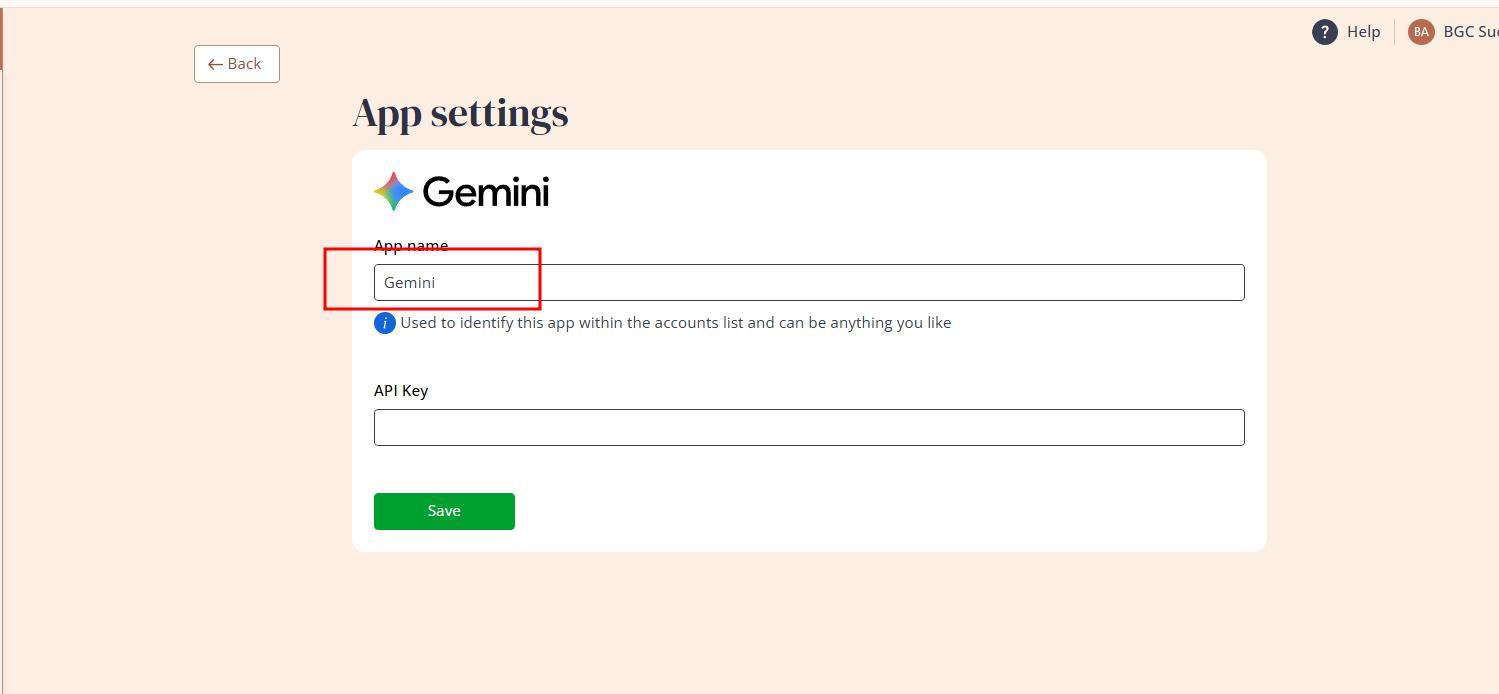
4. Enter any name (just for your reference) and leave it open just like that.
5. It is time to collect Gemini API key. If you already have Google/Gmail account, simply login to it and navigate to this link to copy API. If you do not have Google/Gmail account you will need to create one here
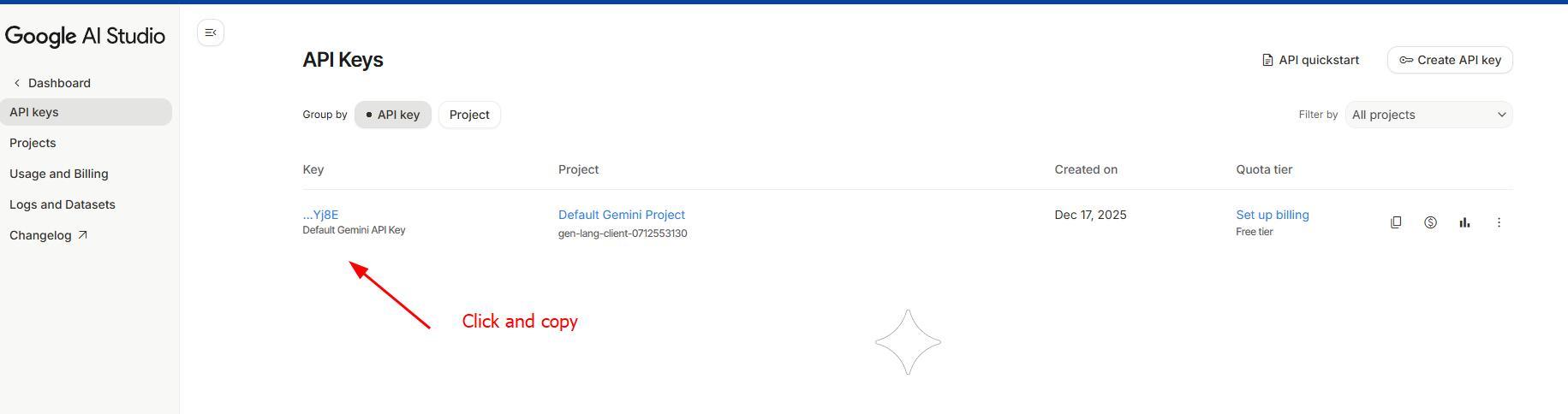
Please note that it is not mandatory to update billing details unless you require to use faster and better module of Gemini.
6.Paste API code at the Gemini app setup that you left open on previous tab and click Save.
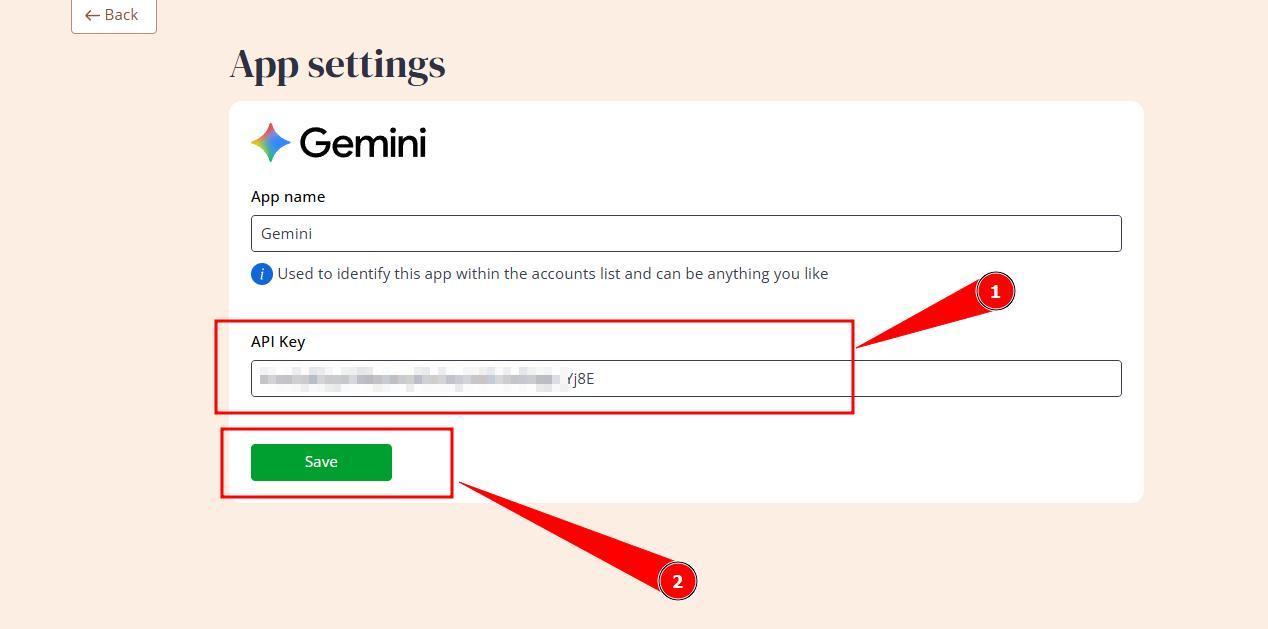
Note: The indicator will remain red at all times. This does not indicate a failed connection.
These indicators are designed for apps that are enabled via embed code – in that case, the indicator turns green to show the app is active at embed level. Gemini is not currently intended for embed use, so the indicator will remain red.

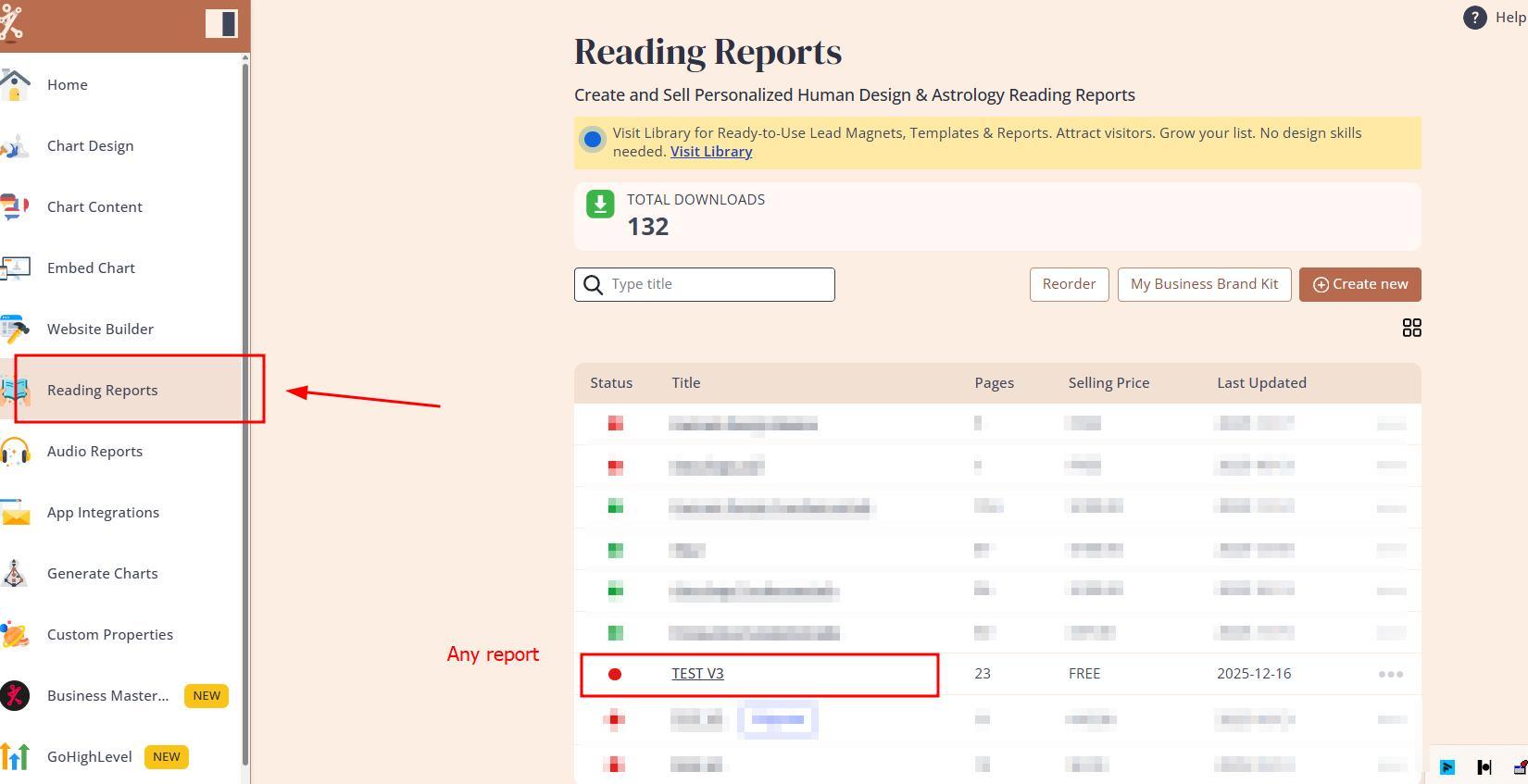
7. Now you can start using AI at your Reading Reports. Navigate to reading reports tool and open any report to test it (suggestion to use testing report first and not the report that is live for sale).
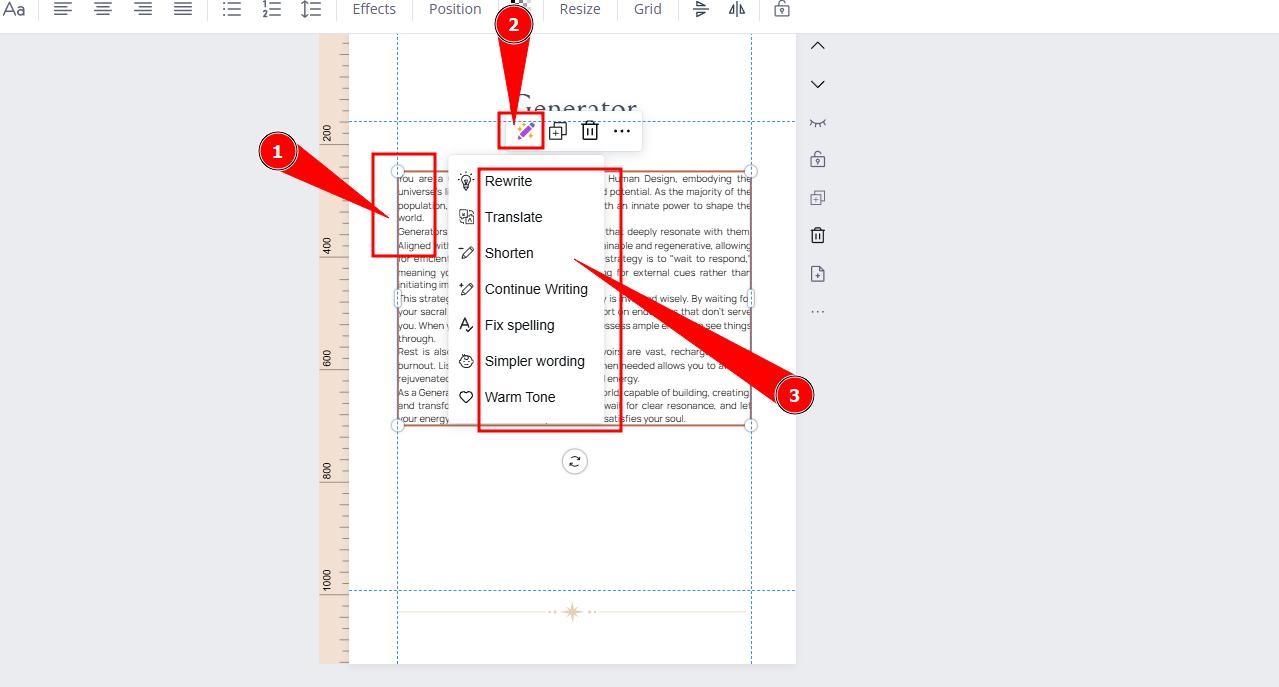
8. Click on any textbox and select AI pencil icon to start using commands.
9. Once first request is processed you will be able to switch the AI module, expand generated/translated content even further, request to adjust it and copy/add at the bottom or replace the content.
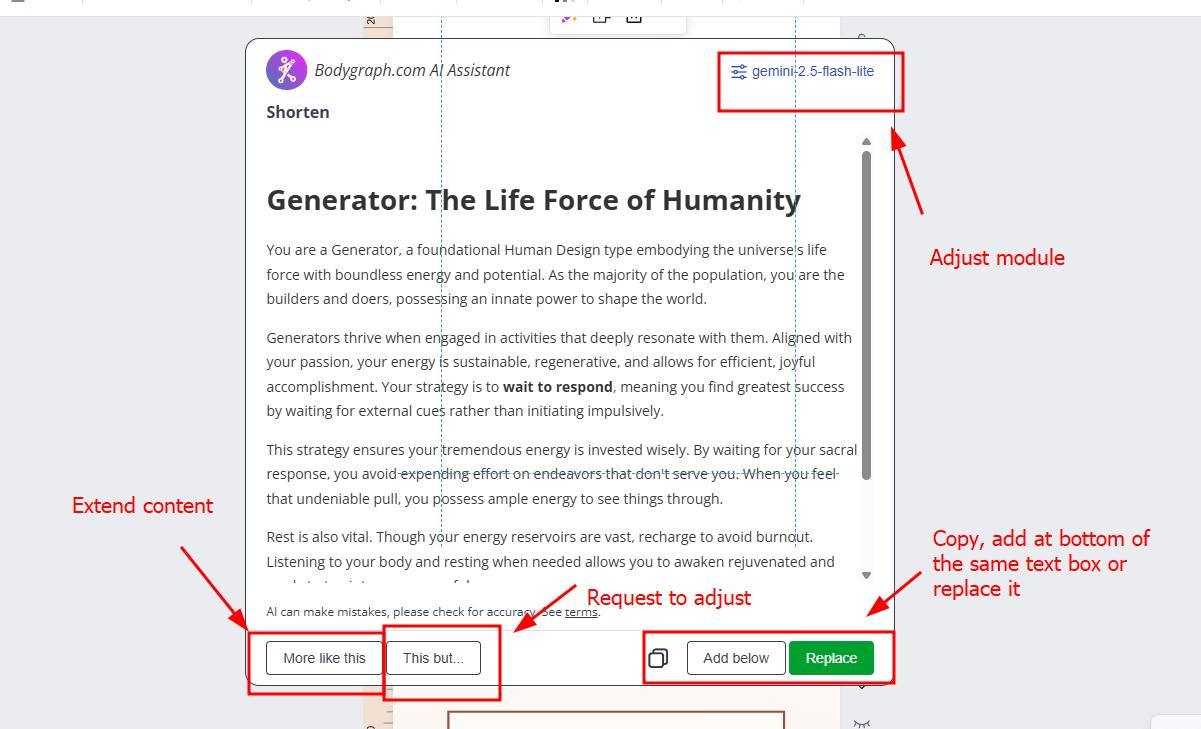
Please note that AI changes applies to all text within highlighted text box. There is no option to apply changes to the single sentence or paragraph.
Also check video tutorial below:
Frequently asked questions:
– Can I use any other AI modules such as Chat GPT?
Currently Bodygraph.com AI integrations only supports Gemini.
Related articles:
How to use Bodygraph.com AI?
Terms of use
Still have questions, is above guide outdated? Please message us on Live Chat or send an email to support@bodygraph.com.

