


Downloading full report
Last Updated: Feb 17, 2026
If you’ve ever built a detailed Human Design and/or Astrology reading report on Bodygraph.com, you may have wondered:
“How do I download the full report as one file?”
“How can I keep a safe backup before pausing my subscription?”
“How do I send it for proofreading?”
Here’s the honest answer: there is no one-click full report download button.
But — and this is important — there are reliable workarounds. And in this article, I’ll walk you through them clearly, so you can choose the right method for your goal.
Why There Is No One-Click Export Button
Before we jump into solutions, it’s important to understand why the system works this way.
Reports Can Be Extremely Large
Some clients build reports that are 8,000–10,000 pages long.
These are not simple text PDFs. They often include: Charts, Graphics, Background images, Design elements, Dynamic illustrations.
Rendering a 10,000-page, image-heavy PDF in one go would likely crash most systems. Even commercial eBooks rarely reach that size — and they’re usually text-heavy. Bodygraph reports are much more dynamic.
The Smart Mapping System
The report editor inside Bodygraph.com is not just a design tool.
It uses intelligent page mapping:
Pages are tagged by content
The system selects relevant pages based on:
Date of birth
Birth location
Their Human Design and/or Astrology activations
Only relevant content is rendered for each client
This is very different from a static PDF where all information is dumped into one file and the reader must figure out what applies to them.
Because of this dynamic structure:
You cannot import PDFs from tools like Canva or Adobe Designs.
You cannot export the entire report as a static universal document.
But….. you can work around it.
Method 1: Export Pages as JSON (Best for Backup & Subscription Pause)
✅ Use This If:
You want a safe backup
You plan to pause your subscription
You want protection against accidental deletion
❌ Not Suitable For:
Proofreading
Sending visual PDFs to assistants
How It Works
Each page in your report can be exported individually as a JSON file.
A JSON file is not a PDF. It’s a structured code file. When re-imported, it recreates the page exactly as it was.
Step-by-Step Process
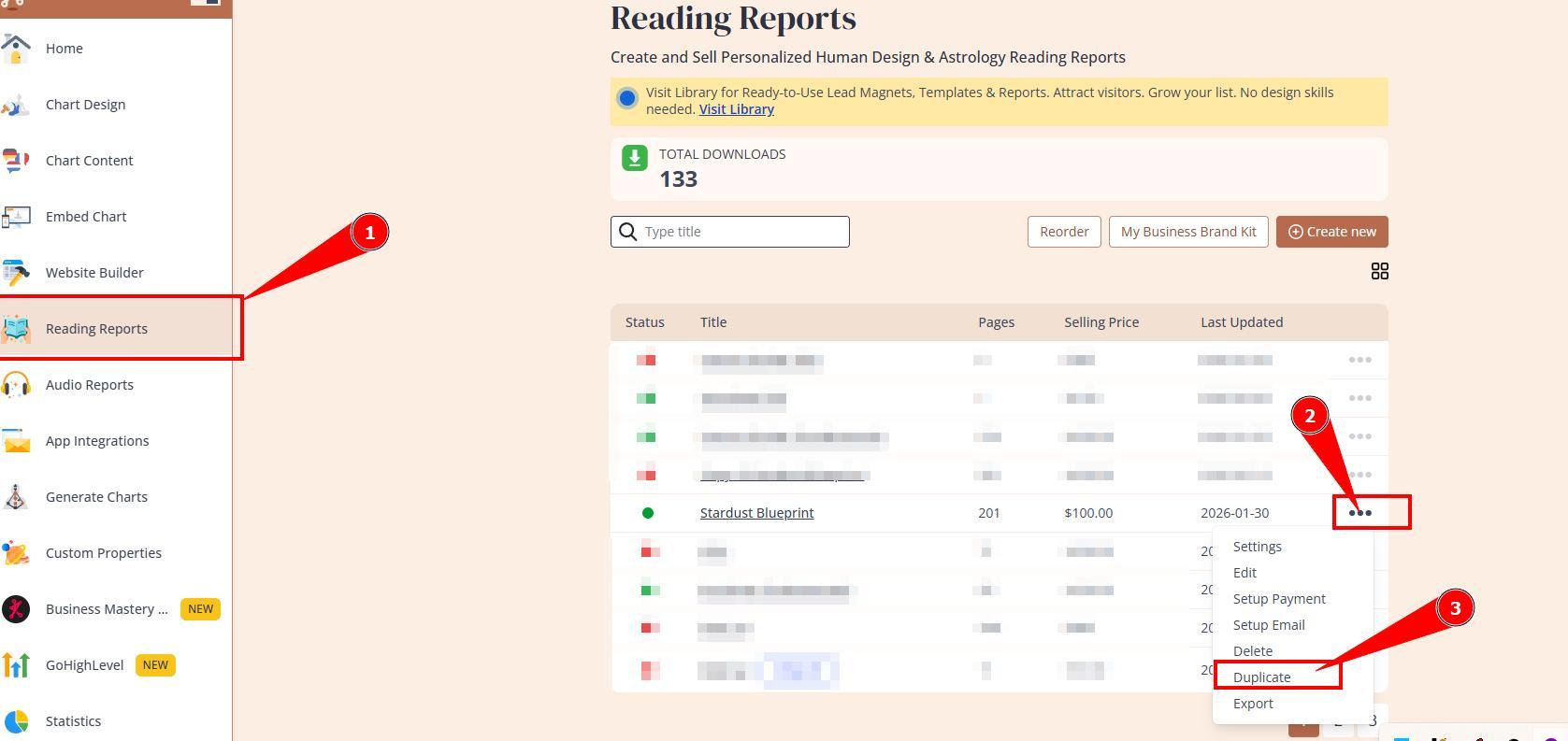
1. Duplicate Your Report First
Never work on your live selling report.
Duplicate it
Rename it (e.g., “Safe Copy – Backup Version”)
Work only on the duplicate
This protects your live integration.
2.Export Pages One by One
For each page:
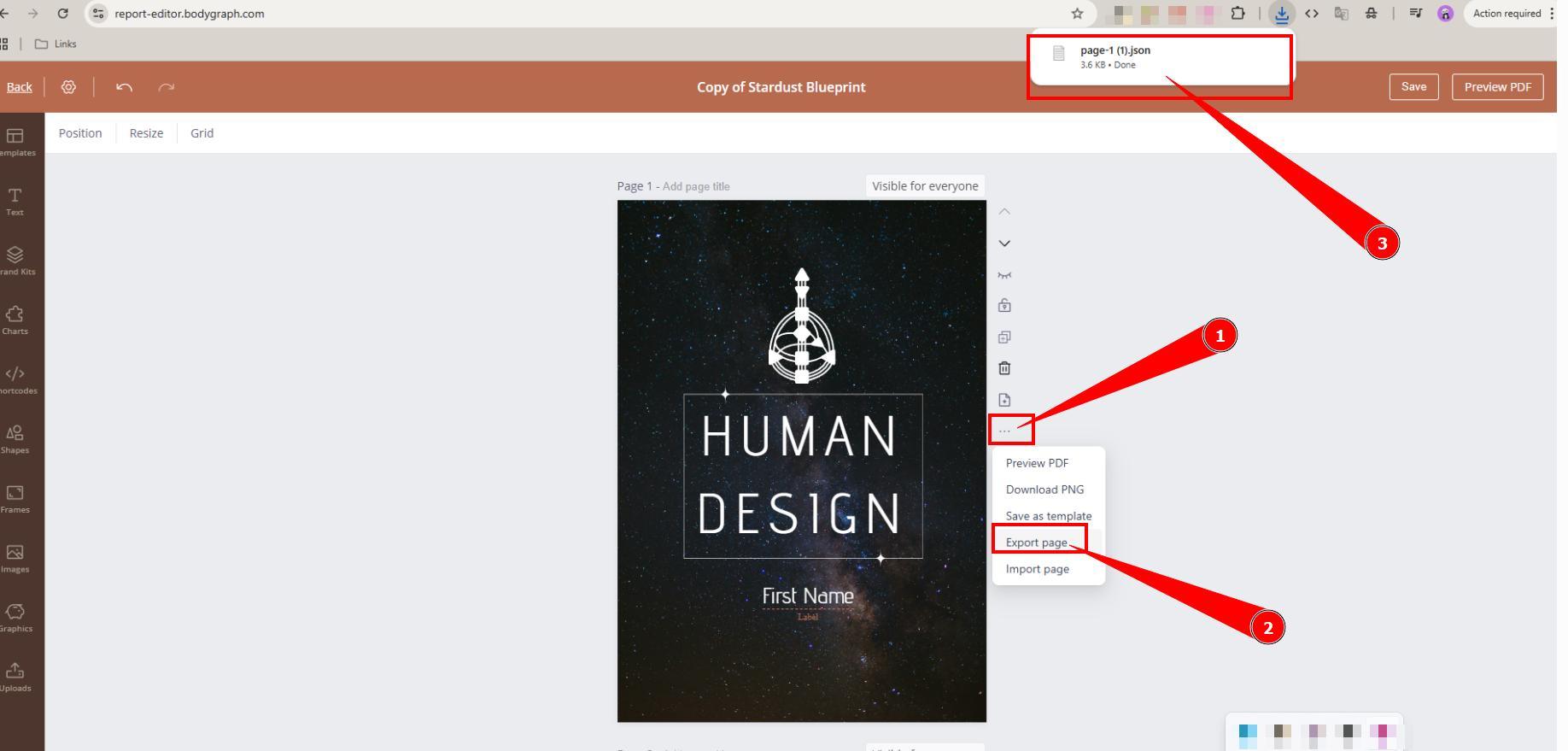
Click the three dots
Select Export Page
The file downloads as a JSON file (not PDF or image)
It’s automatically numbered (Page 1, Page 2, etc.)
Create a folder on your device named after your report and store all JSON files there.
Important Notes
You must import into a blank page
Importing overwrites existing content
Page visibility settings are NOT exporting alongside the page contents, therefore after importing the pages, Page Visibly must be set accordingly
Do not edit JSON files manually. Modifying the code can break compatibility
💡 Pro Tip
Export pages as you build them.
Instead of exporting 200 pages in one sitting, export each page once you’re happy with it. This saves hours later.
Method 2: Create a Visual PDF for Proofreading
✅ Use This If:
You want a visual PDF
You want to send content to assistants
You need proofreading
You want to reuse content elsewhere (e.g., Canva)
❌ Not Suitable For:
Subscription pause backup, these exports can not be imported back
How This Method Works
You use:
Page visibility controls
The preview function
Sectioned exports (in groups of pages, based on content)
Then combine multiple PDFs into one.
Why Sectioning Is Necessary
The heavier your design, the fewer pages you should export at once.
Recommended Limits:
| Report Type | Suggested Batch Size |
|---|---|
| Text-heavy | 50–80 pages |
| Minimal design | Up to 100 pages |
| Graphic-heavy | 10–30 pages |
Step-by-Step Process
1. Duplicate the Report
Again — never use your live version.
You will modify visibility settings, which can break client deliveries.
2. Hide Pages in Sections
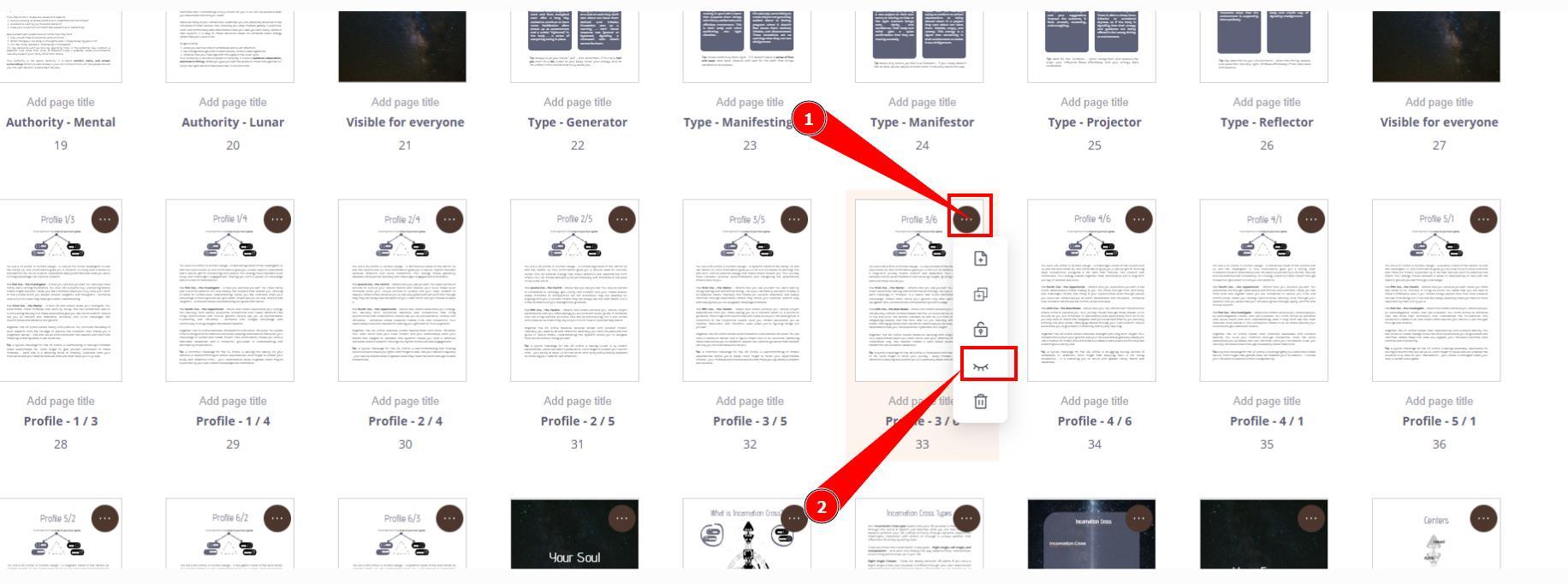
Go to Grid View.
Hide all pages except the first batch (e.g., first 50)
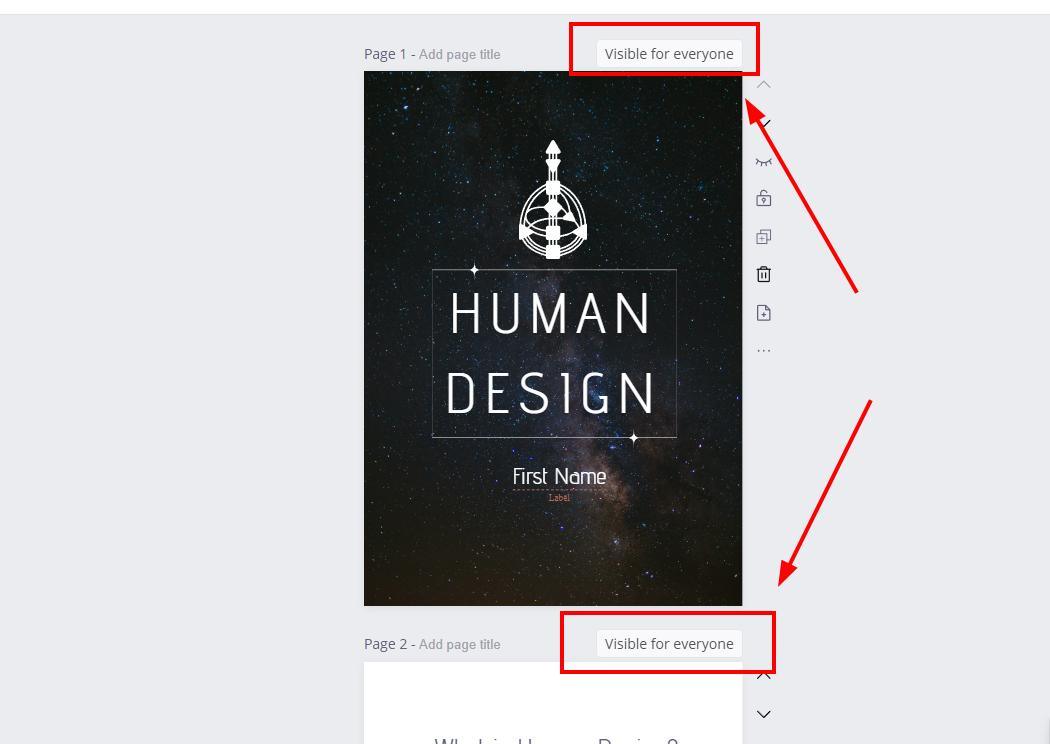
Ensure visible pages are set to Visible for Everyone
3. Run Preview
Use any birth data (since all pages are visible)
Generate PDF
Download
This gives you a partial PDF of visible pages.
4. Repeat for Remaining Pages
Hide the first batch that you just downloaded.
Unhide the next batch
Preview and download again
Continue until all pages are exported.
5. Combine the PDFs
Use any free online PDF merger:
Name files in order (1, 2, 3, 4)
Upload
Merge into one final document
Now you have your full visual PDF.
Important Limitation
This method only works for static text pages.
If your report uses shortcodes (dynamic content pulled from chart data):
The preview will only render content for the selected chart
You cannot export all variations at once
In that case:
Export chart content from the Content Tool instead
Proofread at the source level
Method 1 to export pages as json files (to keep design) alongside language export is best choice in this case.
The Smartest Workflow (Recommended)
If you’re building your own custom reports:
✔ Proofread your content BEFORE pasting into Bodygraph
✔ Export sections as you build report
✔ Keep JSON backups from the start
✔ Duplicate before experimenting
This saves massive time later.
Which Method Should You Use?
| Goal | Best Method |
|---|---|
| Pause subscription | JSON export |
| Prevent accidental deletion | JSON export |
| Proofreading | Sectioned PDF method |
| Reusing content elsewhere | Sectioned PDF method |
| Re-importing later | JSON export |
Video guide
Still have questions, is above guide outdated? Please message us on Live Chat or send an email to support@bodygraph.com.

All the Tools You Need to Build, Grow, and Scale Your Human Design and Astrology Business

