


Change the position of the properties
Last Updated: Mar 16, 2026
To change the position of the properties on the Chart Results Page, proceed as follows:
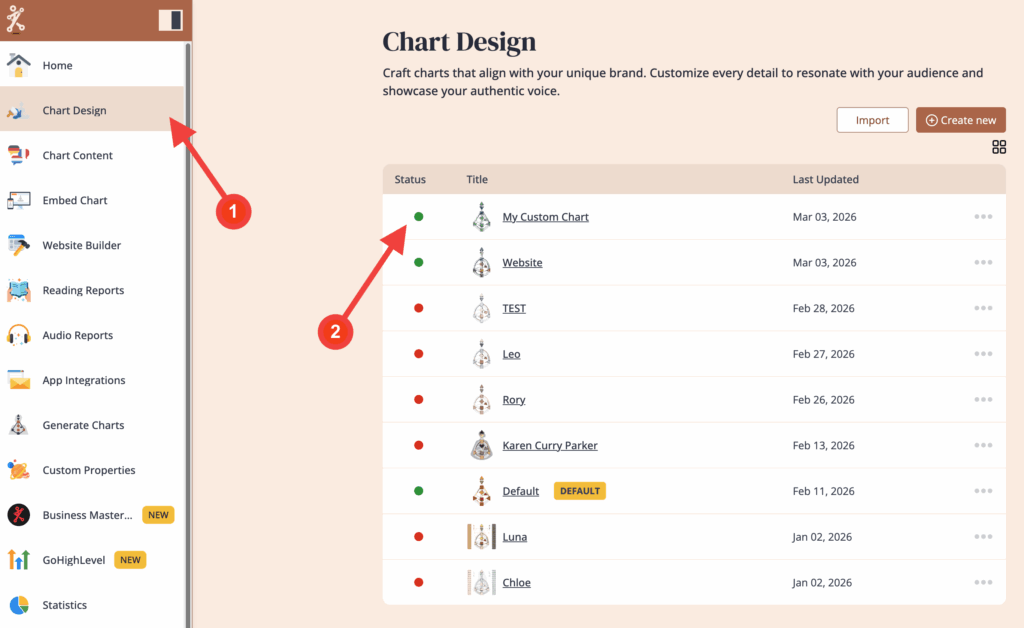
1. Open ‘Chart Design‘ and select the design that you want to edit
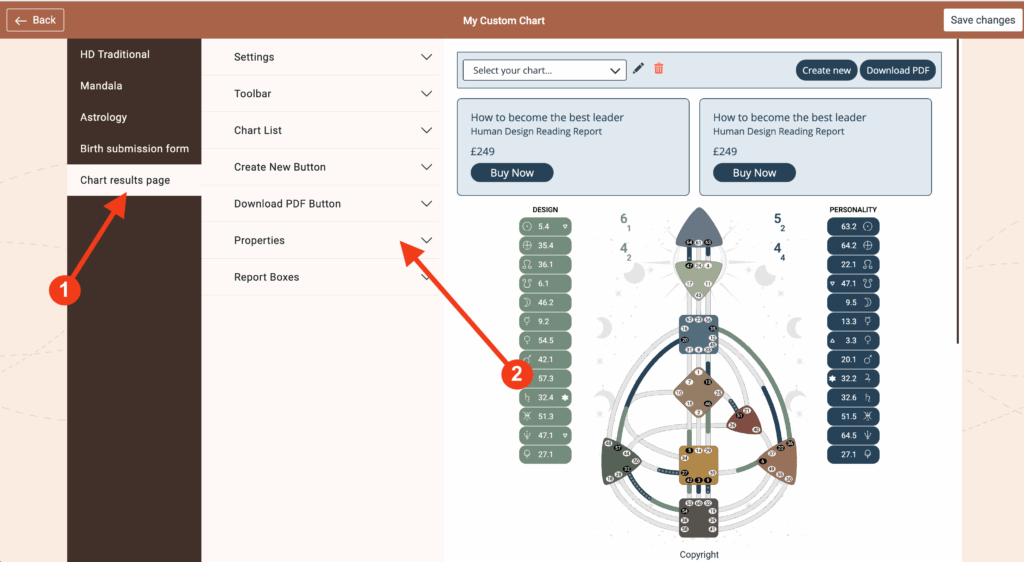
2. Click on ‘Chart results page’ and then click on ‘Properties’ to expand the menu
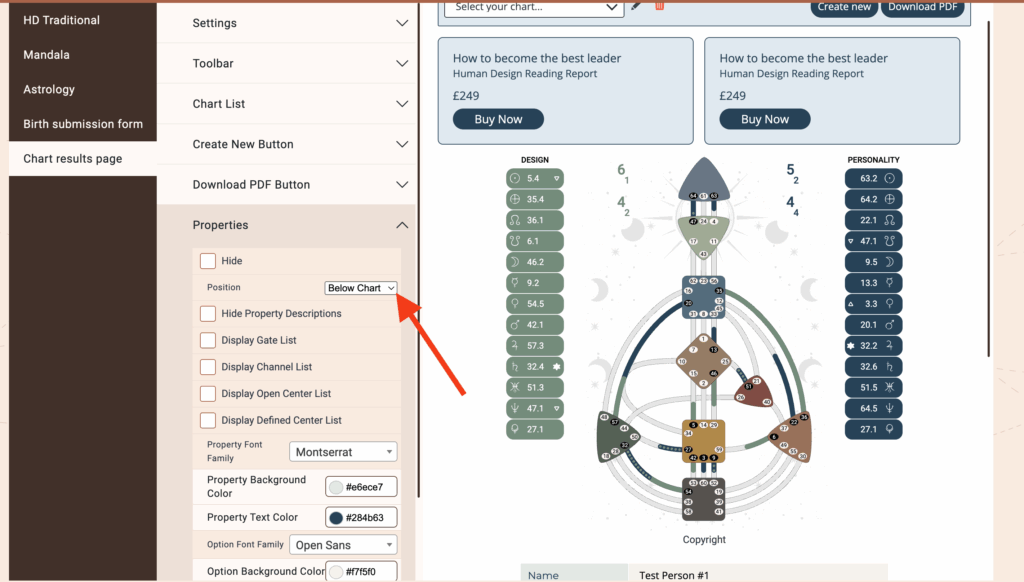
3. Click on the drop down menu next to ‘Position’
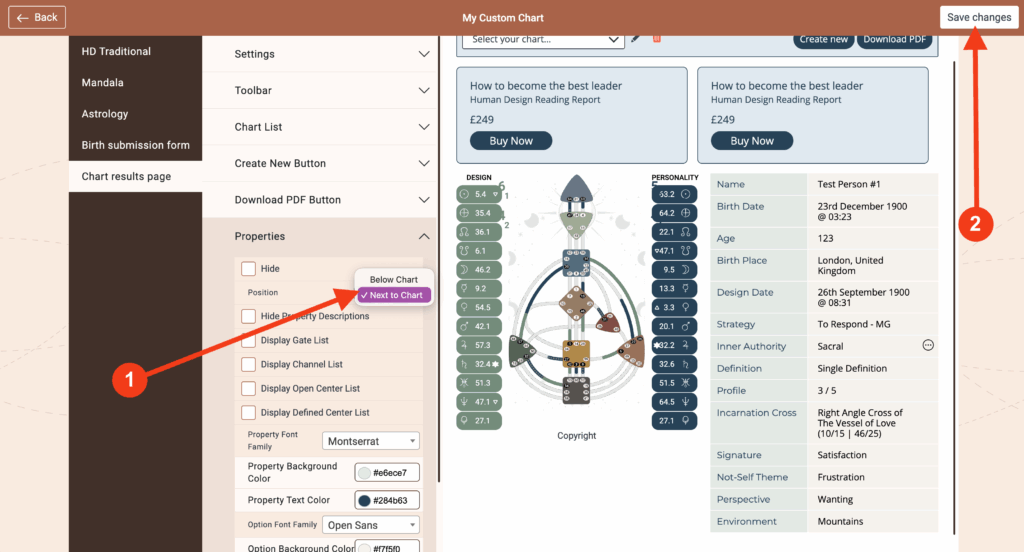
4. Select either ‘Below Chart’ or ‘Next to Chart’ and then click ‘Save changes’
Frequently asked questions:
– Do I need to re-embed chart after making changes in Chart Design?
No. Changed design at the embed code will automatically update your integration at your website, re-embedding is not required.
Related Articles
Change the Position of the Report Boxes
Still have questions, is above guide outdated? Please message us on Live Chat or send an email to support@bodygraph.com.
Similar questions:
How to show properties next to the chart?
How to show properties / descriptions below the chart on the website?

All the Tools You Need to Build, Grow, and Scale Your Human Design and Astrology Business

