


Audio report email delivery
Last Updated: Mar 20, 2026
To set Audio report delivery via email, please follow the steps below:
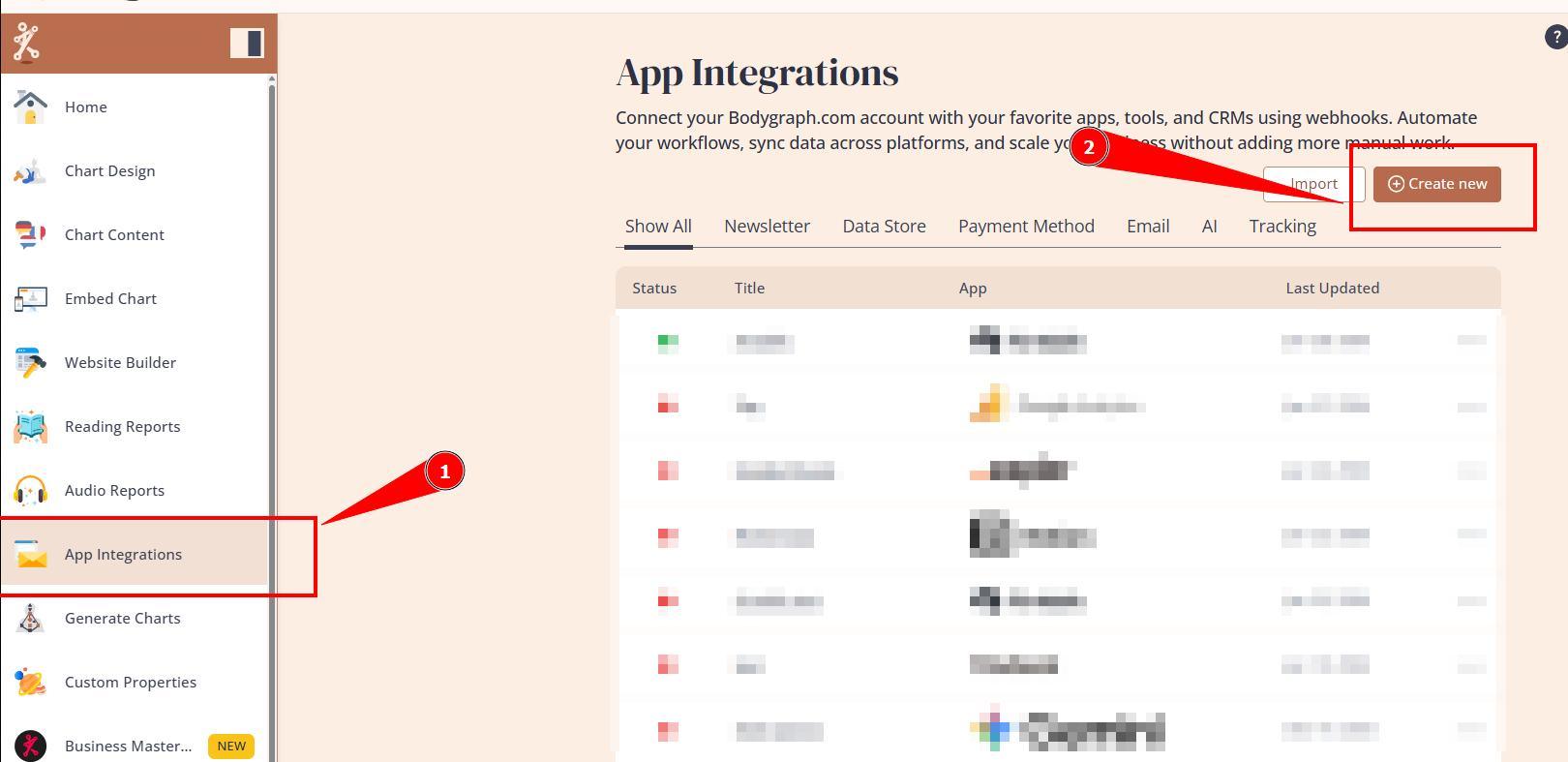
1. Navigate to App integrations and click Create new button.
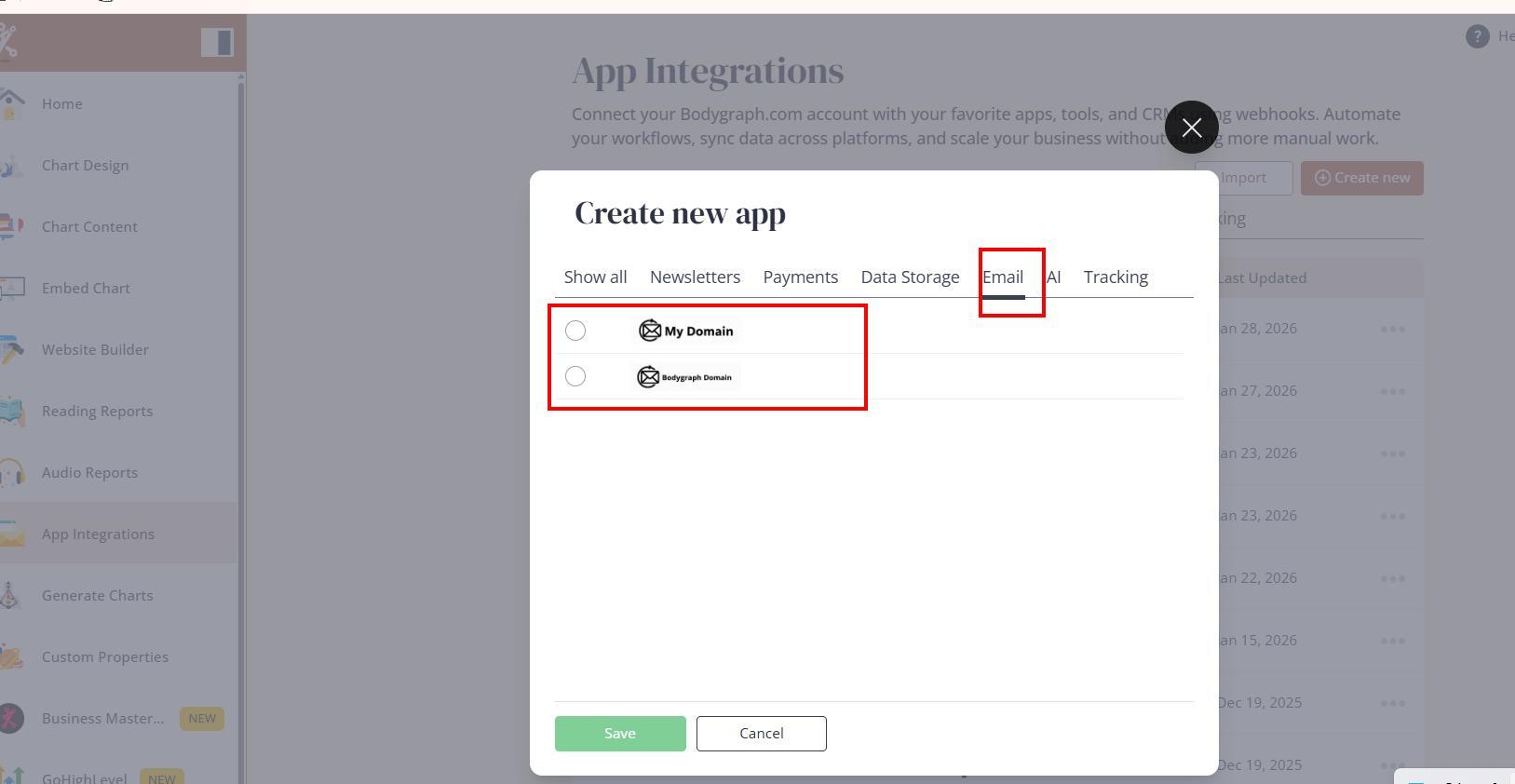
2. Select Email tab and choose whether you would like to deliver emails using Bodygraph domain or your own domain.
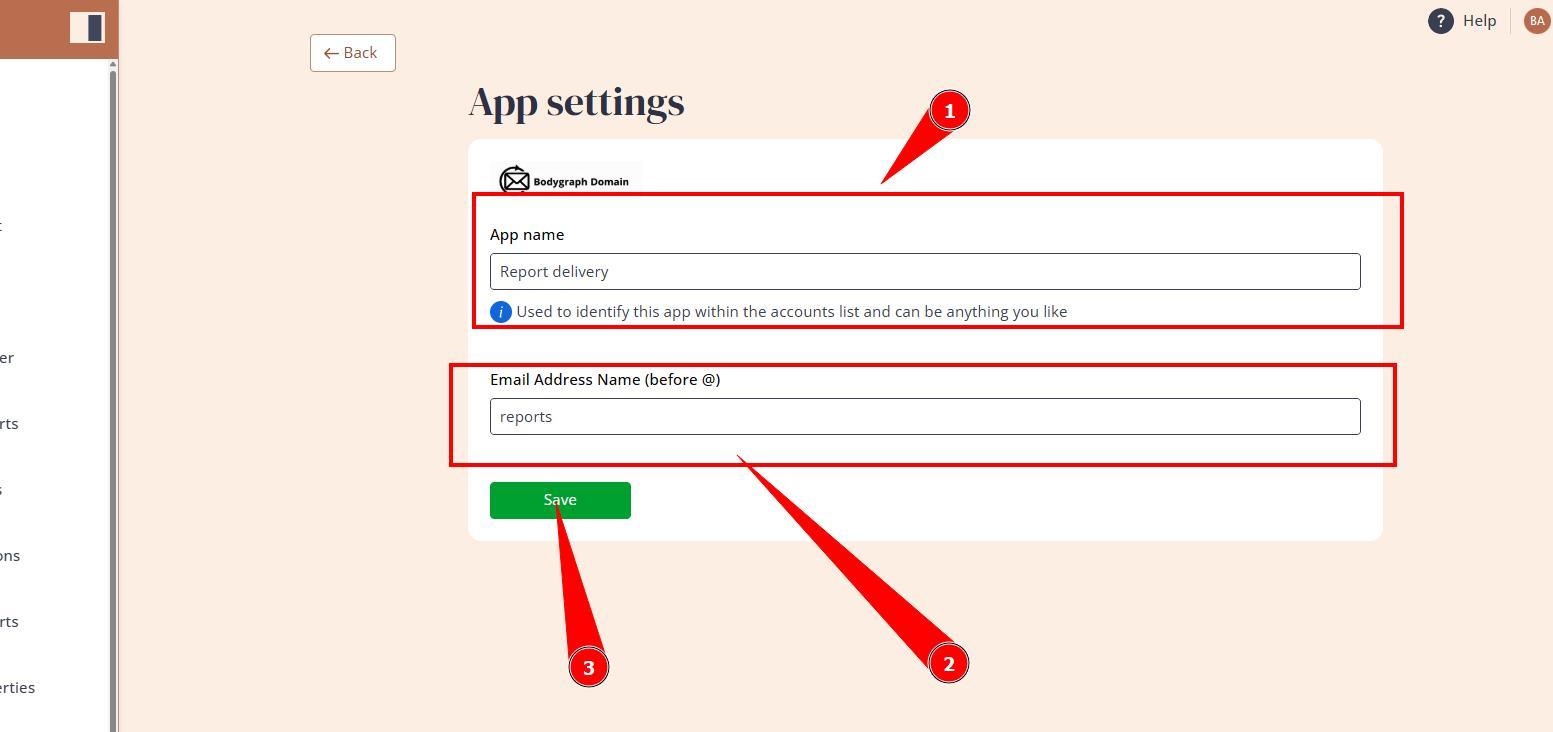
3. If you chose Bodygraph domain then enter name and only what goes before @. Important: single word, no spaces, no extra dots, no special characters.
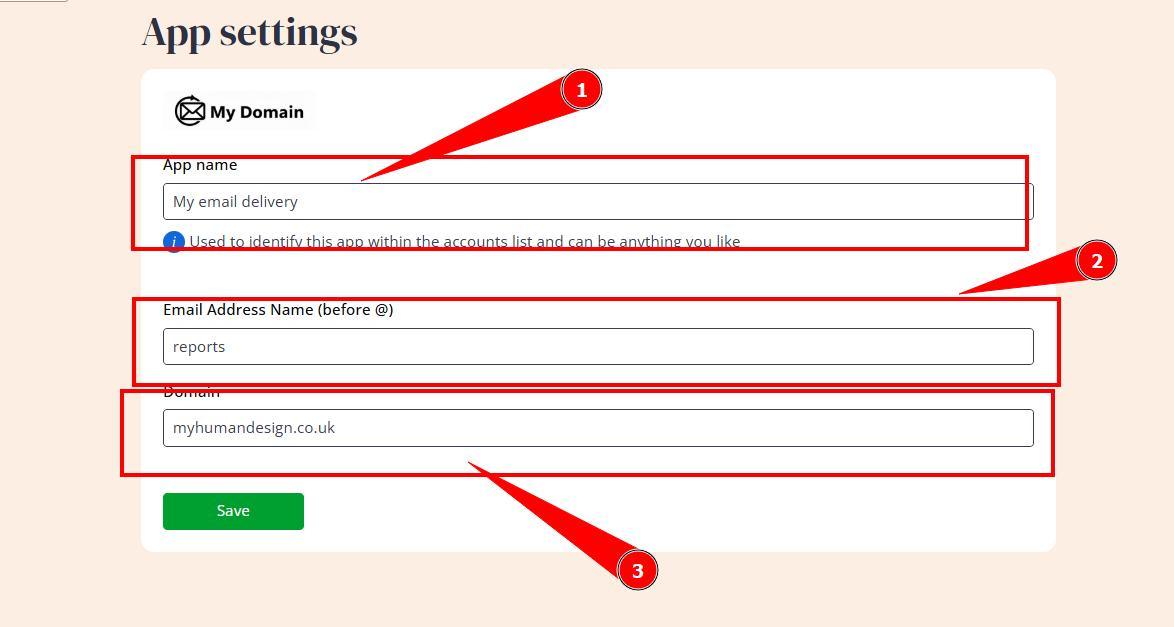
If you chose your domain, then enter name, prefix what goes before @ and your domain.
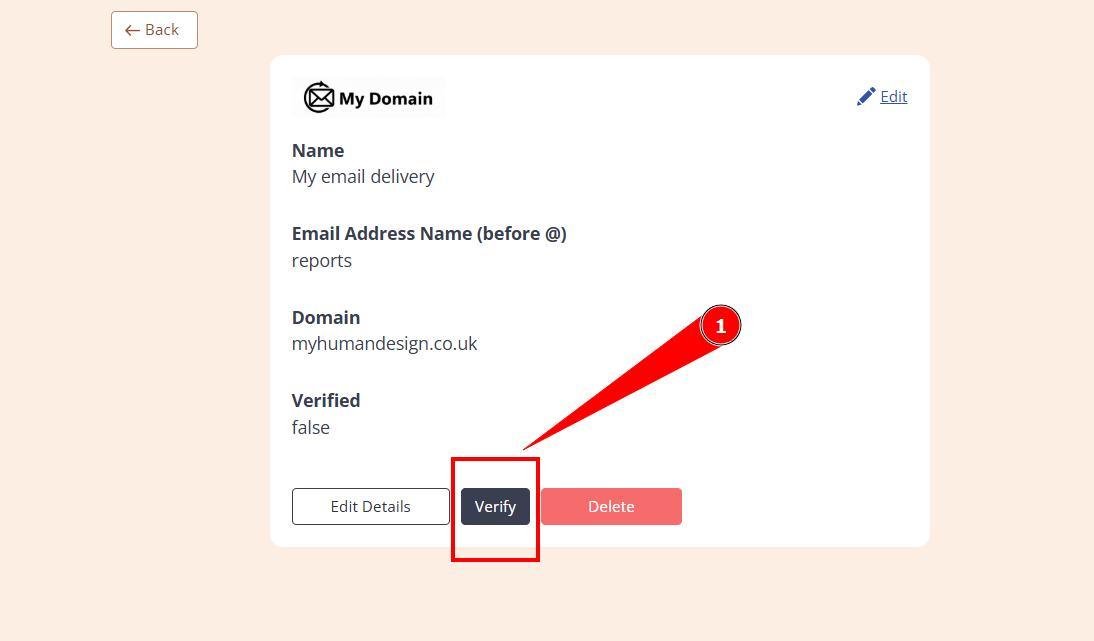
Click Verify and proceed with adding 2 TXT records to your domain providers (WordPress, Namecheap, Squarespace, WiX, Go Daddy, Hostinger, etc.) DNS dashboard.
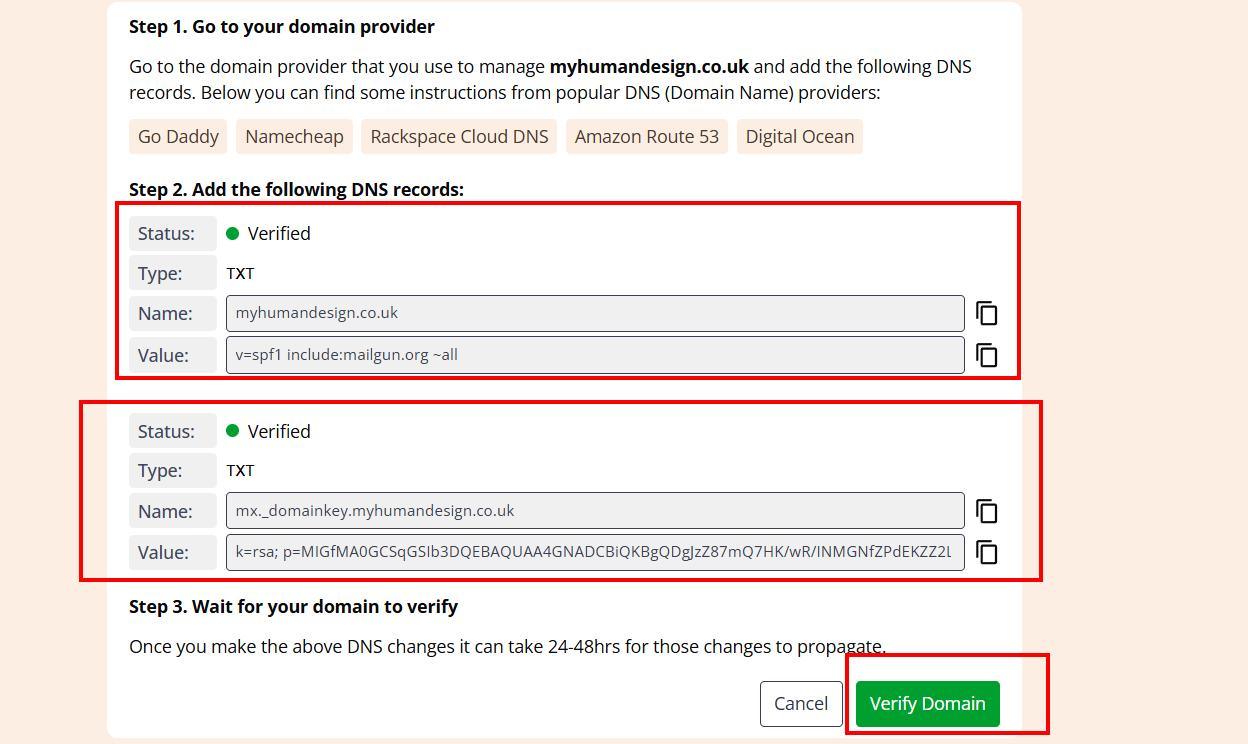
Important note: some modifications might be required depending on the domain provider:
a) Fort the first record Name might be full domain, can be symbol @ and some cases ‘www’.
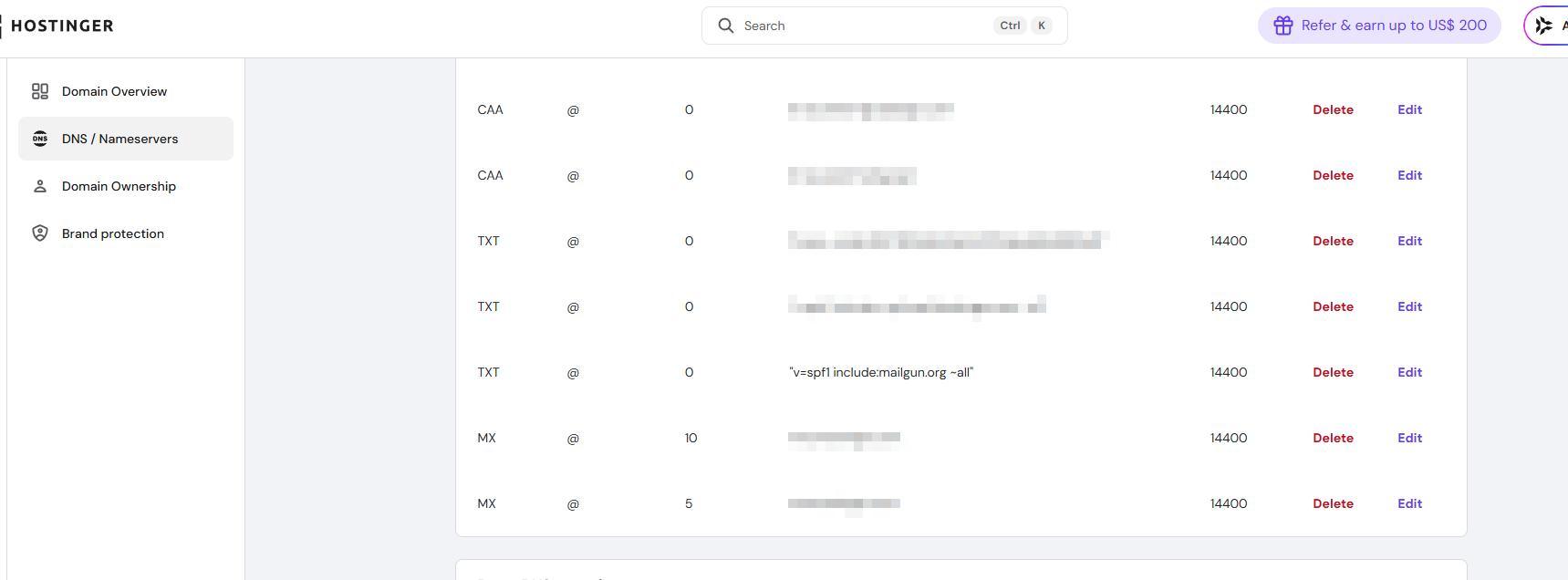
b) Also for the first record, if your DNS records already have v=spf1 record with same name then you would need to to add another one, but merge this record into existing one, eg. let’s say record v=spf1 google:mail.com ~all already exist so in this example I would merge middle value in as such v=spf1 google:mail.com include:mailgun.org ~all.
c)For the second record often Name does not require domain and so you only would enter what comes before domain as per this example mx._domainkey
Below are example DNS records added within the Hostinger domain provider:
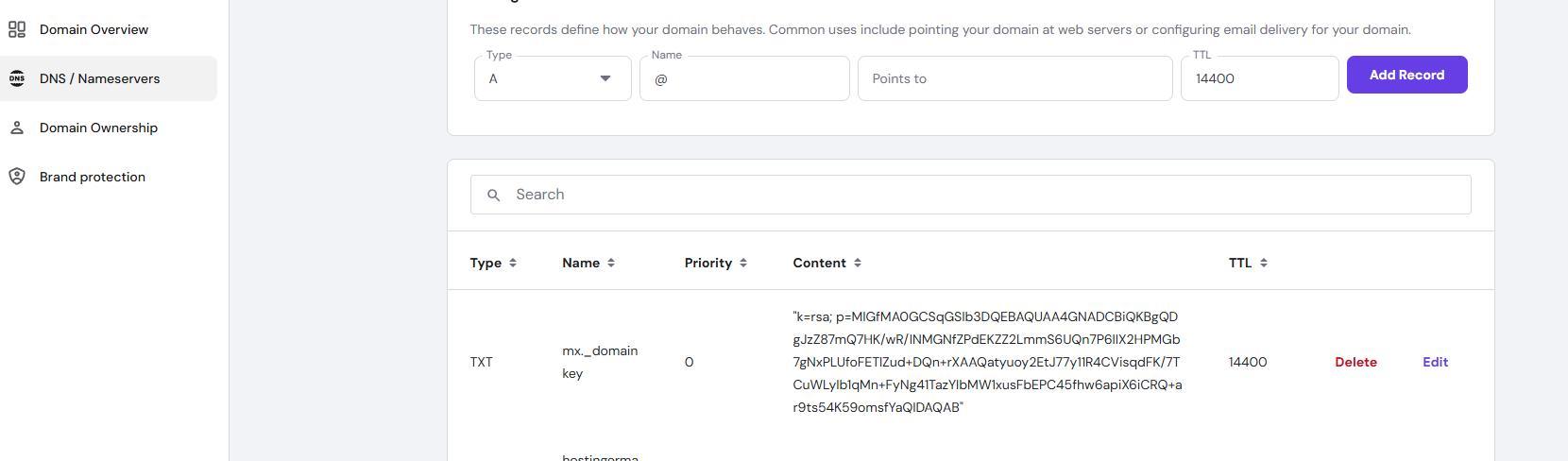
Once records fully verified, verification window will disappear completely, which will indicate successful verification.
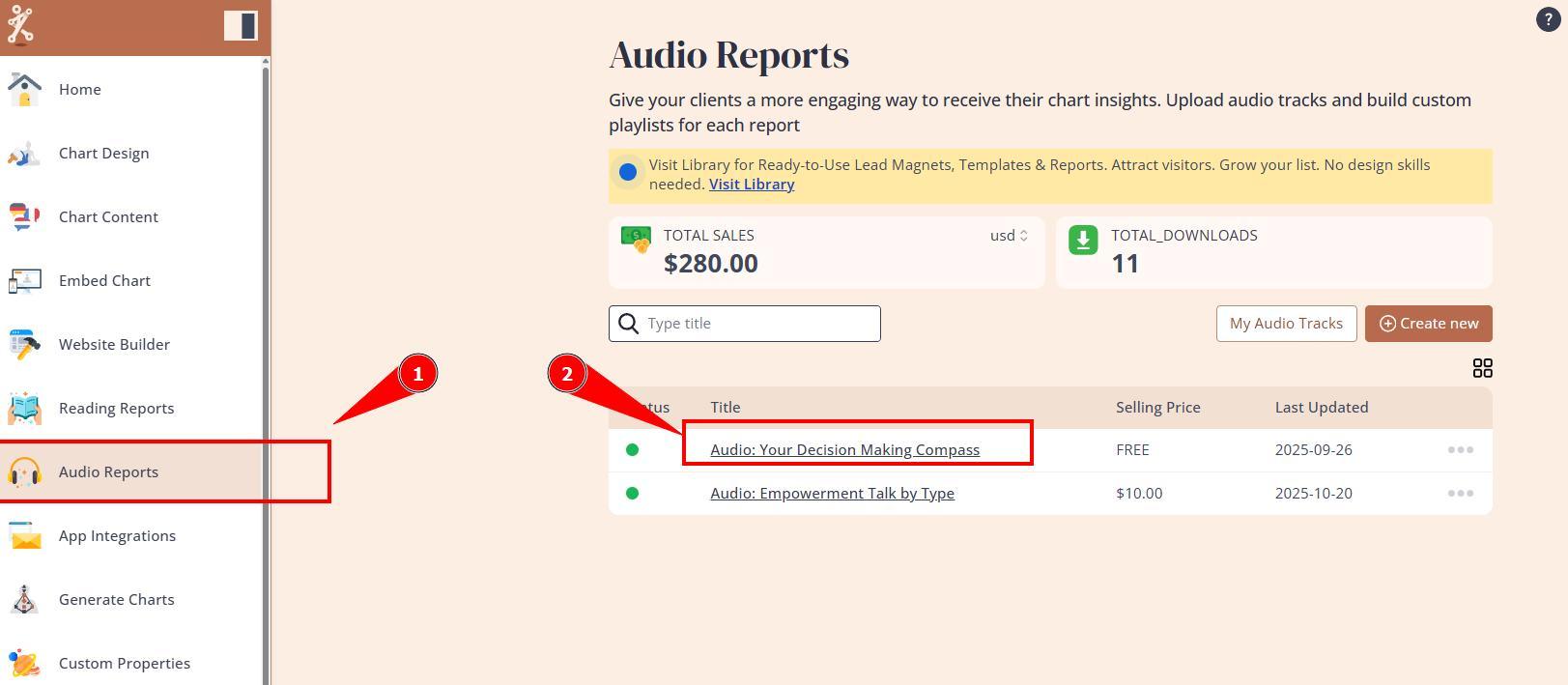
4. Now navigate to Audio reports settings and enable the Email delivery app.
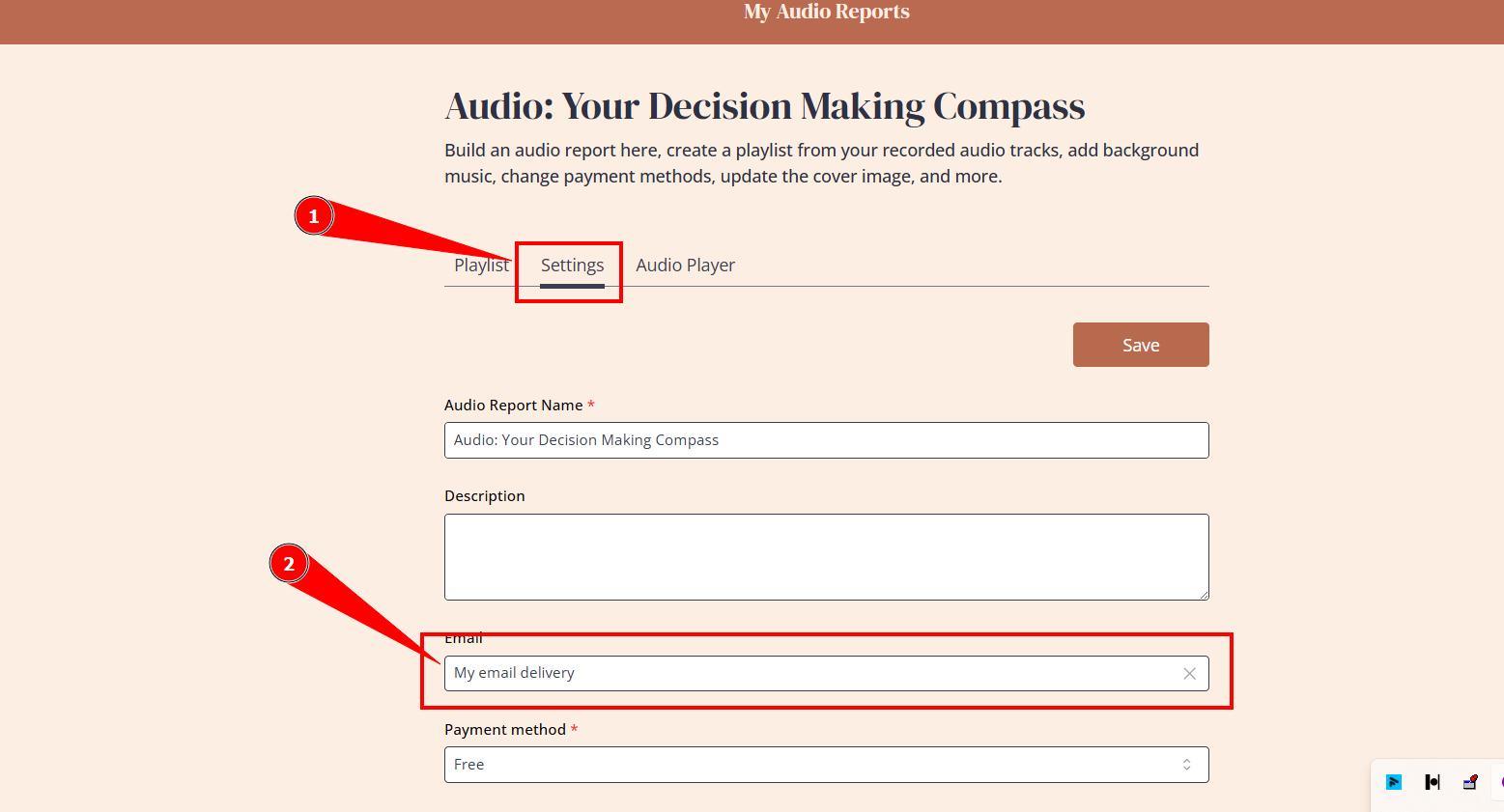
5.Test the report purchase and email delivery yourself before offering/announcing it for the customers.
Still have questions? Is above guide outdated? Please message us on Live Chat or send an email to support@bodygraph.com.

All the Tools You Need to Build, Grow, and Scale Your Human Design and Astrology Business

