


Assigning custom properties at Reading and Audio reports
Last Updated: May 14, 2026
Newly created or imported human design custom properties becomes available to use as page/track visibility at Reading and Audio reports.
To use custom properties for your Reading report pages please follow the steps below:
1. Create or import custom property following Bodygraph guides.
2. To assign custom property to specific reading report page, go to Reading reports and open report where you build the content for newly created property.
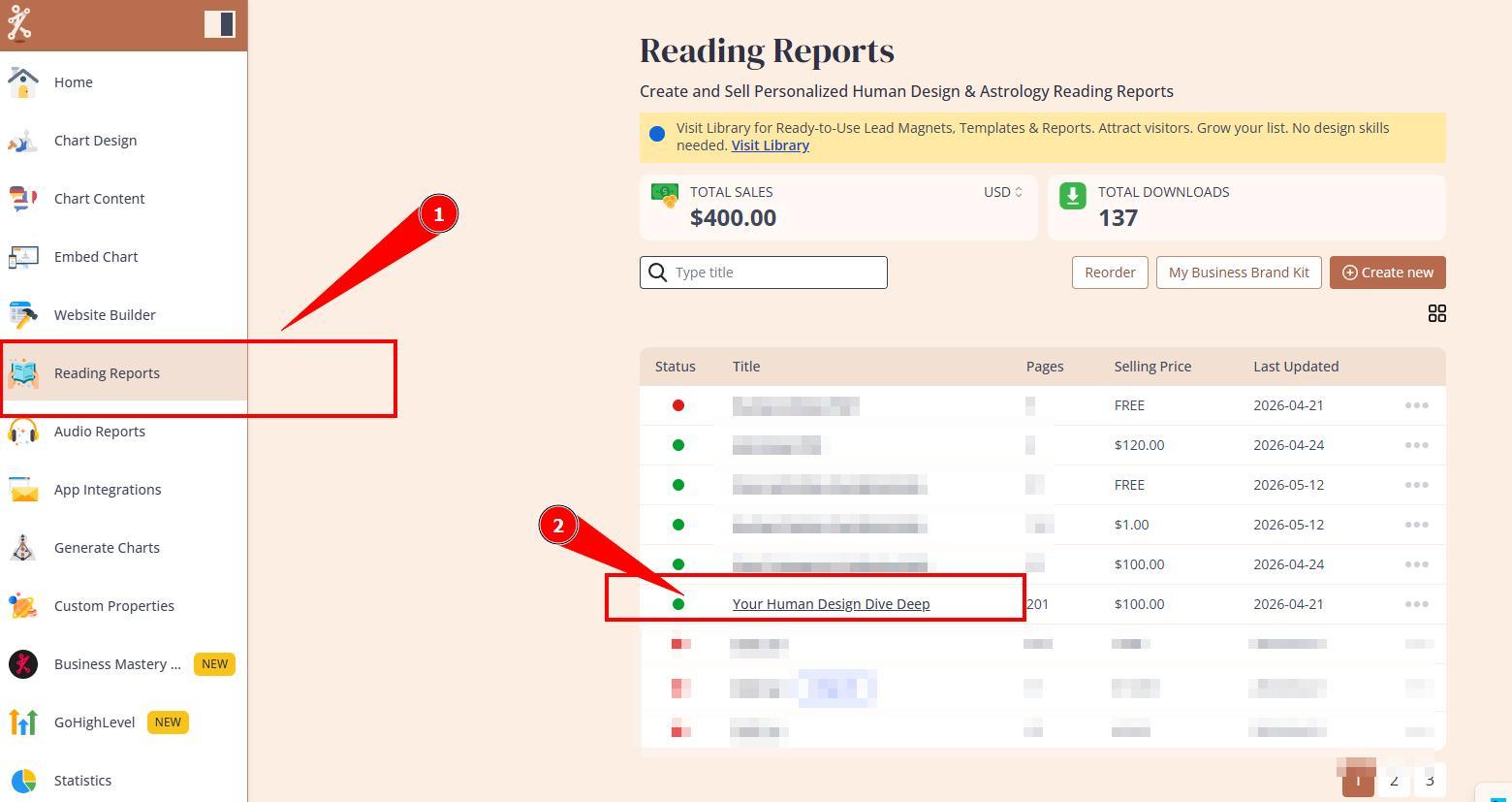
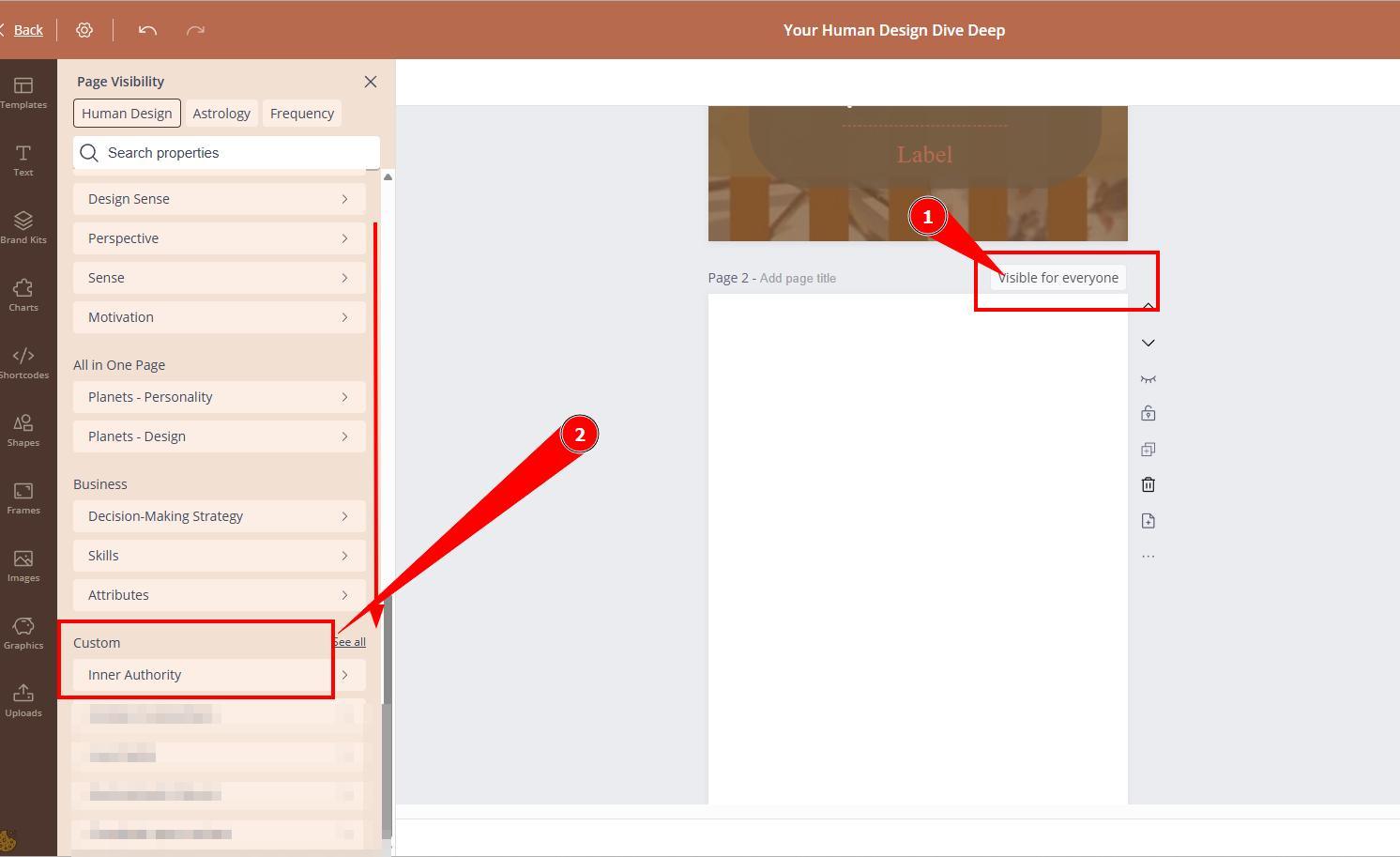
3. Click on the page visibility tag above the page that has relevant content and scroll to the bottom of the visibility options on the left side to select visibility of your newly created custom property.
To use custom properties for your Audio report pages please follow the steps below:
1. Create or import custom property following Bodygraph guides.
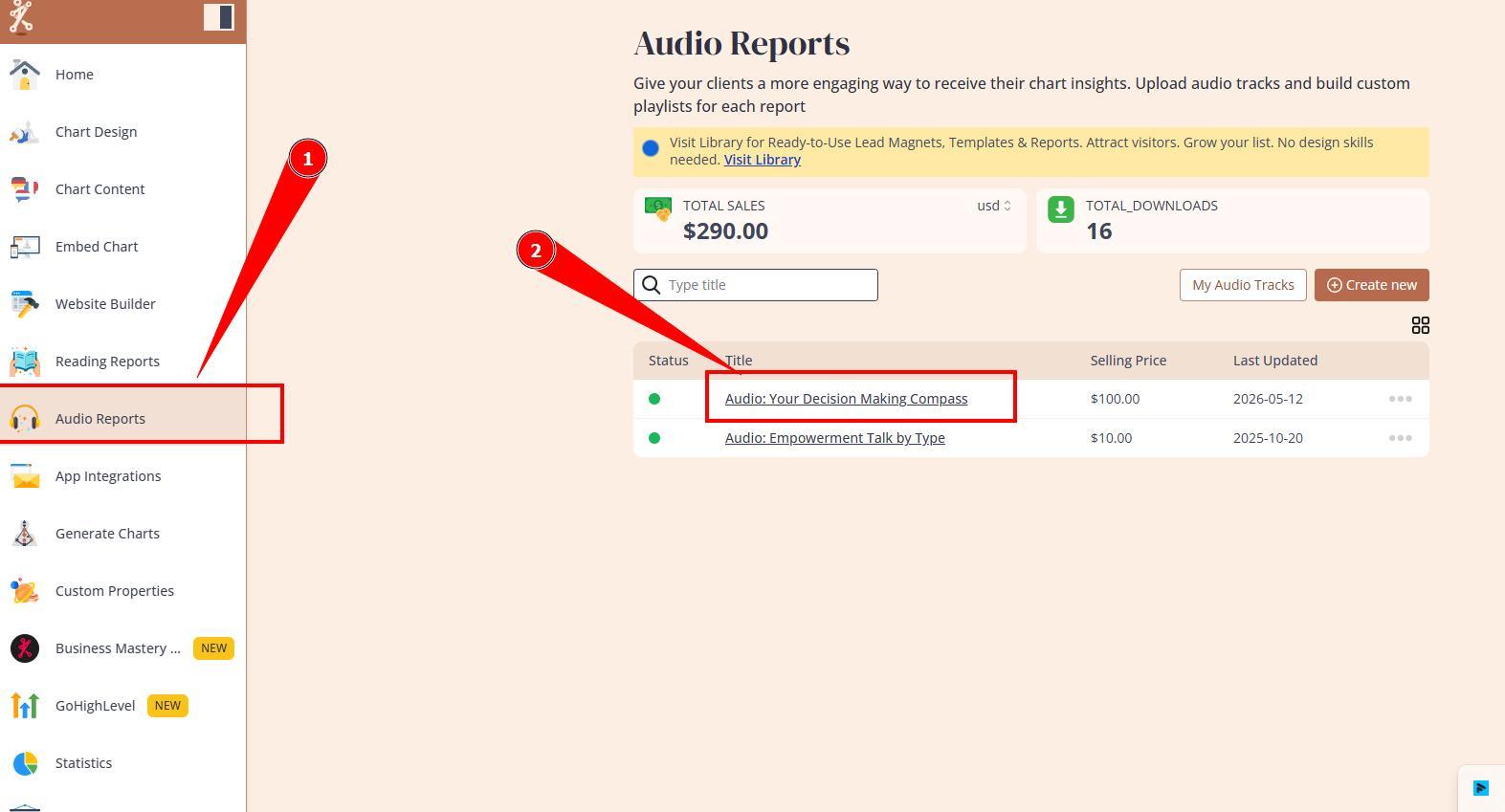
2.To assign custom property to specific audio report track, go to Audio reports and open report where you build the content for newly created property.
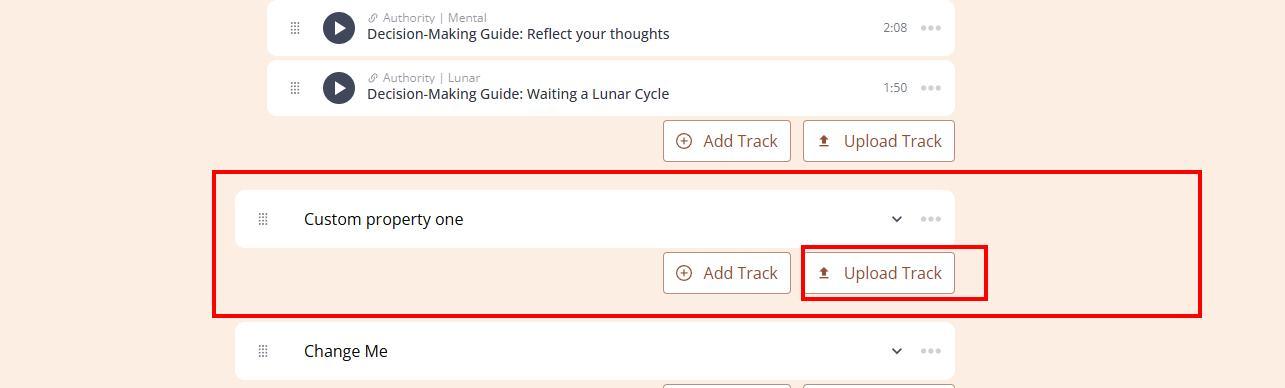
3. Click on the chapter related to new custom property and press upload the track.
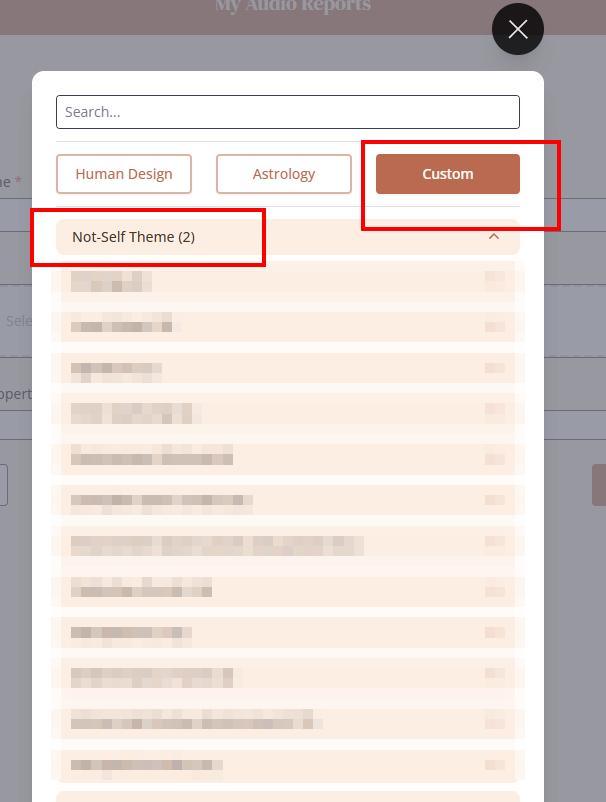
4. Select Custom tab and assign newly created/imported custom property.
Still have questions, is above guide outdated? Please message us on Live Chat or send an email to support@bodygraph.com.

All the Tools You Need to Build, Grow, and Scale Your Human Design and Astrology Business

