
Create a Notion account.
Setup Connection Settings
1.Open Bodygraph chart account and go to App Integrations-> Data storage -> Create new -> Select Notion.
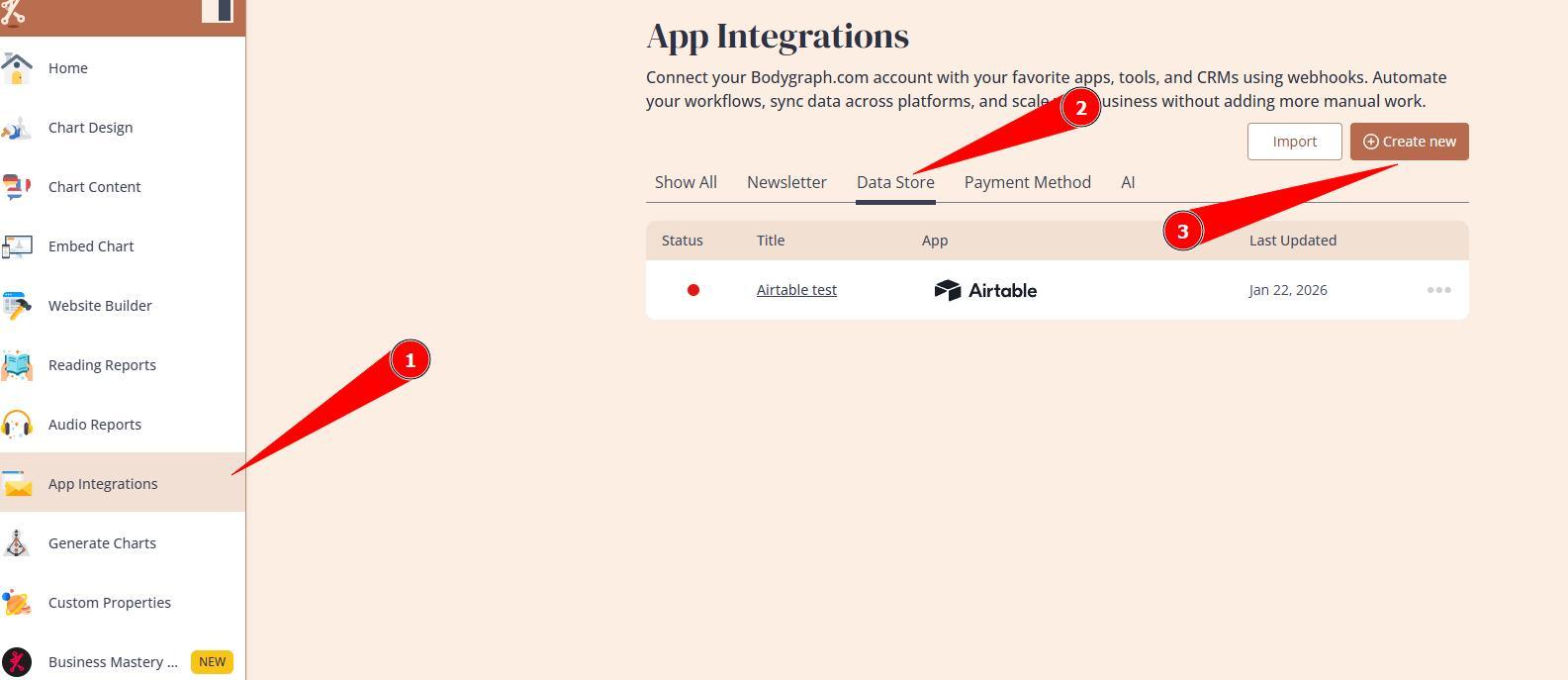
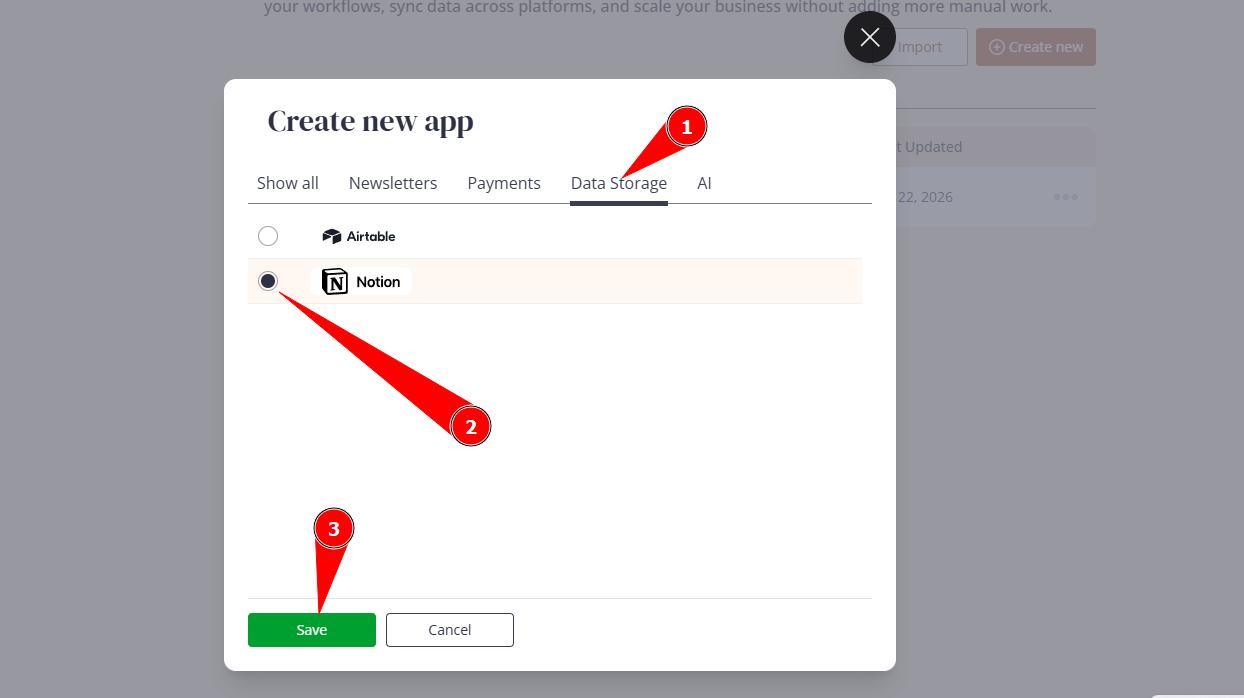
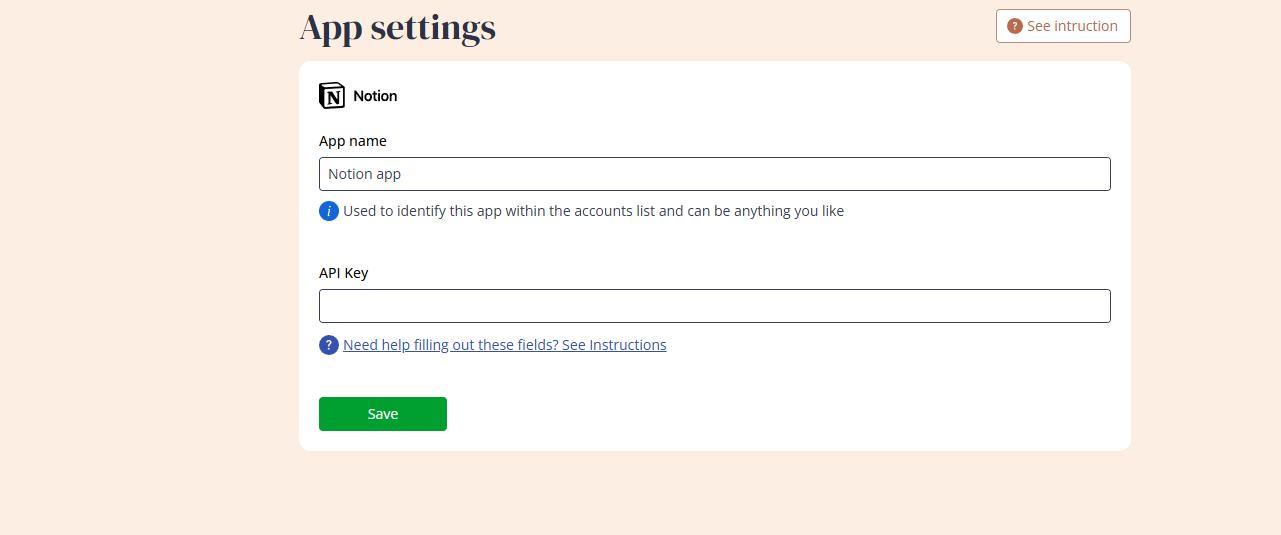
2.Enter the app name (for your reference only) and keep this window open. On the different browser tab access your Notion dashboard.
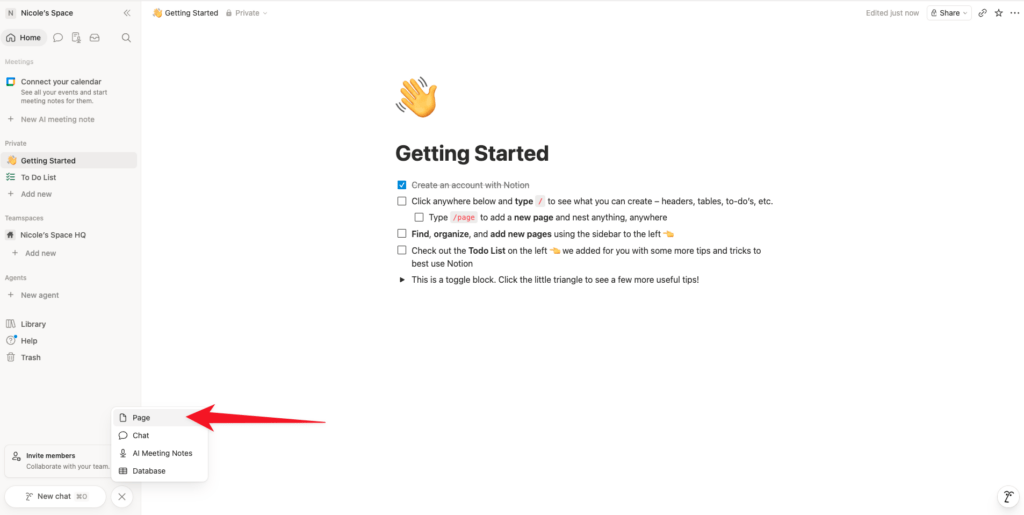
3.Create a page by pressing the add new at the bottom left of the page, and then select ‘Page’
4. Give your page a name, then press on 3 little dots at top right corner, then Connections and Develop Integration.
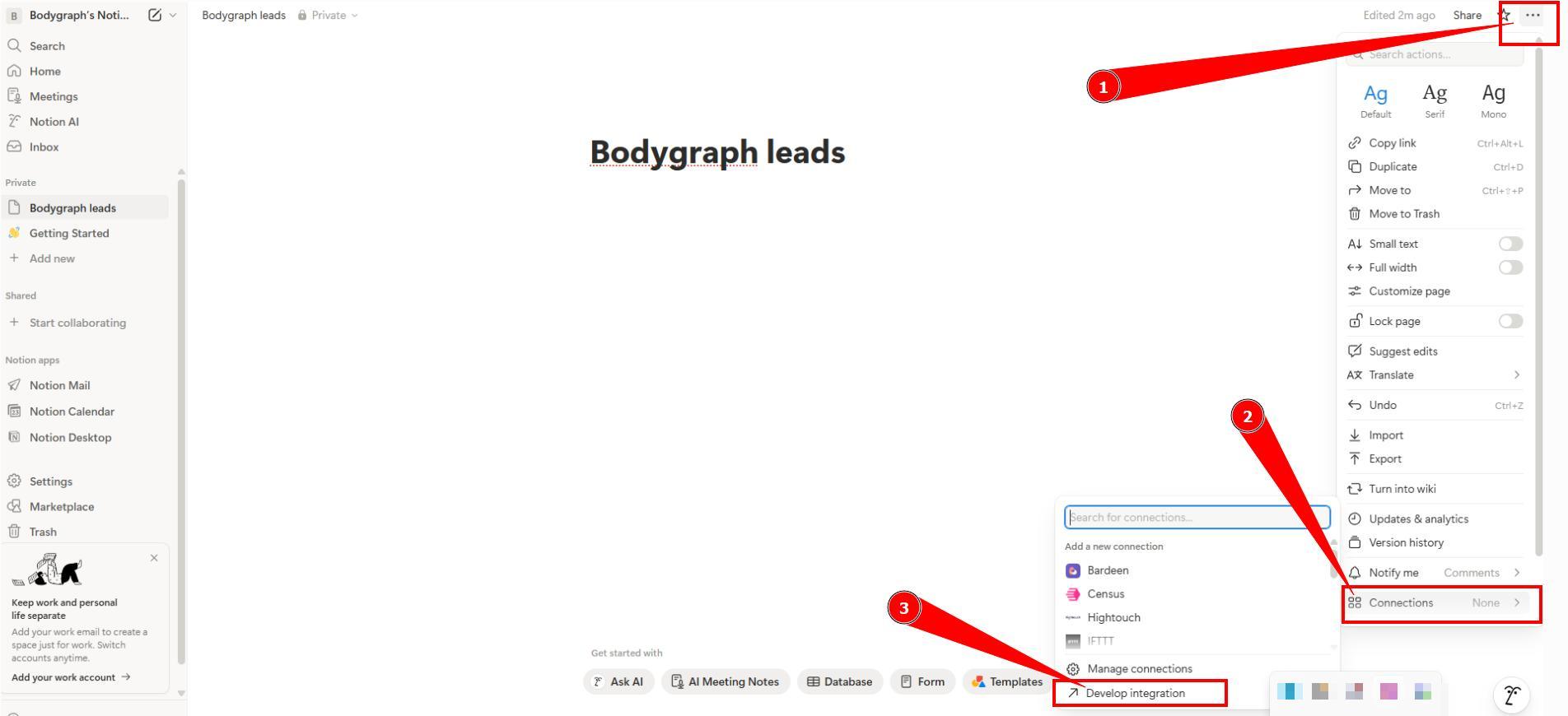
5.Click add new connection, enter a Connection Name,
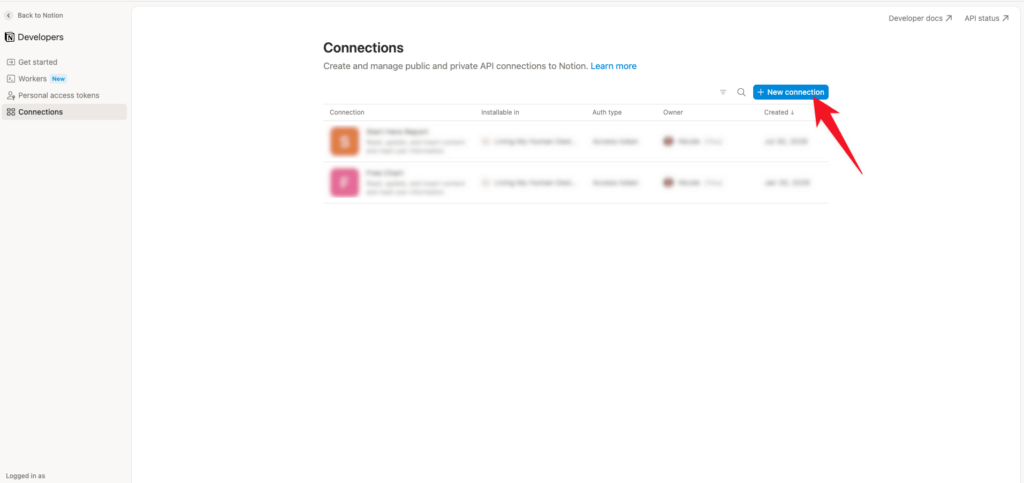
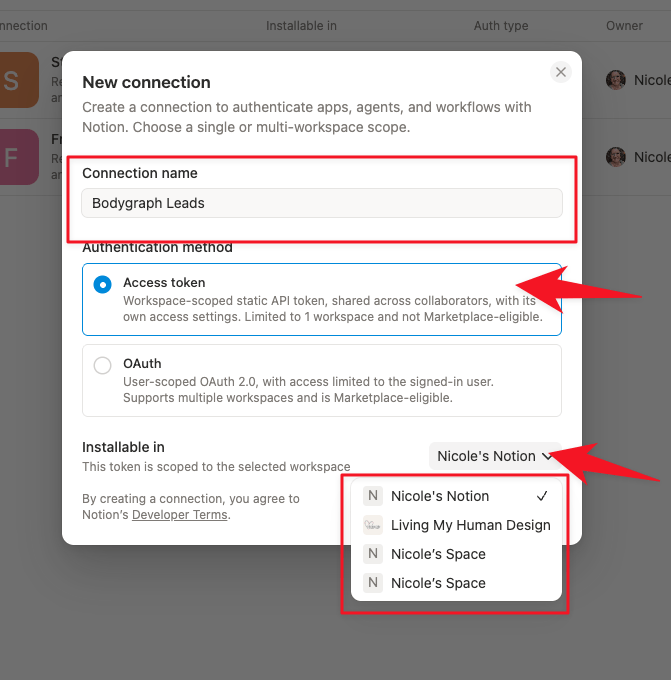
select Access Token, select the correct work space from the drop down menu,
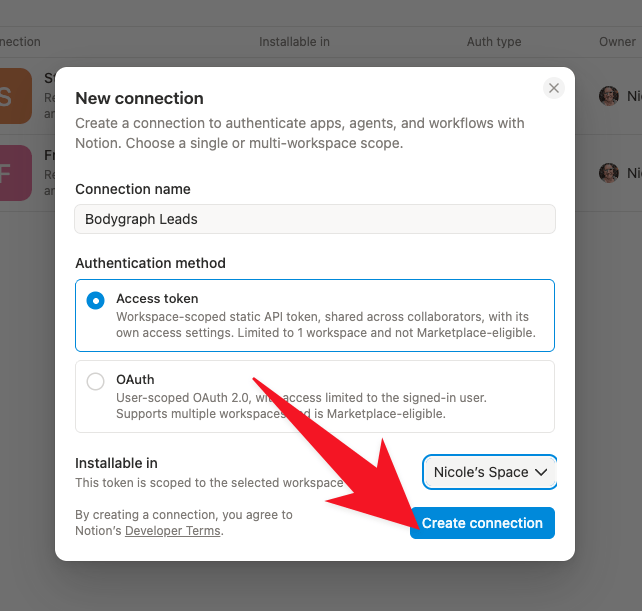
then click create connection.
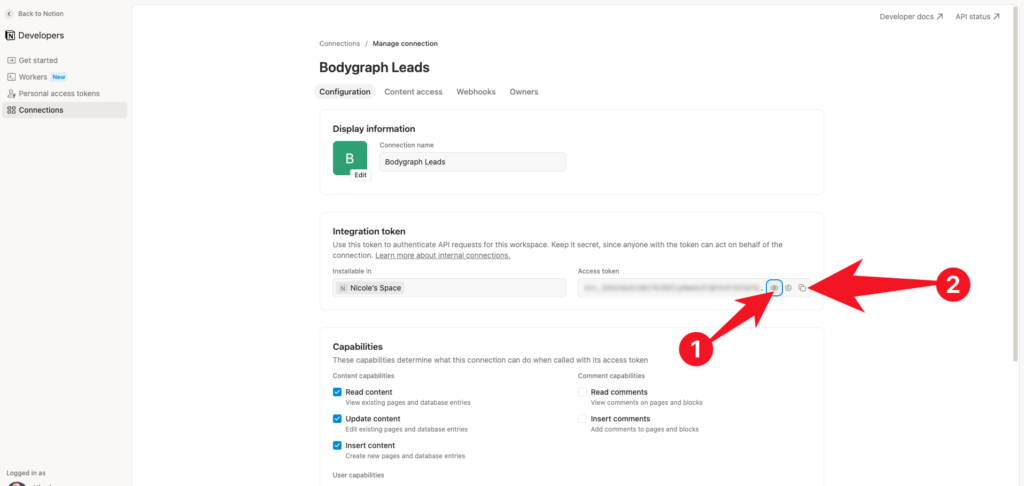
6.Click Show and then click copy to copy the ‘Access Token’ to your clipboard.
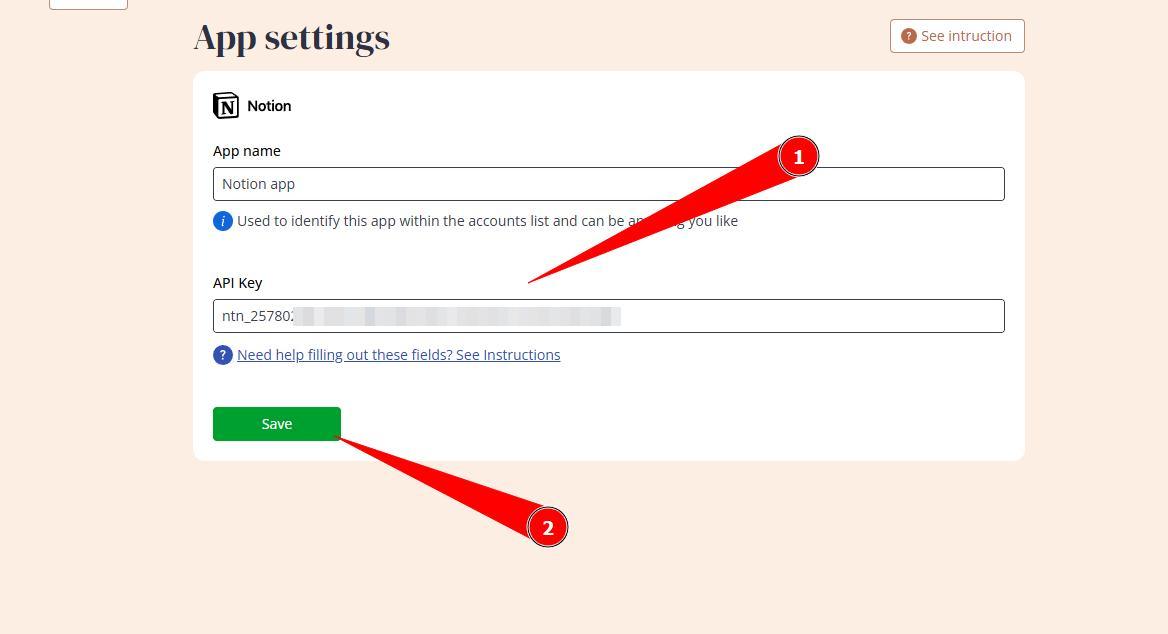
7.Come back to Bodygraph tab that you left open, paste the Access token into the API key and click Save.
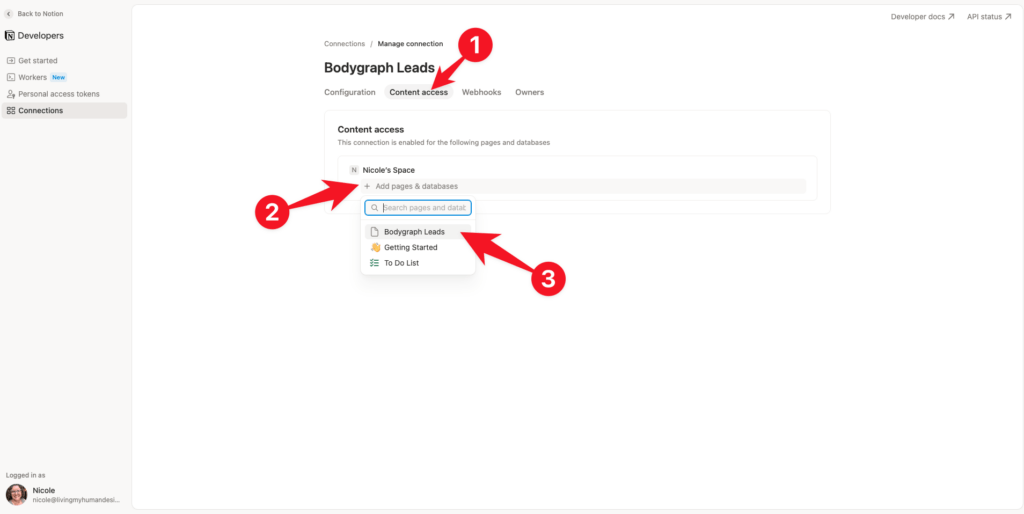
8.Back at Notions tab, click on Content Access, then on add pages and databases, and then select your page from the drop down list.
9.Time to finish connection at Bodygraph side. Come back to the tab where you left app integration saved and click Edit details.
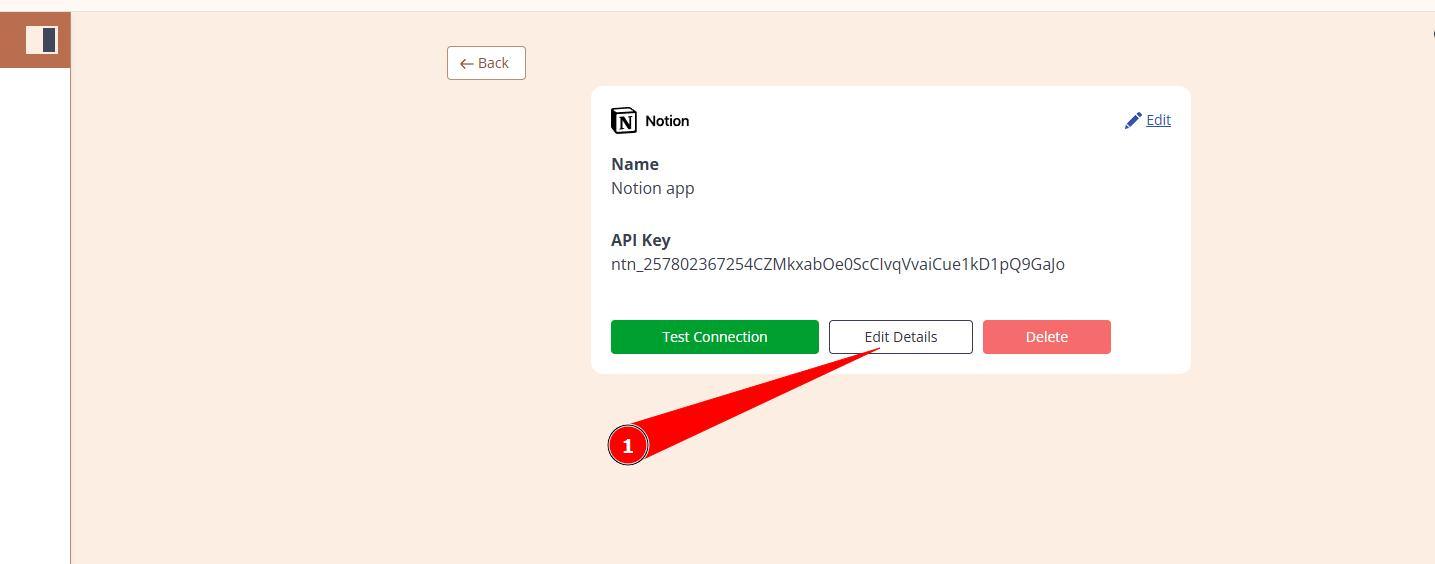
10.Click Test connection to confirm that previous steps completed correctly and then select Edit details.
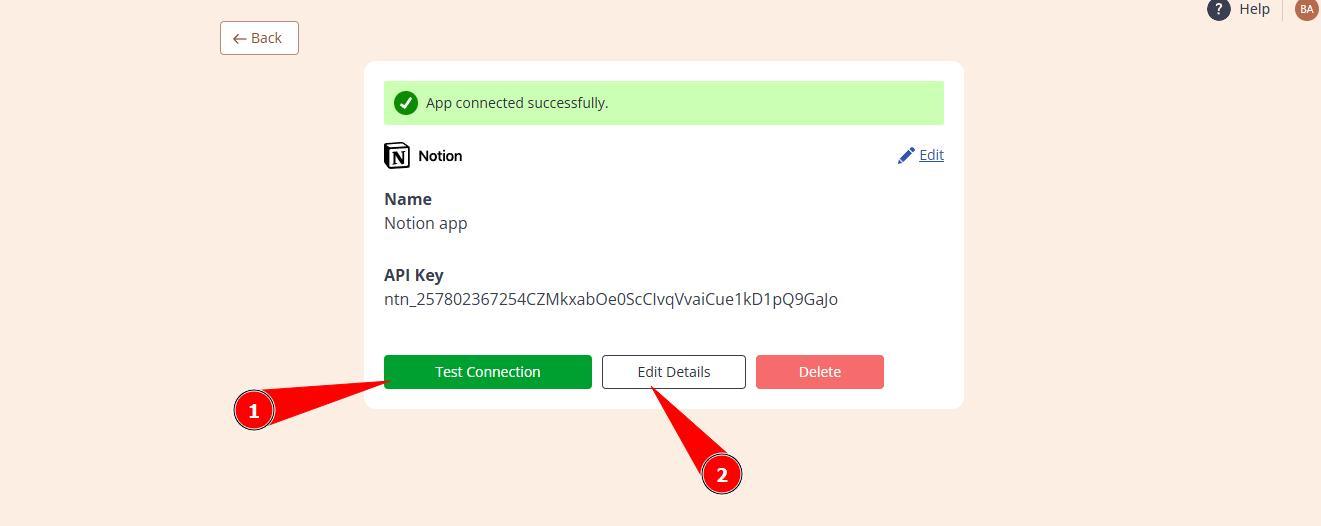
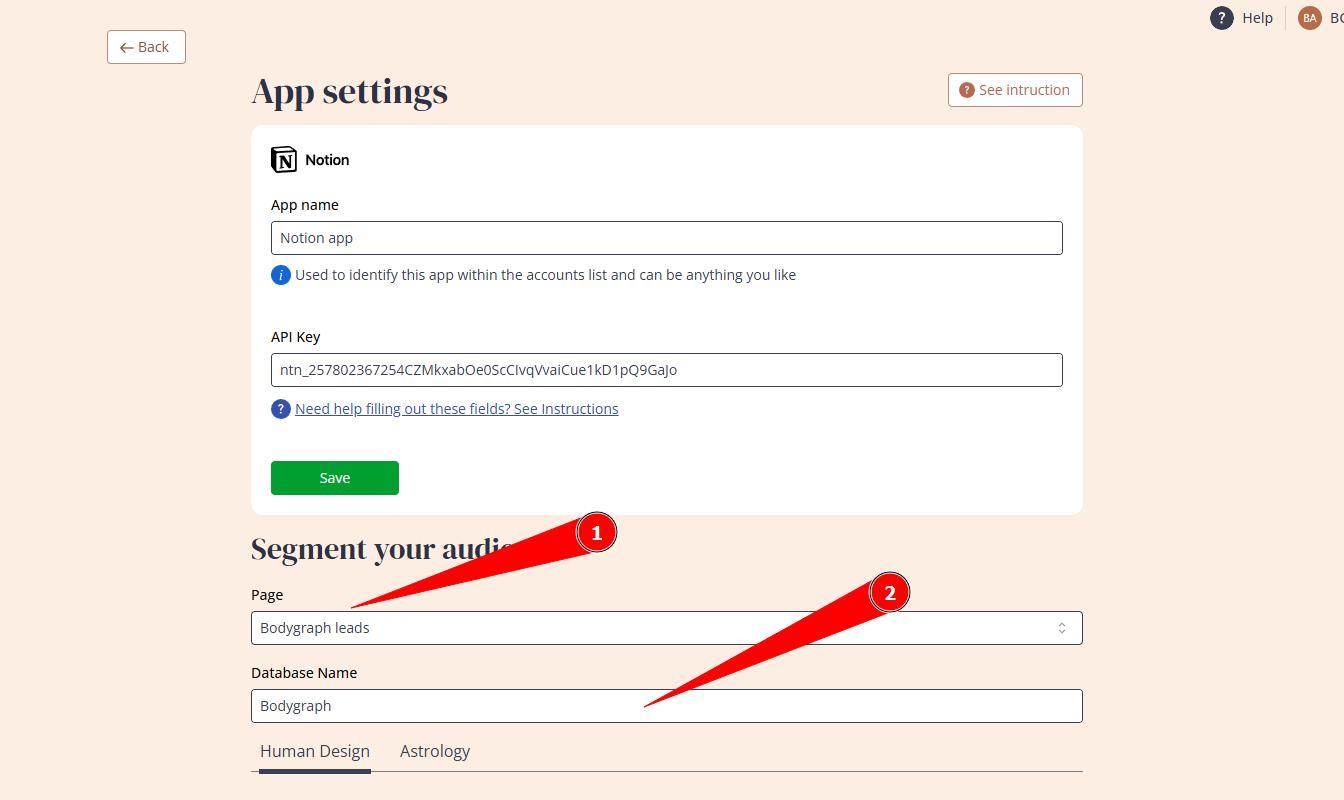
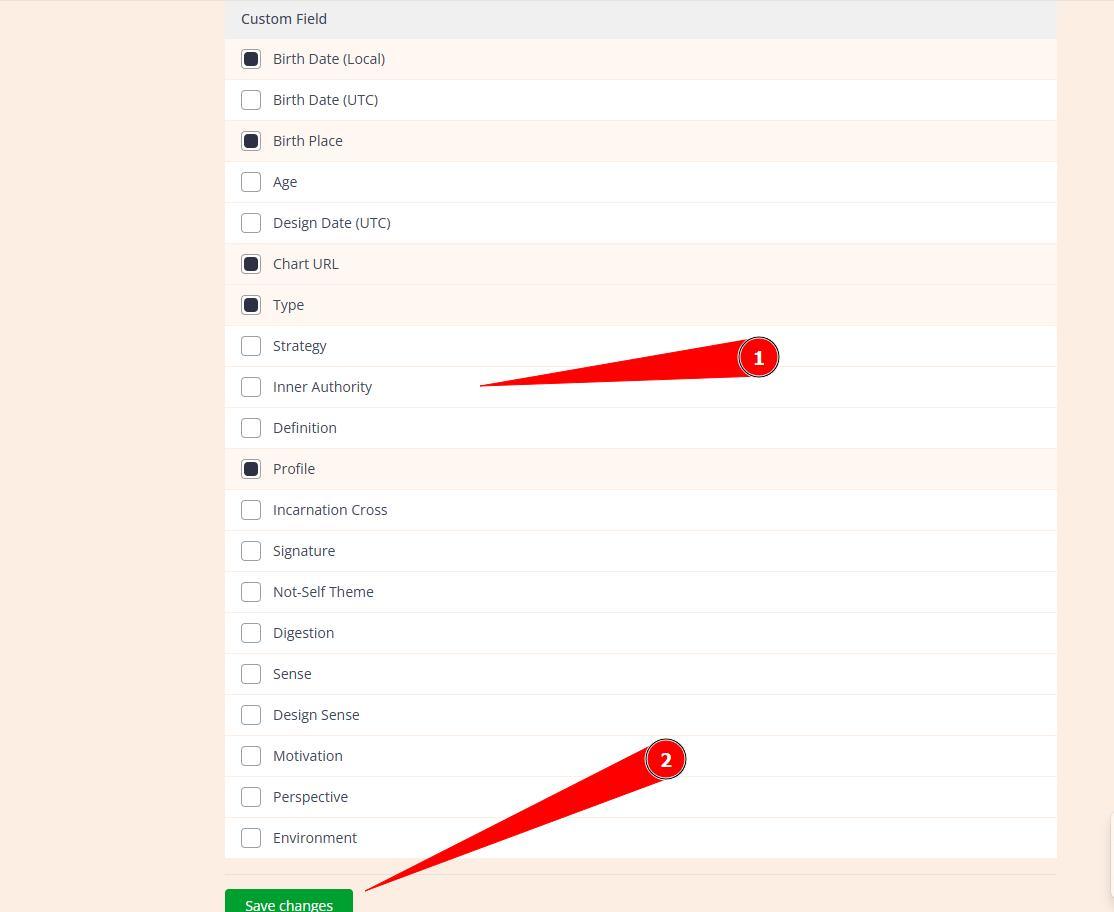
11.Select page that you created at Notion, enter data base name (anything for your reference). Also, toggle on the Custom Fields that you would like to collect and click Save.
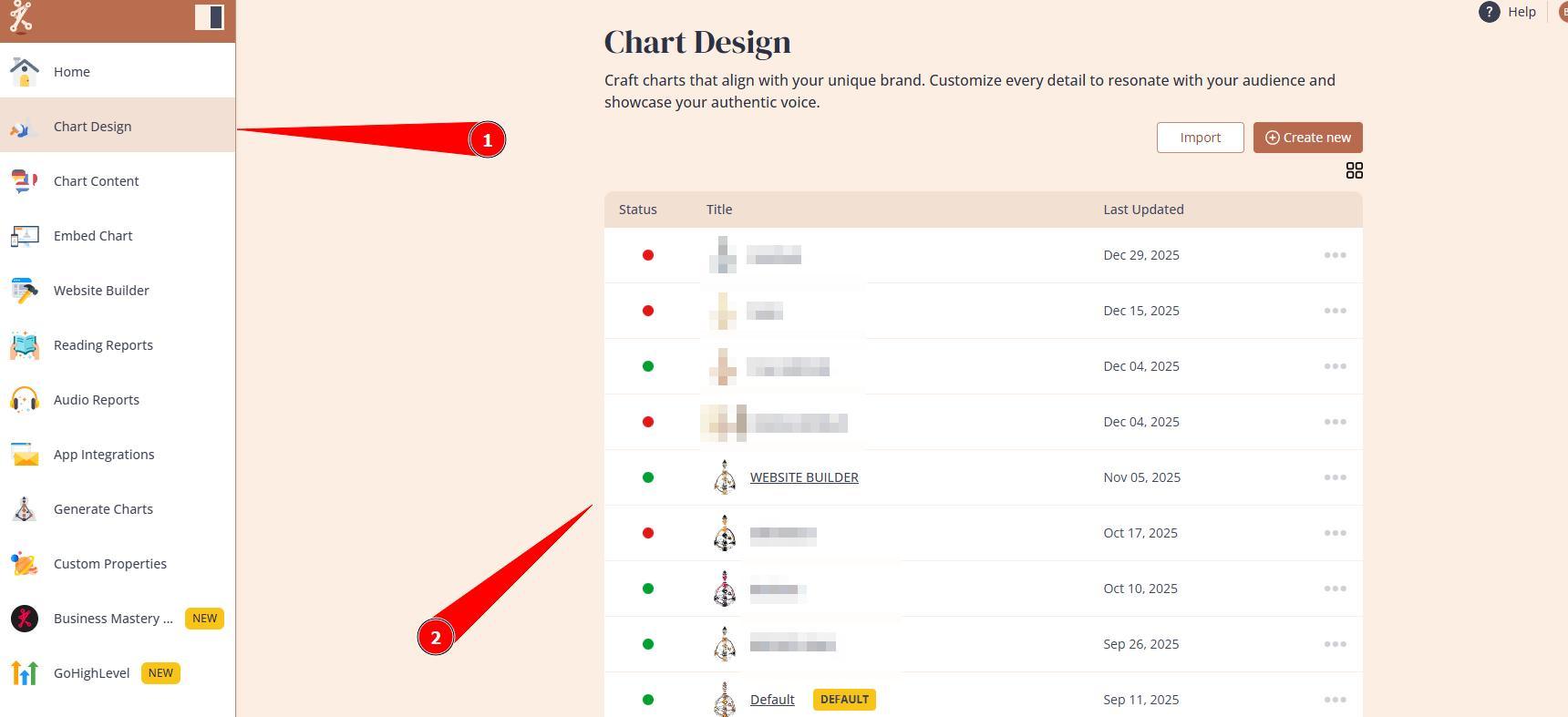
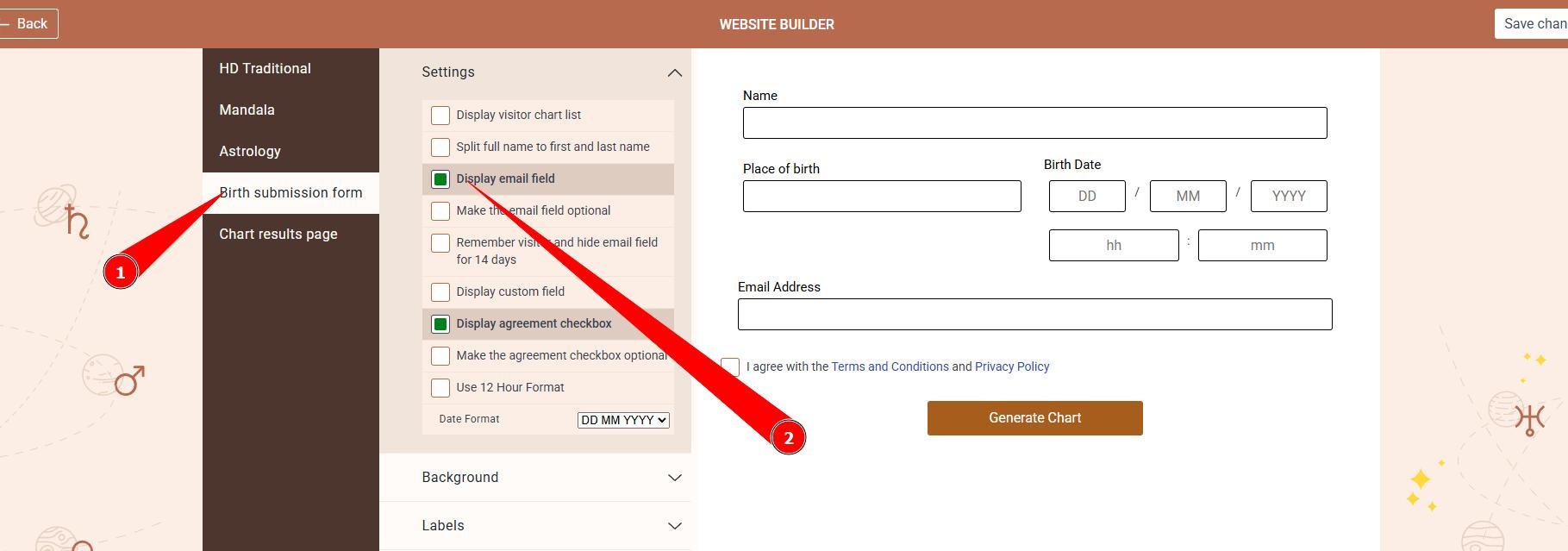
12.Now let’s go to Chart Design tool, select the design that your embed code use and enable email field at the submission form settings.
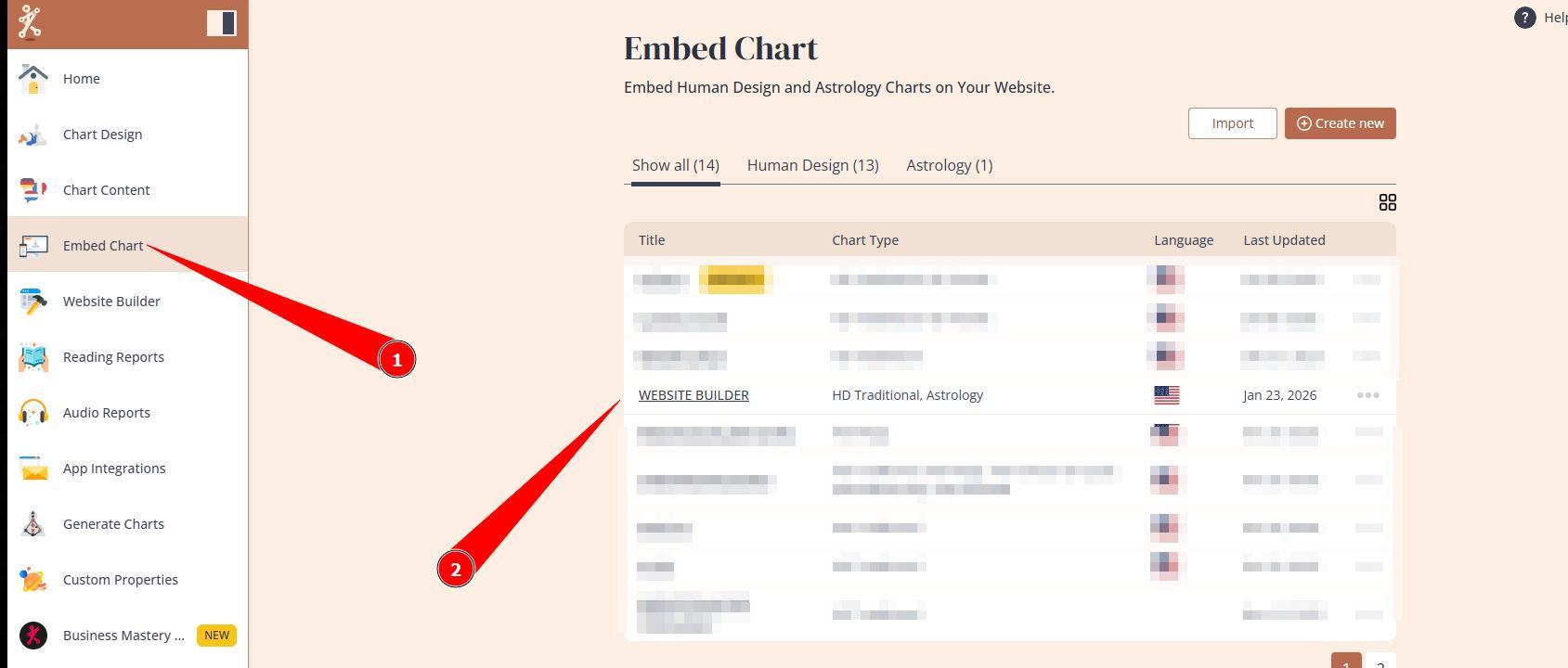
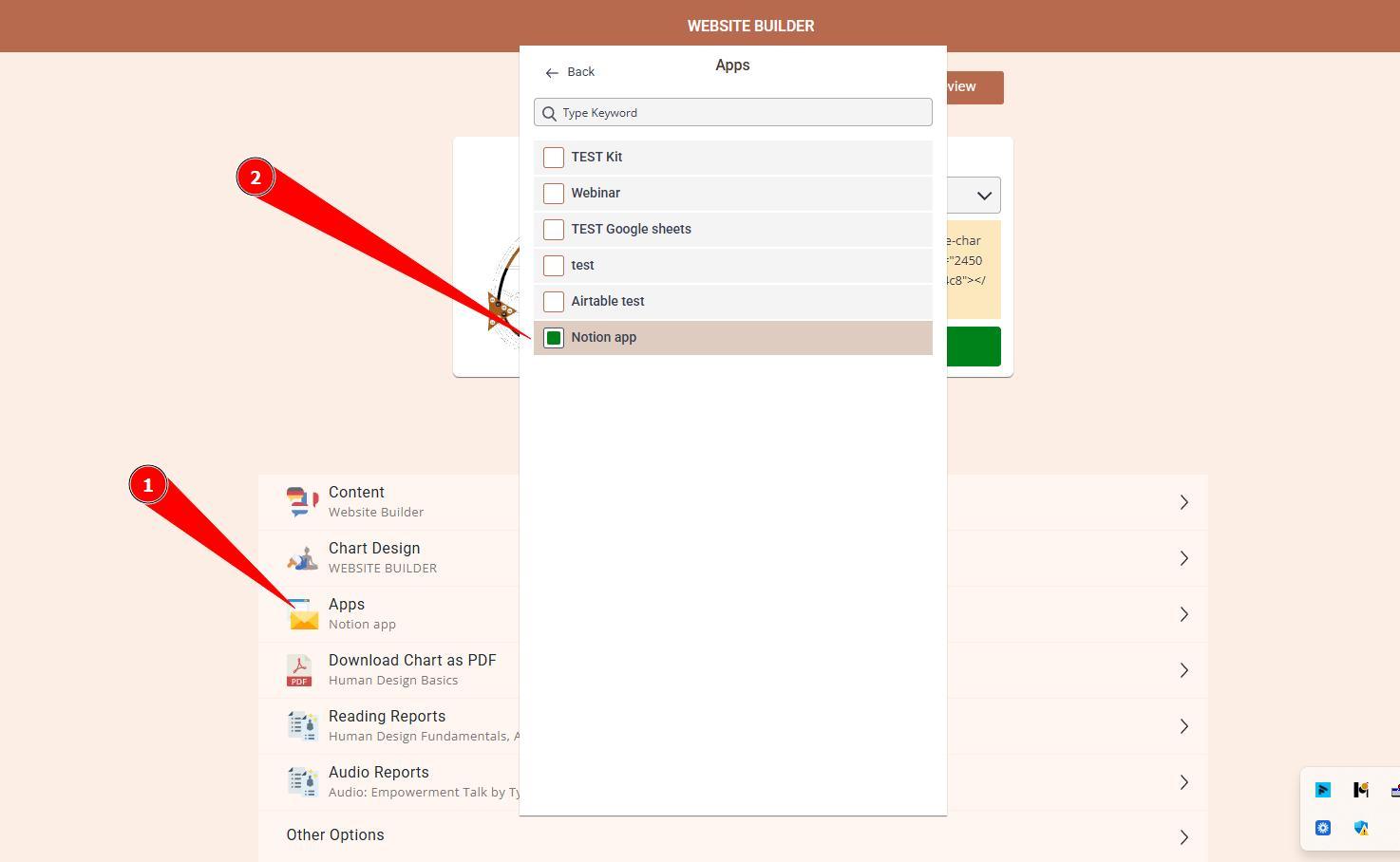
13.Now go to Embed Chart, open your embed code and enable Notion app connection.
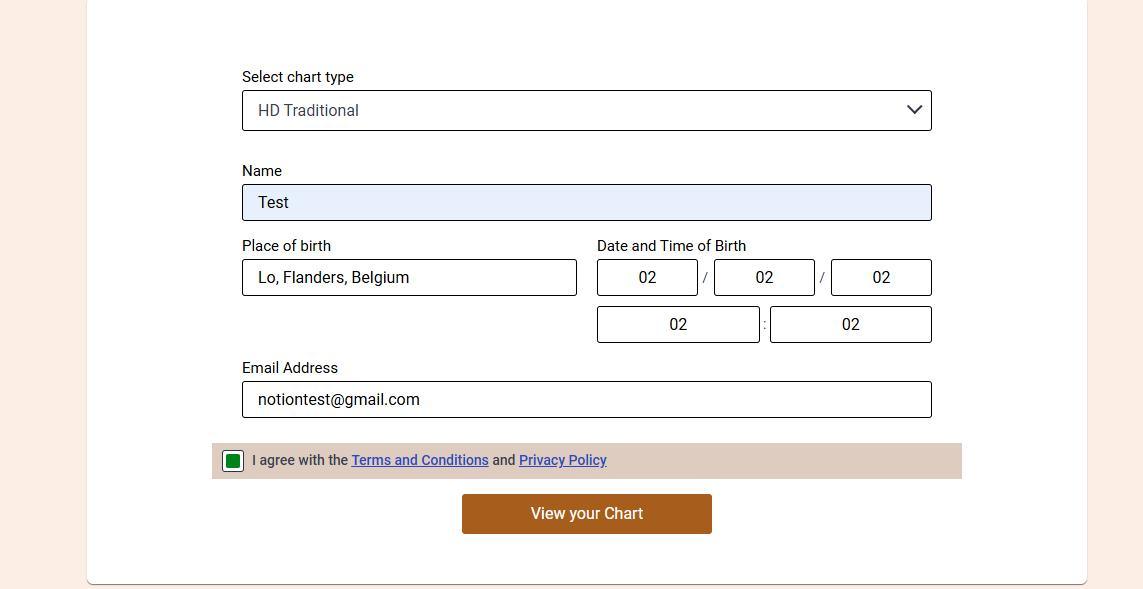
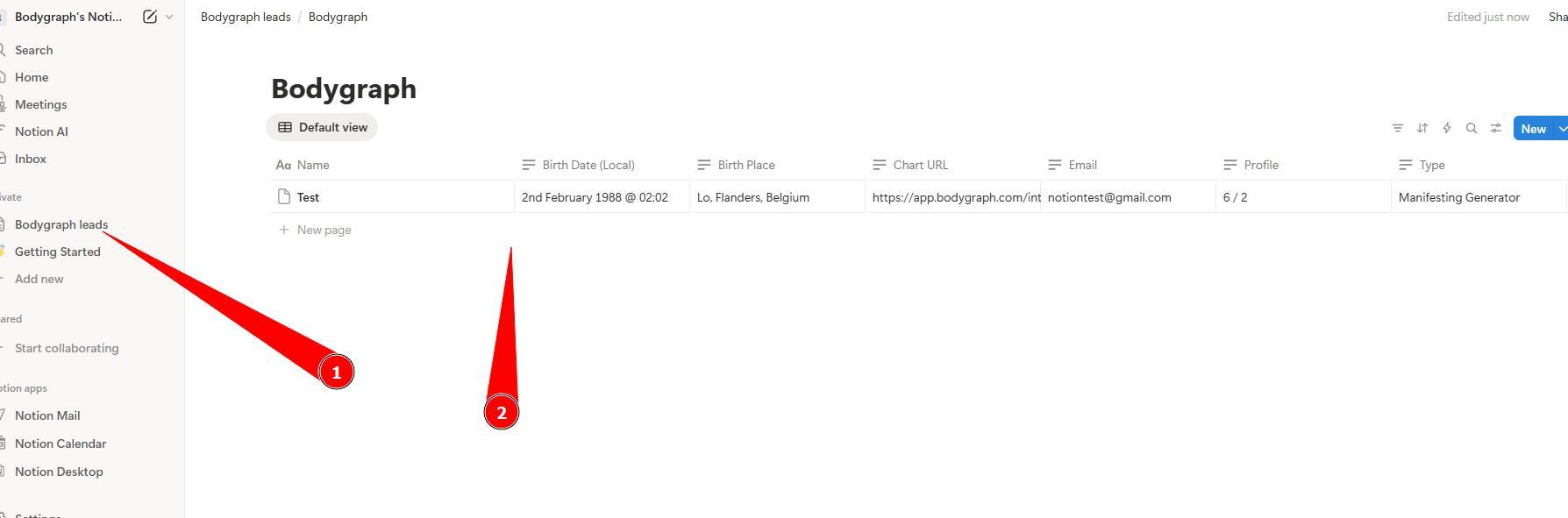
14.Now it is time to run the chart at embed code preview or your website where chart is integrated and see if contact with data arrives to Notion.
Here is a step by step video guide:
Still have questions? Please message us on Live Chat or send an email to support@bodygraph.com.