
The Generate Charts tool lets you open a saved chart and access the reports available for that person.
This is especially useful if you are on the Personal plan, where you can use the pre-made reports available through Generate Charts without needing access to the Reading Report Tool.
1. Open Generate Charts
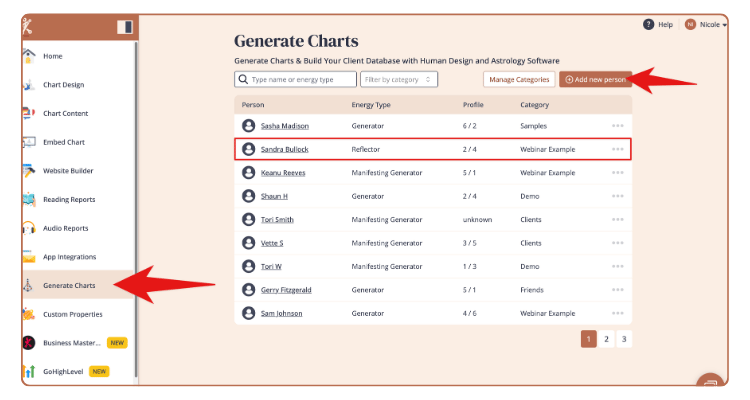
From your Bodygraph dashboard, go to Generate Charts.
Choose an existing person from your list, or add a new person and enter their birth details.
Once the profile is created, open their chart.
2. Click Reports
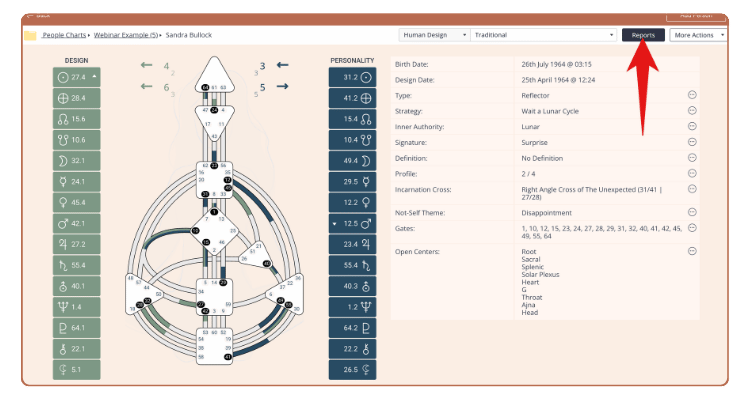
With the person’s chart open, click the Reports button.
This opens the reports currently available for that chart and your subscription.
3. Choose a Report
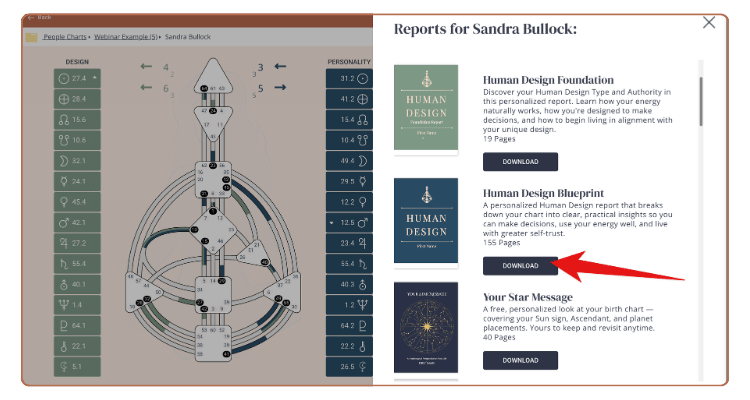
Browse the available reports and select the one you would like to generate.
The report will automatically use the birth information from the profile you currently have open, so the downloaded report is personalized for that person.
4. Download the Report
Find the report you would like and click Download Now.
Bodygraph will generate the personalized report, which you can then save to your device.
If You Are on the Personal Plan or Startup Plan
The Personal plan gives you access to the pre-made reports available through the Generate Charts tool.
This does not give you access to the Reading Report Tool. You are using the reports already available inside Generate Charts rather than creating or editing your own reports. (Reports will be different that what is in the images in this article)
If You Are on the Business Plan
If you are on the Business plan, any Reading Reports you have created inside the Reading Report Tool will also be available from the Reports section inside Generate Charts.
This gives you a quick way to generate and download one of your own personalized reports for a saved person without needing that person to generate their chart through an embed code.
When Generate Charts Can Be Helpful
Generate Charts can be useful when you:
- want to explore your own Human Design or Astrology
- are learning and practicing with charts
- want to manually generate a report for a client
- want to provide a report alongside a one-to-one reading
- are on the Business plan and want to generate one of your own Reading Reports for a saved person
You can return to the saved person’s profile anytime to view their chart again or access the reports available for them.
Still have questions, or does this guide look different from what you see in your account? Message us through Live Chat inside Bodygraph or email support@bodygraph.com.