
Create a Klaviyo account.
Set up App connection
1. Login to your Bodygraph.com account and open App Integrations section.
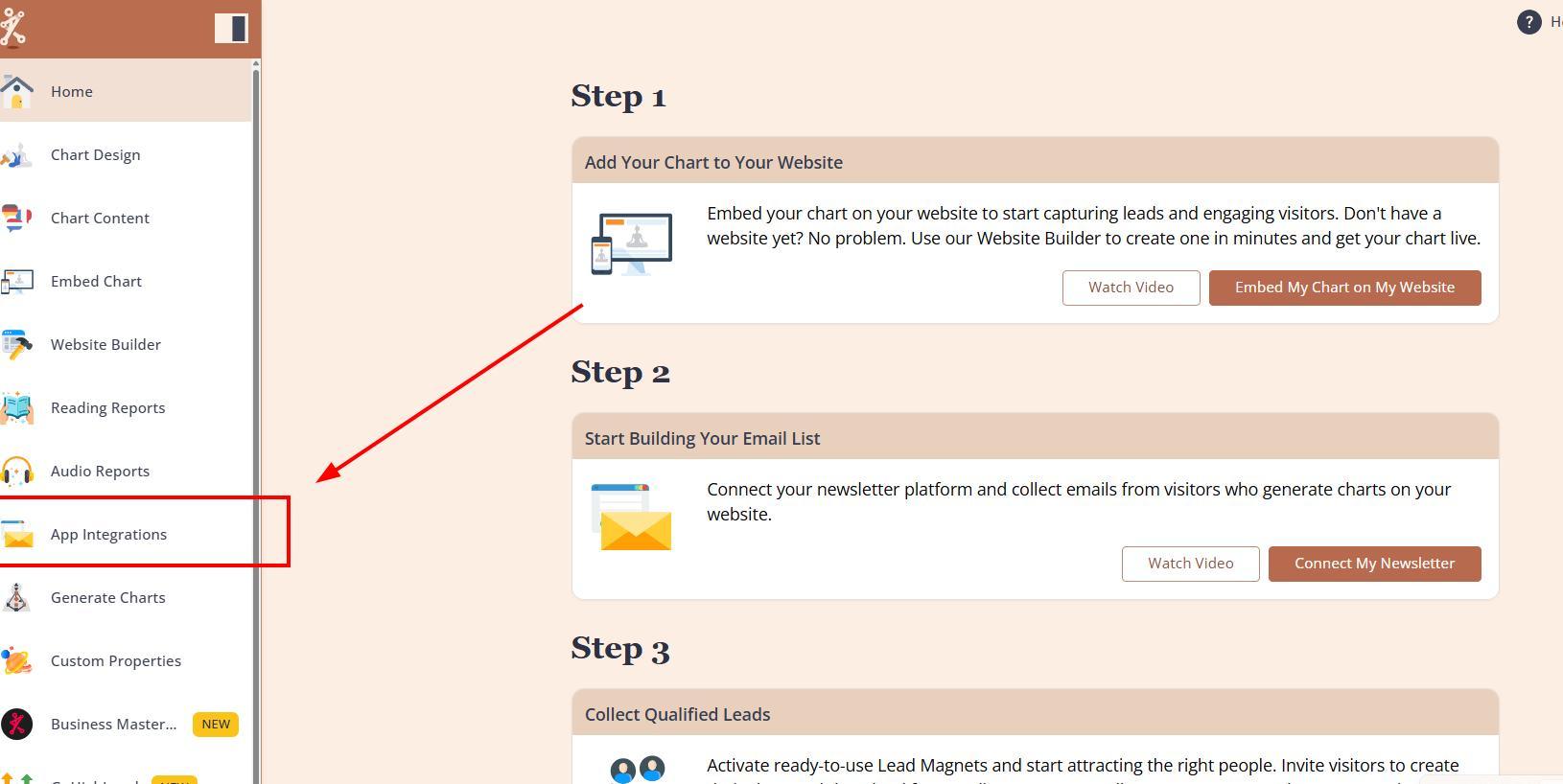
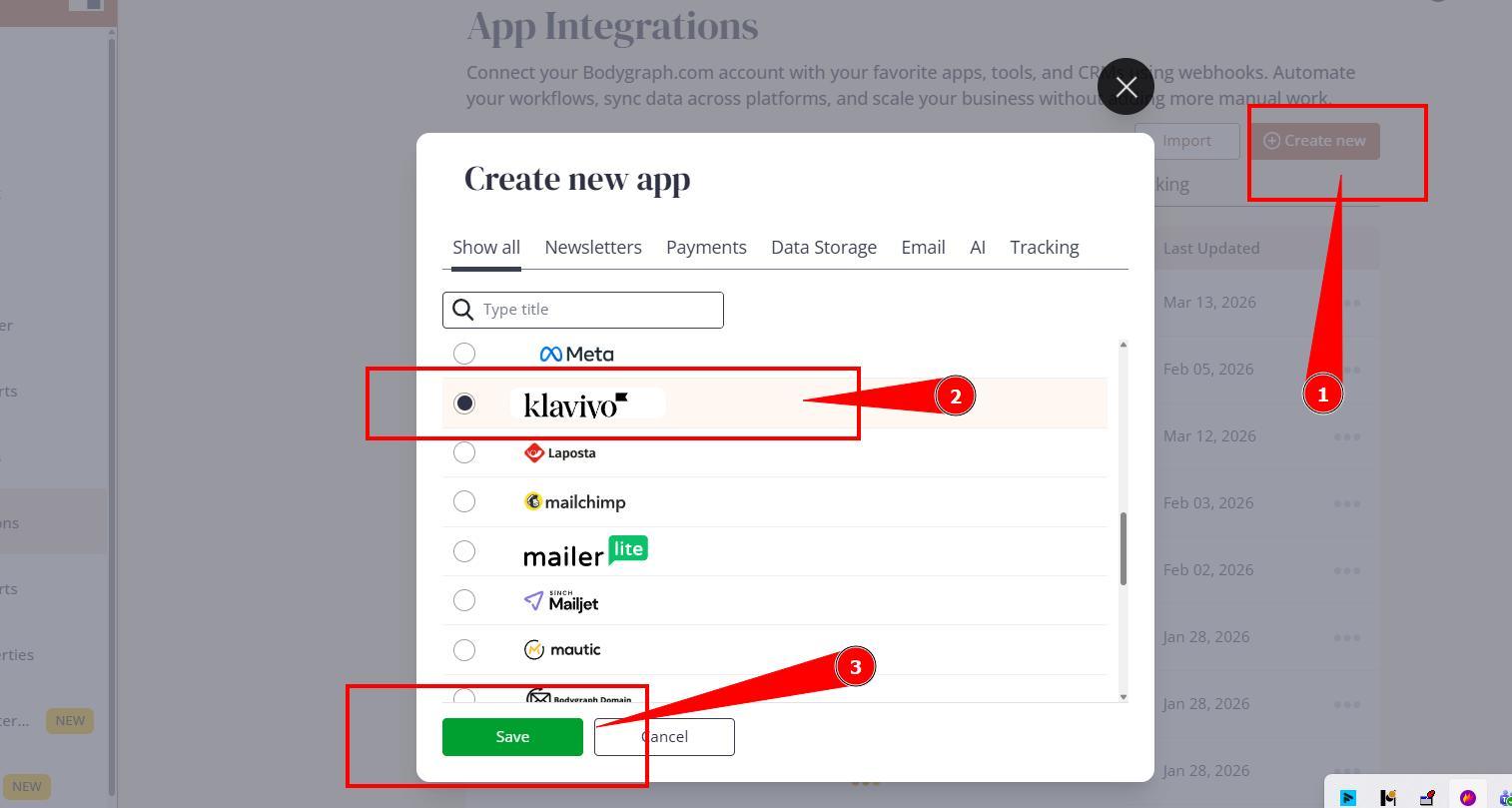
2. Press ‘Create new’ button and select Klaviyo app from the following options, then click ‘Save’.
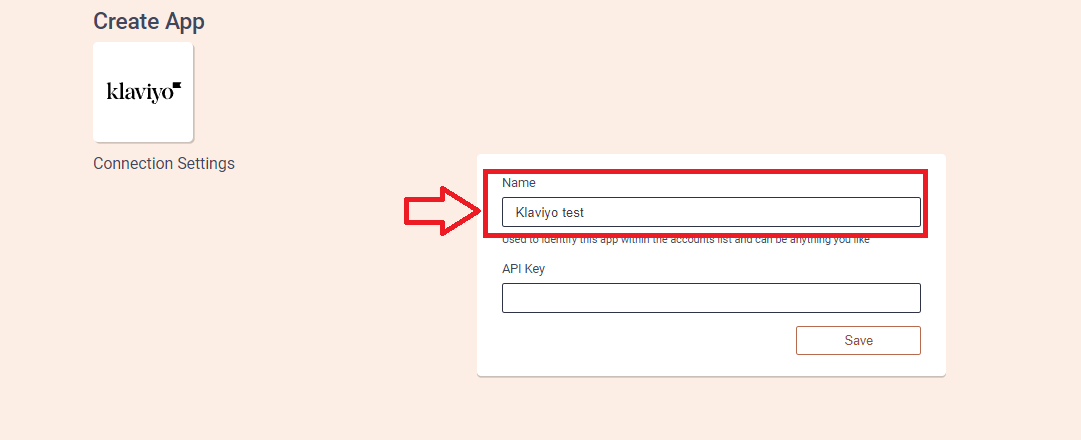
3. Add the Name (it can be anything you like) and head to the new tab to get to your Klaviyo account and collect API Key.
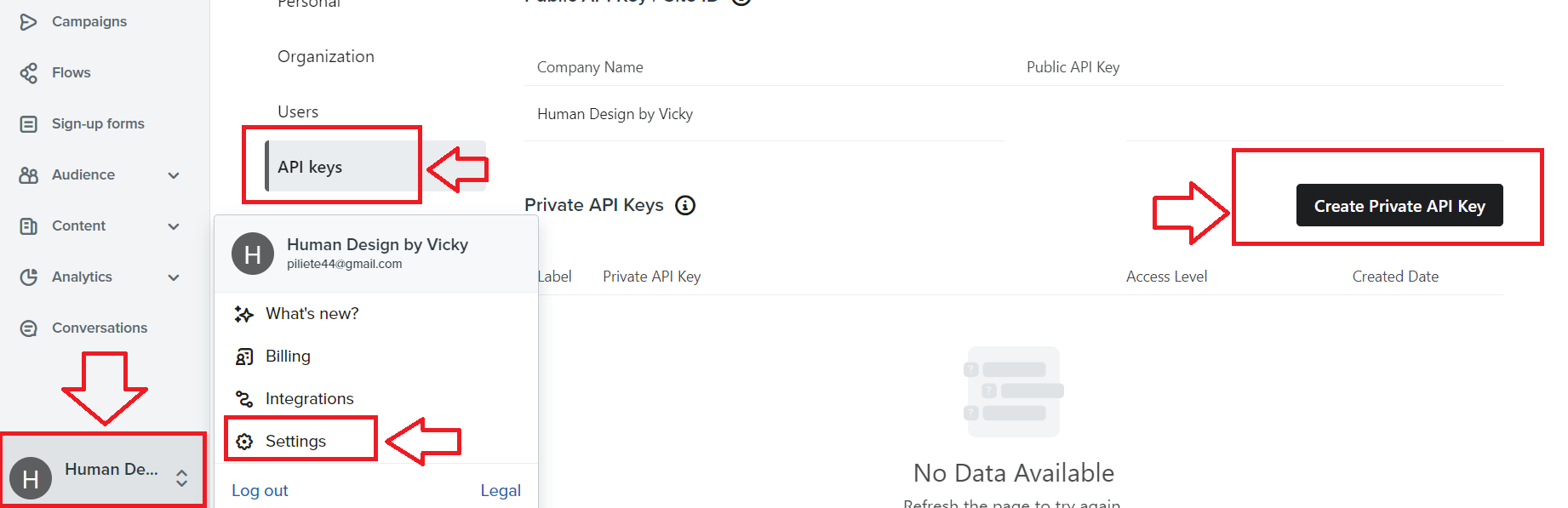
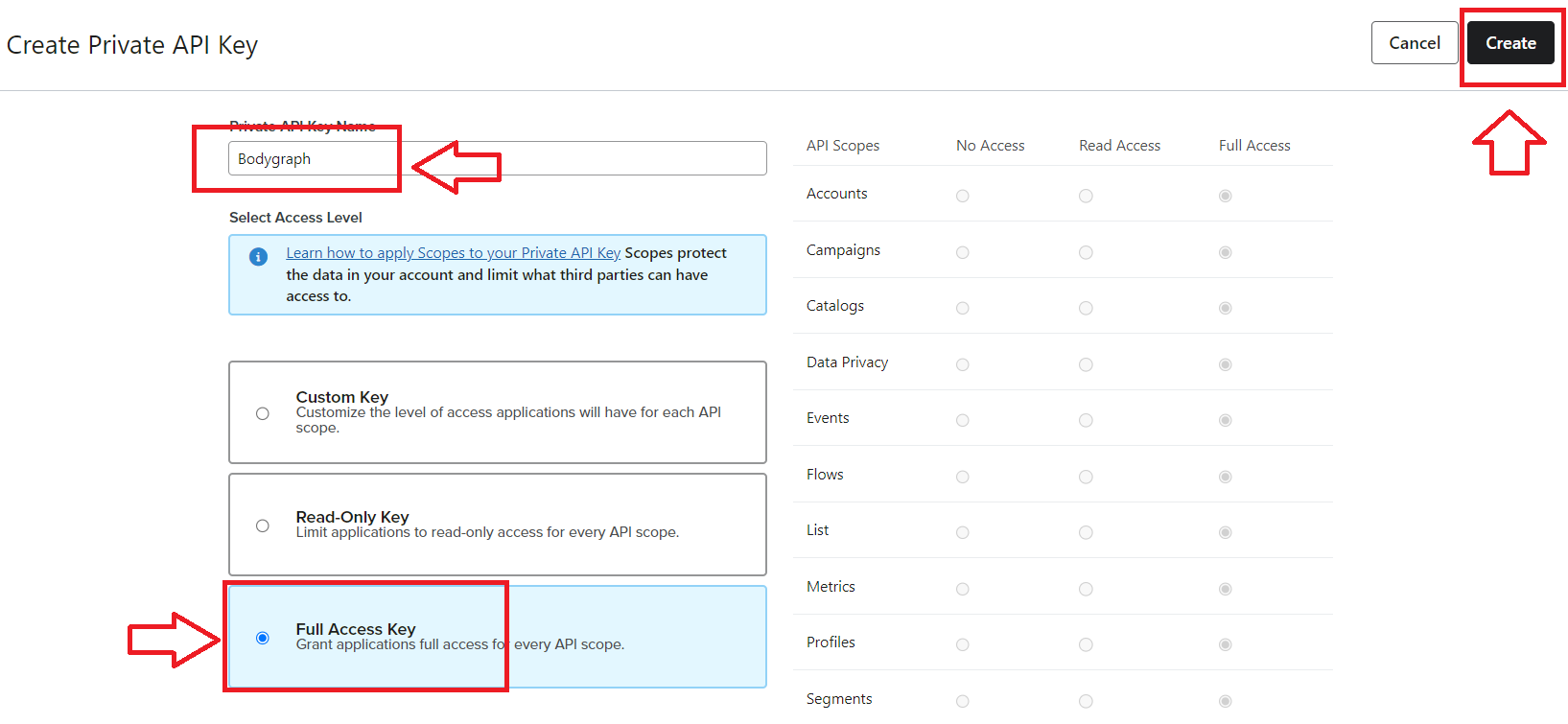
4. On the new tab open your Klaviyo dashboard and then click on your profile icon at the bottom left corner, then select ‘Settings’, click on ‘API Keys’ and then ‘Create private API Key’.
5. Give the API Key name and select ‘Full access key’, then click ‘Create’. Once Key generated, copy it and go back to the previous tab where you left Bodygraph.com app set up open.
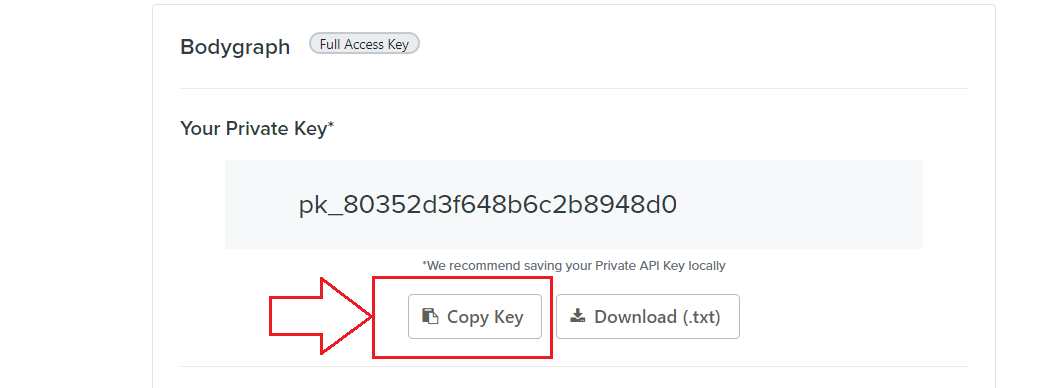
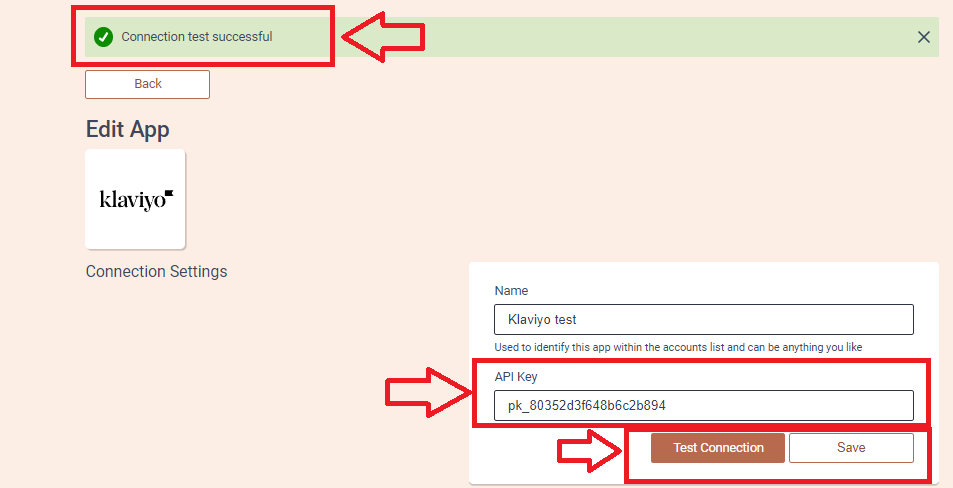
6. Paste the API Key and click ‘Save’ button. Then press ‘Test Connection’ button and see if the green indicator says ‘Connection test successful’.
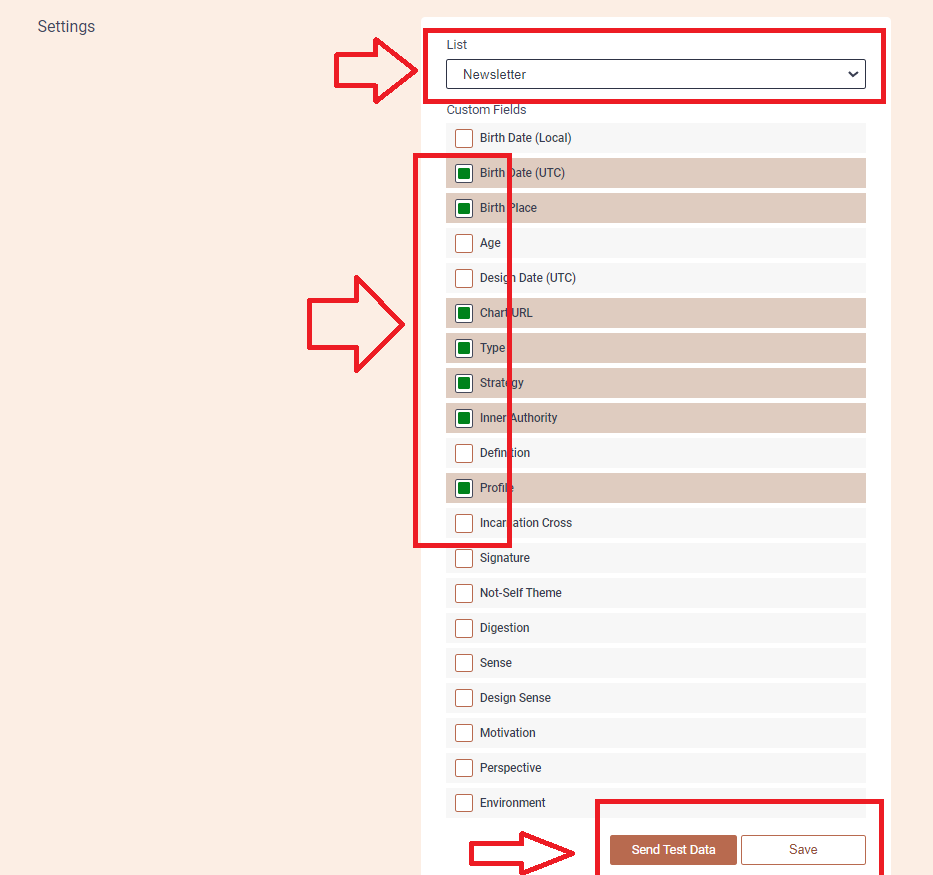
7. Then select the list (you can create new dedicated list at your Klaviyo account or select from available ones) and custom fields that you want to be collected and sent over to Klaviyo account. Then click ‘Save’ and ‘Send test data’.
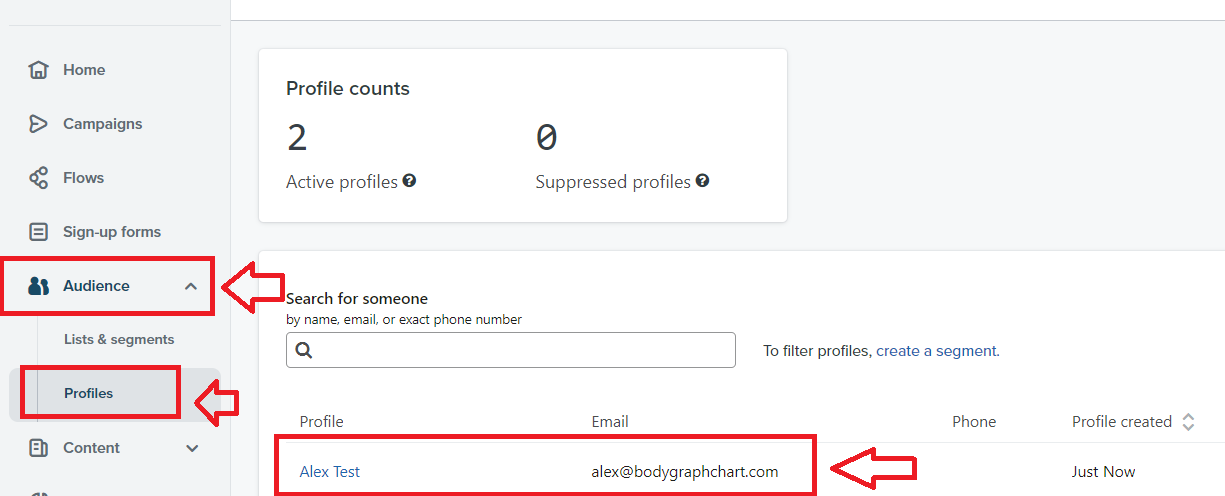
8. Go back to your Klaviyo dashboard and select ‘Audience’ from the menu on the left. Then select ‘Profiles’ and it will open the list of subscribers where you will be able to find test data sent from Alex account.
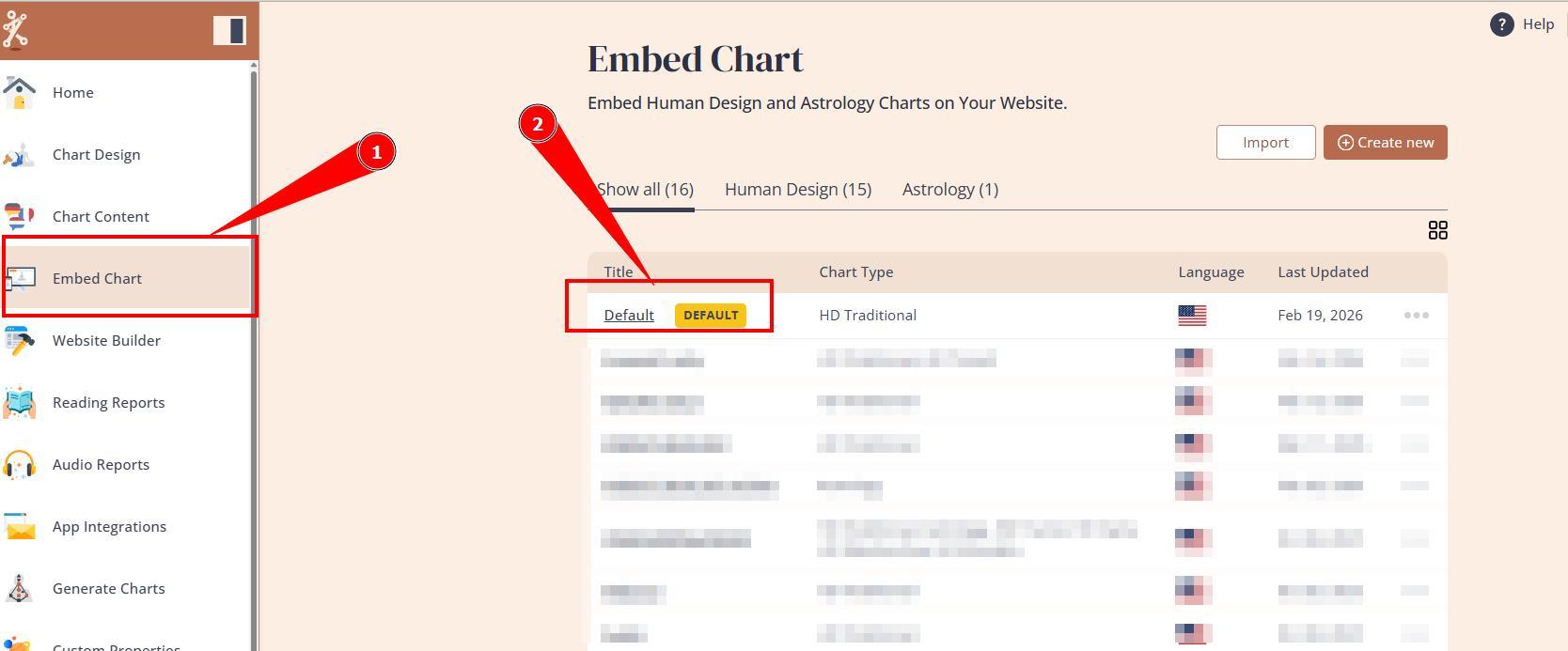
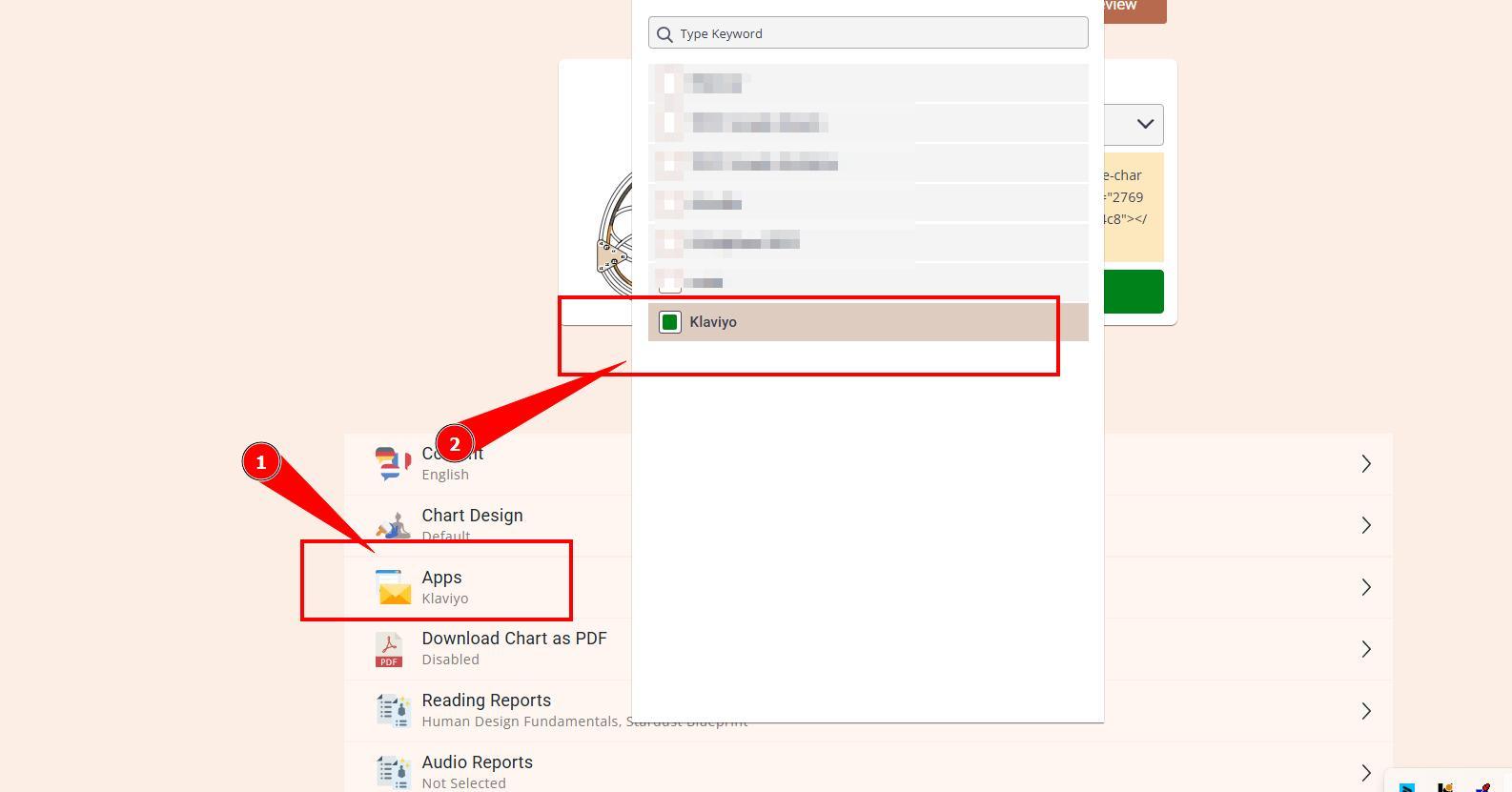
9. Go back to Bodygraph.com account, then to Embed chart, select the embed code that you are using/will use on your website and enable Klaviyo app.
10. Final step is to test if the connection works successfully. Go to your website or Preview mode and submit the form to generate chart. Then go back to Klaviyo profiles dashboard (refresh the page) to see if the data was collected successfully. All done!
IMPORTANT: ensure that your submission form has email field enabled, otherwise app will be unable to collect data.
Still have questions? Please message us on Live Chat or send an email to support@bodygraph.com.